
TL;DR
You can enable or disable Copilot in Windows 11 either through Settings or through Group Policy Editor.
- Settings: Personalization > Taskbar, then toggle the Copilot slider on or off
- Group Policy Editor: User Configuration > Administrative Templates > Windows Components > Windows Copilot, then enable “Turn off Windows Copilot” to block it
- GPO is the better option for restricting Copilot across multiple managed machines
- If Copilot is missing, check Windows Update first
With Copilot, Microsoft has changed the way we use Microsoft products. Copilot is AI technology that assists users to easily take action and get things done. Windows 11 is the first PC platform that provides centralized AI for customers.
If you have questions, you can ask Copilot.
If you want to play with the content, make it shorter, or longer, or summarize it, you can ask Copilot.
If you want to create images based on the text description, you can ask Copilot to do it.
It’s just amazing what you can do with it.
Copilot is included in the Windows 11 September 2023 update. However, as a user, you can always enable or disable it.
This blog article outlines the steps you need to take to disable or enable it on your Windows 11 machine.
Enable or disable Copilot using Settings
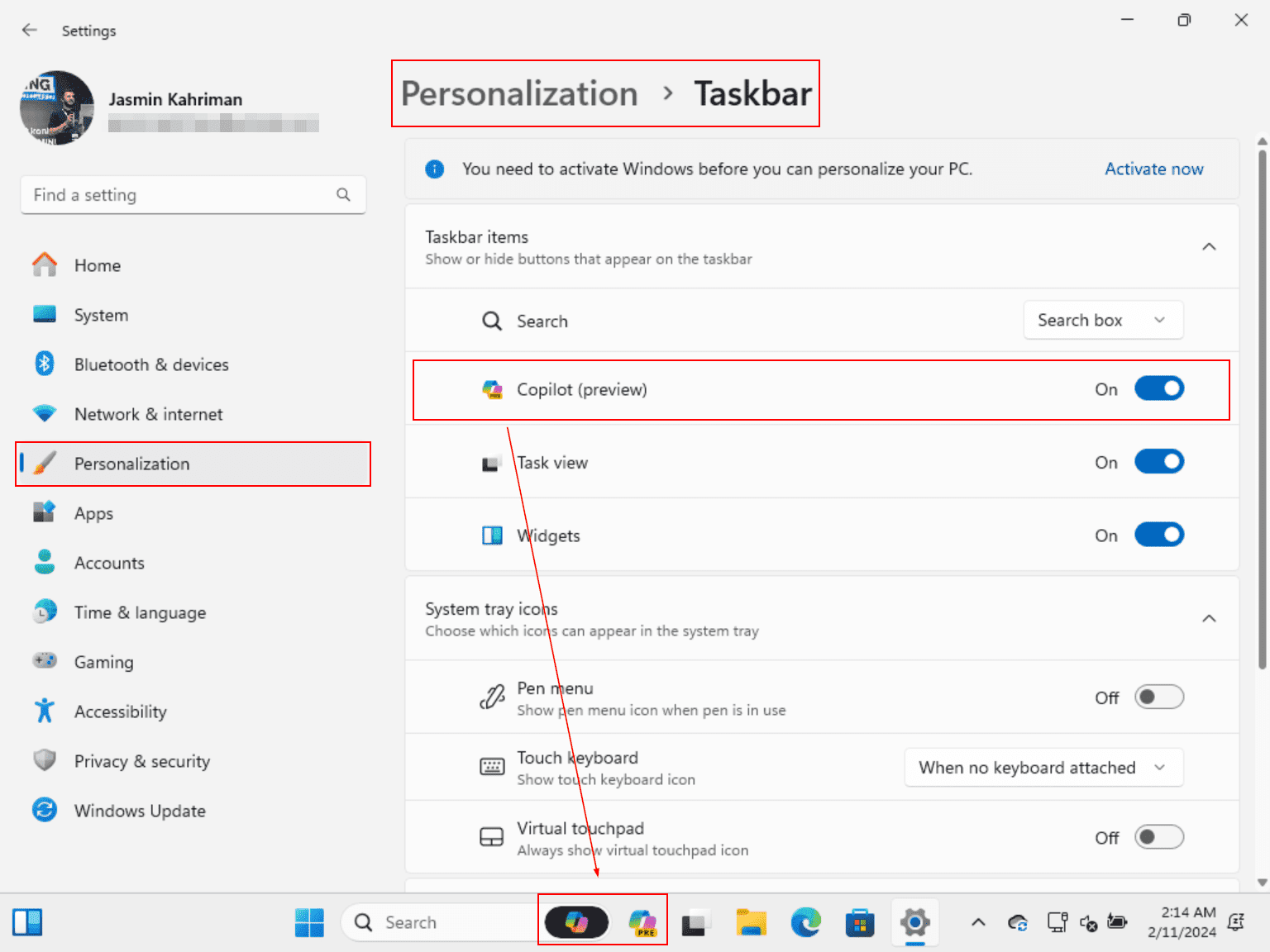
You can enable or disable Windows Copilot by navigating to Settings and then simply dragging the slider to ‘On’ or Off. Let me show you how easy it is to do.
- Open Settings
- Go to Personalization > Taskbar
- Drag the slider to enable Copilot (Preview). Once enabled, the Copilot icon will appear in the Taskbar
Enable or disable Copilot using Group Policy Editor
Another method to enable or disable Copilot is through the Group Policy Editor. Additionally, you can utilize Group Policy Objects (GPO) to restrict users from using Copilot on your machine.
Here’s how to enable or disable Copilot using GPO.
- Open the Search bar and type “Group Policy Editor.”
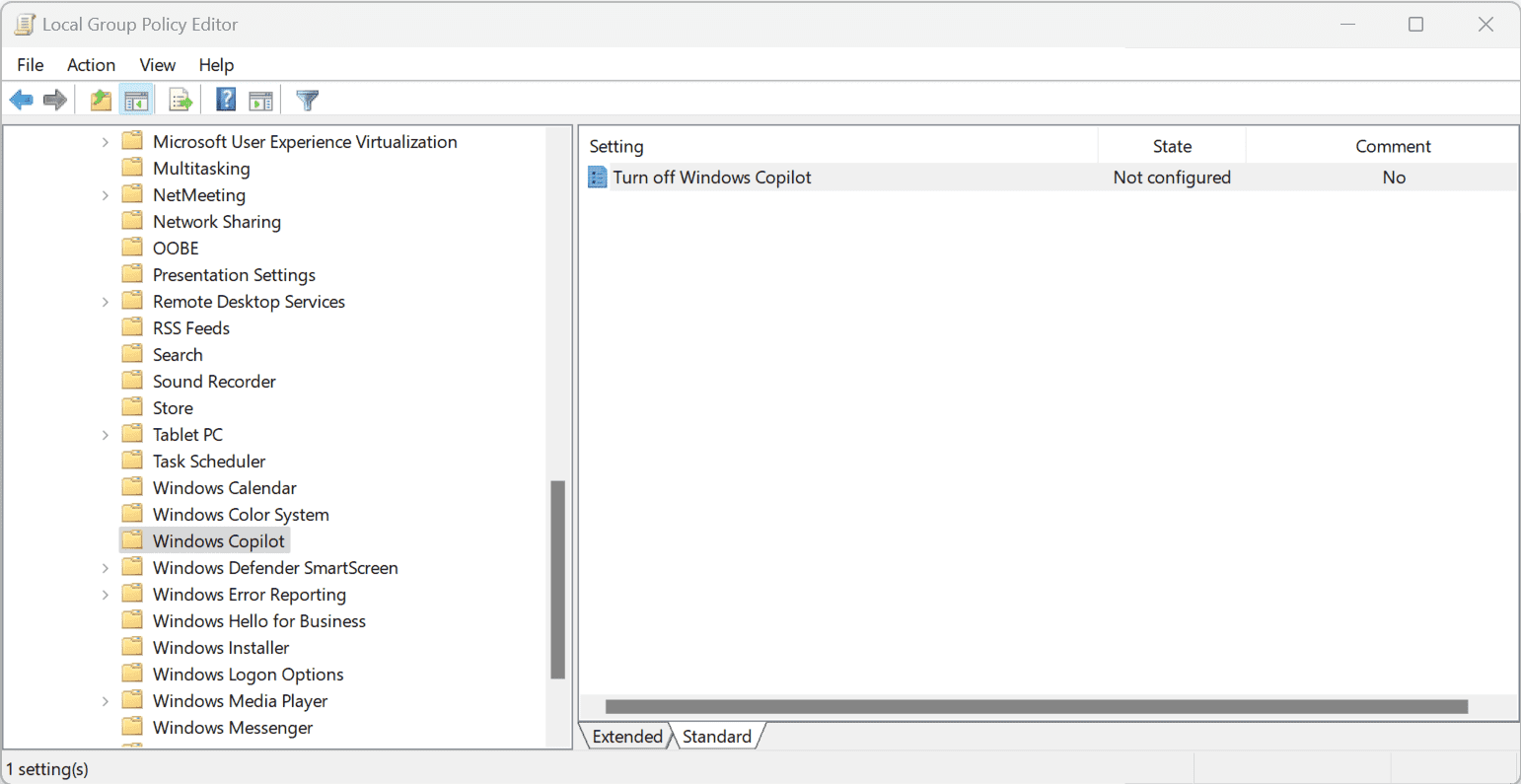
- Navigate to User Configuration > Administrative Templates > Windows Components > Windows Copilot
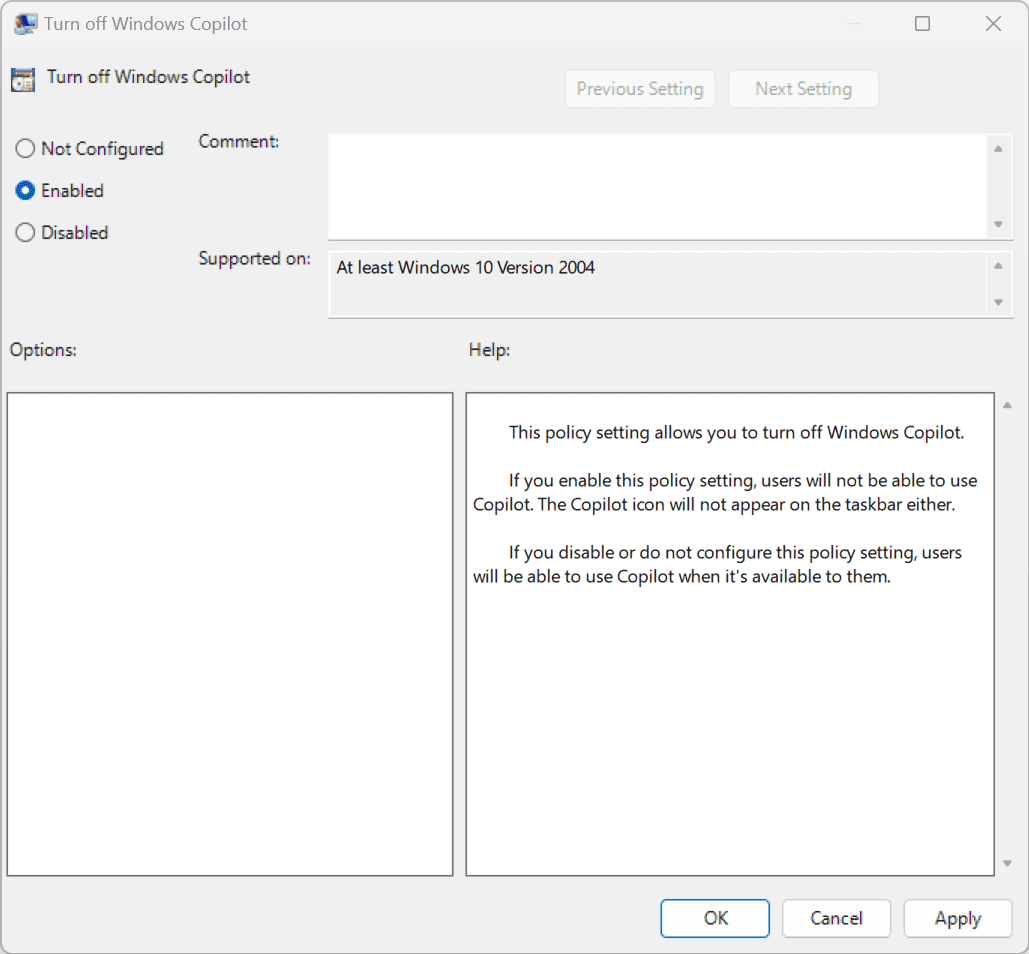
- Right-click on the group policy “Turn off Windows Copilot” and select Edit
- Click on Enable to deactivate Windows Copilot. Enabling this policy setting restricts users from using Copilot. Consequently, the Copilot icon will not appear on the taskbar. If you disable or leave this policy setting unconfigured, users will retain access to Copilot whenever it’s available to them
- Click Apply and then OK
Why Can’t I Find Windows Copilot on My Windows 11?
Windows Copilot is included in the Windows 11 September 2023 update. Firstly, be sure to navigate to Windows Update and install the latest available updates.
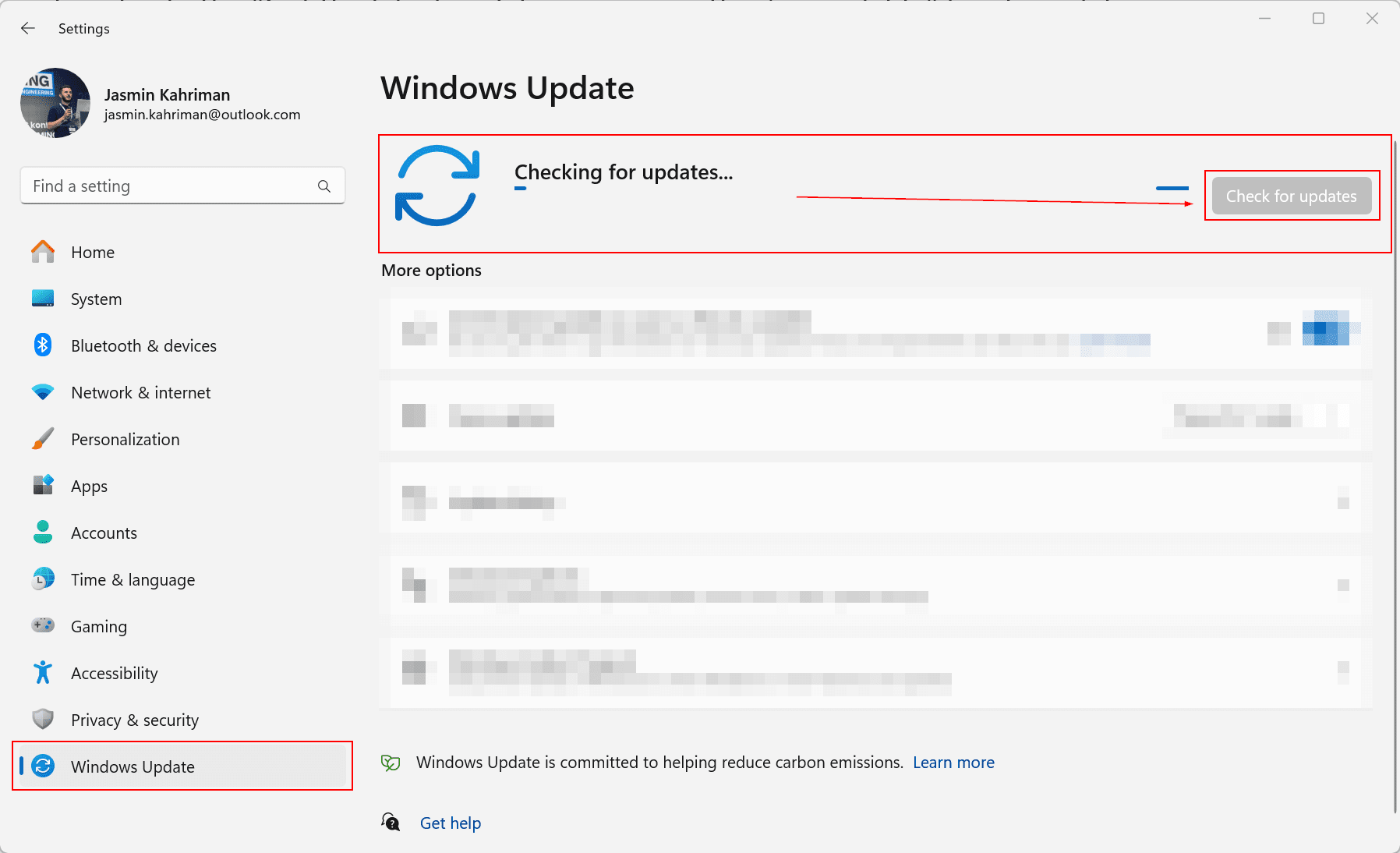
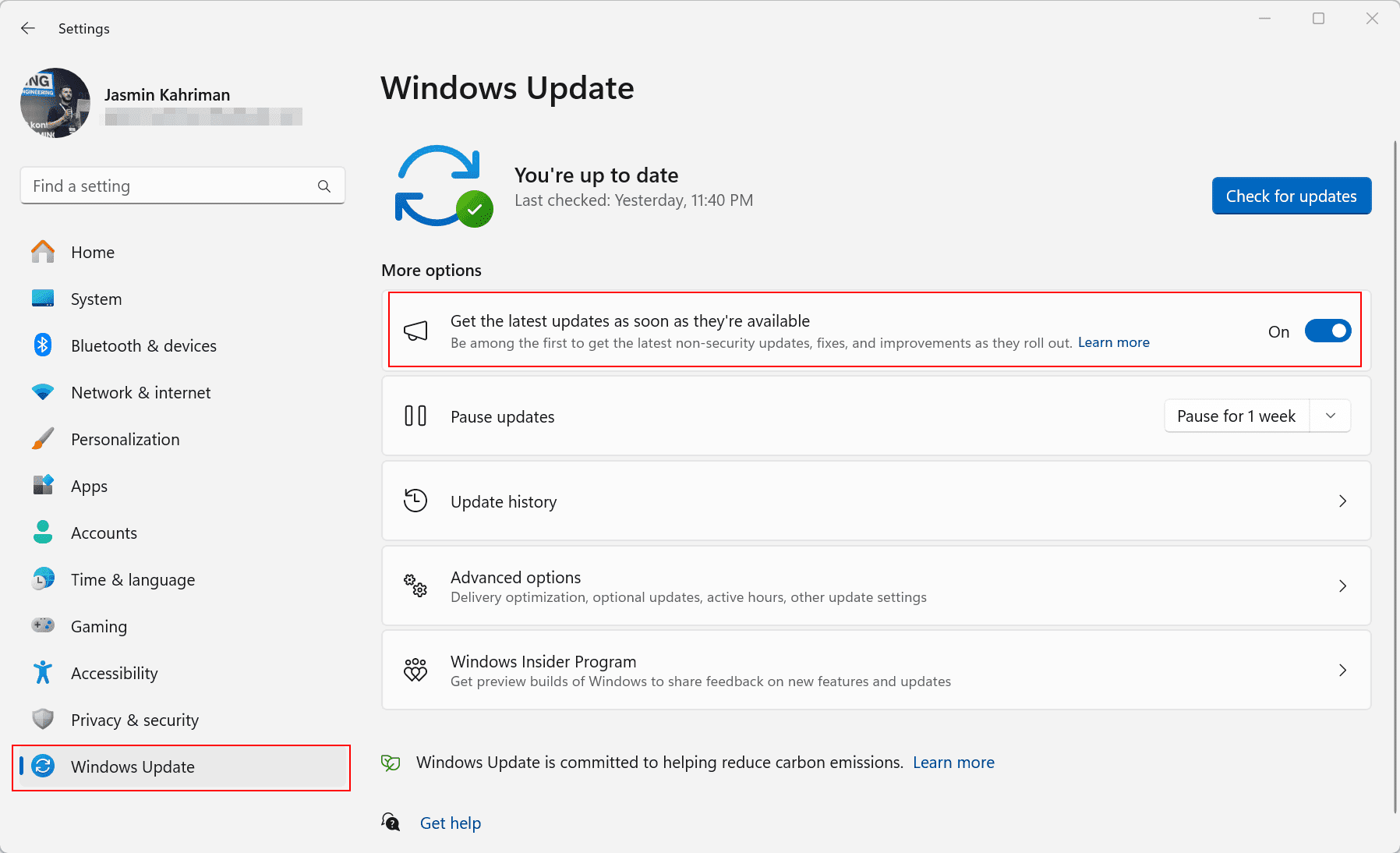
Based on your geographical location and your PC’s position in Microsoft’s update queue, you might need to activate the “Get the latest updates as soon as they’re available” toggle switch.
Here is how to do it.
- Open Settings
- Navigate to Windows Update
- Enable “Get the latest updates as soon as they’re available” by dragging the slider
Alternatively, if you want to test Copilot without installing it on your production Windows machine, you can download the Windows 11 Insider Preview Build and test it from there. Check out this article on how to create a new virtual machine on a Hyper-V Server.
Backup your Windows 11 using BDRShield
Your critical Windows 11 machines deserve proper protection. With BDRShield, you can back up your Windows machines to onsite or offsite storage in just a few clicks.
What is BDRShield?
BDRShield is an advanced backup solution with a full feature set and functionality to back up your physical machines or virtual machines hosted on Hyper-V and VMware, as well as your Azure and AWS virtual machines.
Practically, wherever your Windows 11 machine is located, you can back it up.
BDRShield offers a free version that allows you to back up up to 10 Windows machines for free.
It’s amazing what you can do with this tool.
Related articles:
- How to install BDRShield on Windows and Windows Server – Tech with Jasmin
- Windows Backup using BDRShield: Step-by-step configuration – Tech with Jasmin
FAQ
How do I turn off Copilot in Windows 11?
Go to Settings > Personalization > Taskbar, then turn the Copilot toggle Off. This hides the Copilot icon from the taskbar on that Windows 11 device.
How do I turn on Copilot in Windows 11?
Go to Settings, then Personalization, then Taskbar, and drag the Copilot slider to On. The Copilot icon then appears in the taskbar.
How do I disable Copilot using Group Policy?
Open Group Policy Editor, navigate to User Configuration, Administrative Templates, Windows Components, Windows Copilot, then right-click “Turn off Windows Copilot,” select Edit, and choose Enable. Click Apply and OK.
Can I block Copilot for all users on a machine with GPO?
Yes. Enable the Turn off Windows Copilot policy and apply it to all user accounts on the machine. Users to whom the policy applies won’t be able to access the integrated Windows Copilot experience, and the Copilot icon won’t appear on the taskbar.
Why is Copilot missing from my Windows 11 taskbar?
Copilot is available only on supported versions of Windows 11. If it isn’t appearing on the taskbar, check Windows Update and install any available updates. If you’re using a work or school device, your organization may also have disabled Copilot through Group Policy or other management settings.
How do I get Windows updates faster if Copilot hasn’t shown up?
In Settings, go to Windows Update and enable “Get the latest updates as soon as they’re available.” Availability also depends on your geographic location and where your PC sits in Microsoft’s rollout queue.
Can I test Copilot without installing it on my production machine?
Yes. Download the Windows 11 Insider Preview Build and test Copilot there, for example inside a virtual machine on a Hyper-V server.
Which method should I use to disable Copilot, Settings or GPO?
Use Settings for a single personal machine. Use Group Policy Editor when you need to restrict Copilot consistently across multiple managed or business machines.
Conclusion
In summary, Copilot is a cool feature in Windows 11 that helps you a lot. You can ask it questions, change stuff easily, and even make images based on text.
This article showed you two easy ways to do that: through the Settings menu or the Group Policy Editor.
It came with the September 2023 update, but you can turn it on or off whenever you want. Be sure your Windows 11 is up to date.
Furthermore, for those who wish to test Copilot without installing it on their production machines, downloading the Windows 11 Insider Preview Build is an option, with guidance on setting up a new virtual machine on your Hyper-V client or server machine.
Lastly, for comprehensive Windows 11 backup solutions, BDRShield offers a feature-rich option for protecting critical data, with a free version available for backing up to 10 Windows machines.
Follow our Twitter and Facebook feeds for new releases, updates, insightful posts and more.

