
What is RDS?
Amazon Relational Database Service (Amazon RDS) is a web service that makes it easier to set up, operate, and scale a relational database in the AWS Cloud. It provides cost-efficient, re-sizable capacity for an industry-standard relational database and manages common database administration tasks.
AWS takes care of many of the difficult and tedious management tasks of relational database.
Amazon RDS is a managed database service. It’s responsible for most management tasks. By eliminating tedious manual tasks, Amazon RDS frees you to focus on your application and your users.
Benefits of RDS
- Use database products like MariaDB, MySQL, PostgreSQL, MSSQL, Oracle
- RDS manages backups, software patching, automatic failure detection, and recovery
- You can turn on automated backups, or manually create your own backup snapshots. You can use these backups to restore a database
- You can get high availability with a primary instance and a synchronous secondary instance that you can fail over to when problems occur. You can also use read replicas to increase read scaling
Supported features of RDS
- Blue/Green Deployments: A blue/green deployment copies a production database environment in a separate, synchronized staging environment. By using Amazon RDS Blue/Green Deployments, you can make changes to the database in the staging environment without affecting the production environment
- Cross-region Automated backups: By using backup replication in Amazon RDS, you can configure your RDS DB instance to replicate snapshots and transaction logs to a destination Region
- Cross-region read replicas: By using cross-Region read replicas in Amazon RDS, you can create a MariaDB, MySQL, Oracle, PostgreSQL, or SQL Server read replica in a different Region from the source DB instance
- Dual stack mode: By using dual-stack mode in RDS, resources can communicate with a DB instance over Internet Protocol version 4 (IPv4), Internet Protocol version 6 (IPv6), or both
- Export snapshots to S3: You can export RDS DB snapshot data to an Amazon S3 bucket. You can export all types of DB snapshots—including manual snapshots, automated system snapshots, and snapshots created by AWS Backup
- Multi-AZ DB clusters: A Multi-AZ DB cluster deployment in Amazon RDS provides a high availability deployment mode of Amazon RDS with two readable standby DB instances
- Amazon RDS Proxy: Amazon RDS Proxy is a fully managed, highly available database proxy that makes applications more scalable by pooling and sharing established database connections
- IAM database authentication: By using IAM database authentication in Amazon RDS, you can authenticate without a password when you connect to a DB instance
Prerequisite
- A VPC with subnets in at least 2 availability zone
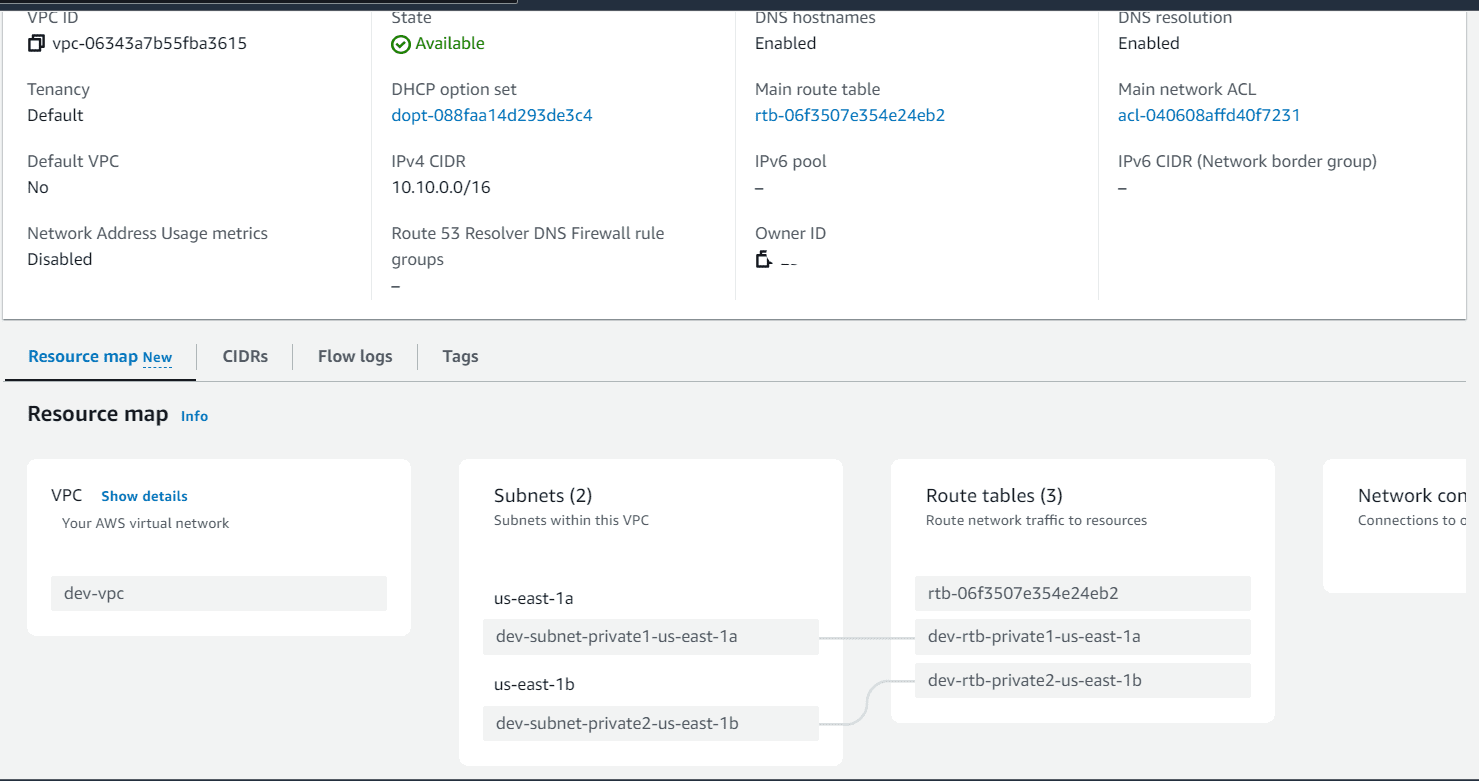
Steps to follow
- DB subnet Group
- DB Security group
- Create DB instance in the VPC
DB subnet group:
- Navigate to RDS, Click on subnet group from lefthand side navigation panel
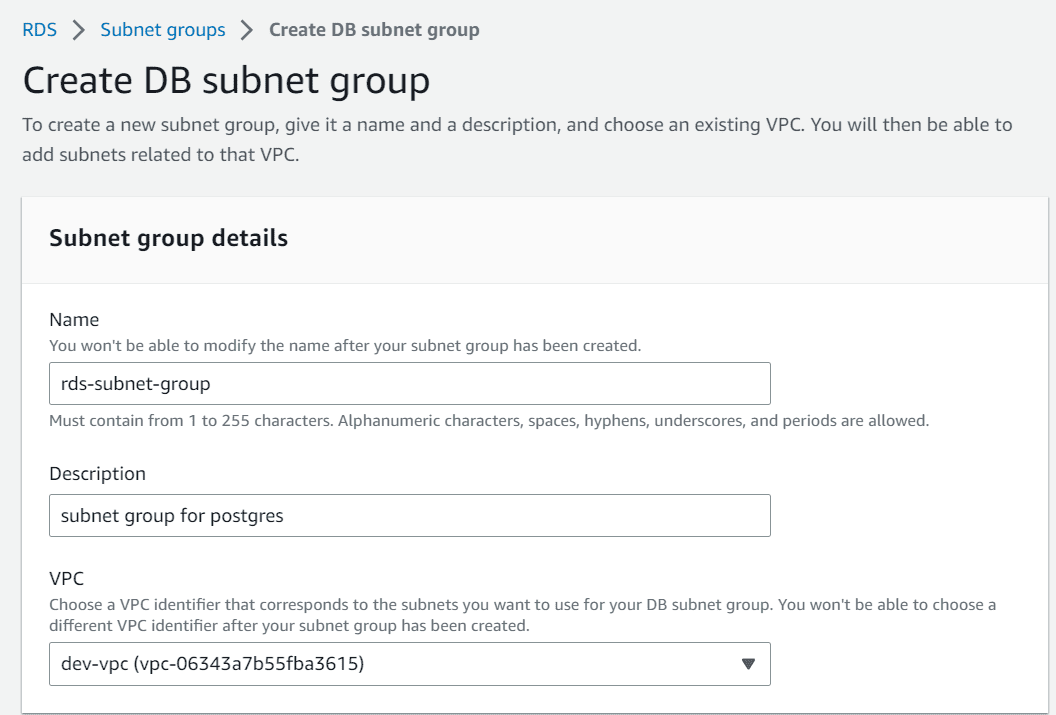
- Click on create DB subnet group, fill Name, description and choose the VPC from dropdown
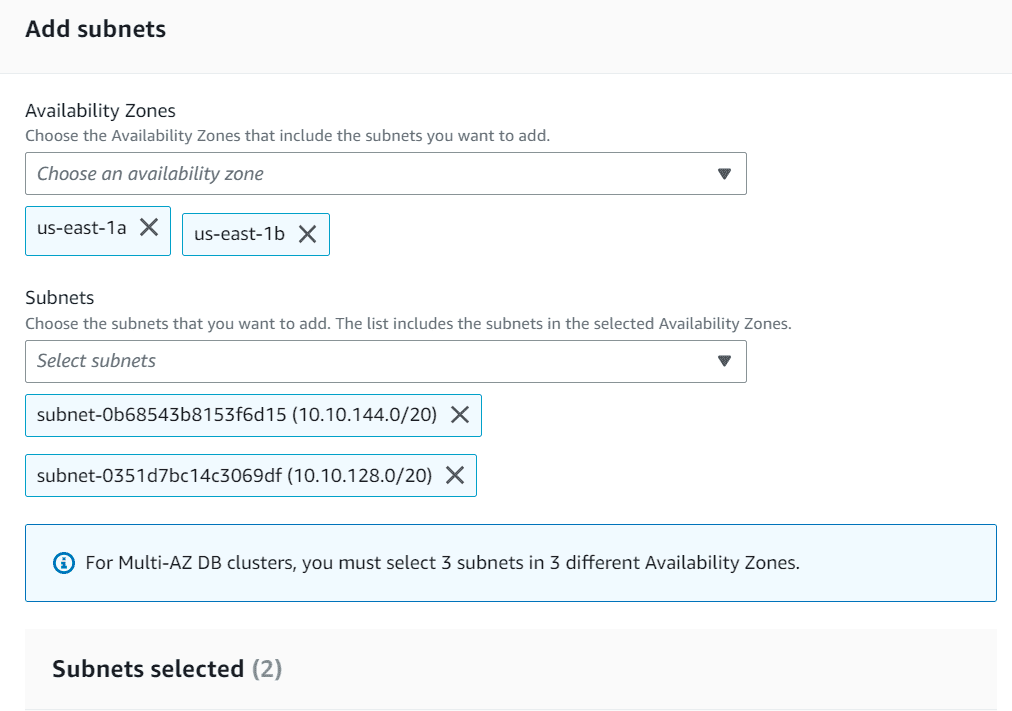
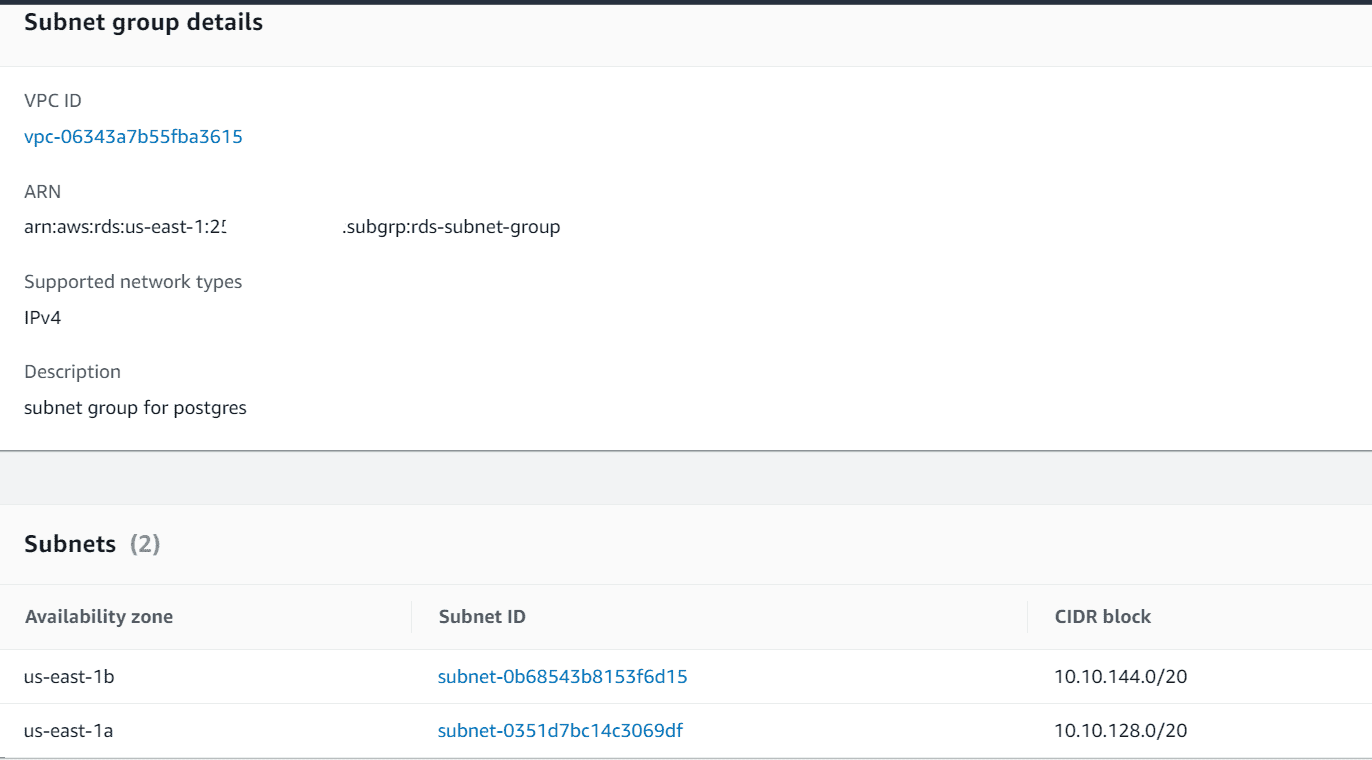
- Under App subnets, choose multiple Availability zones, select the subnets created earlier
- Click on create
DB security group
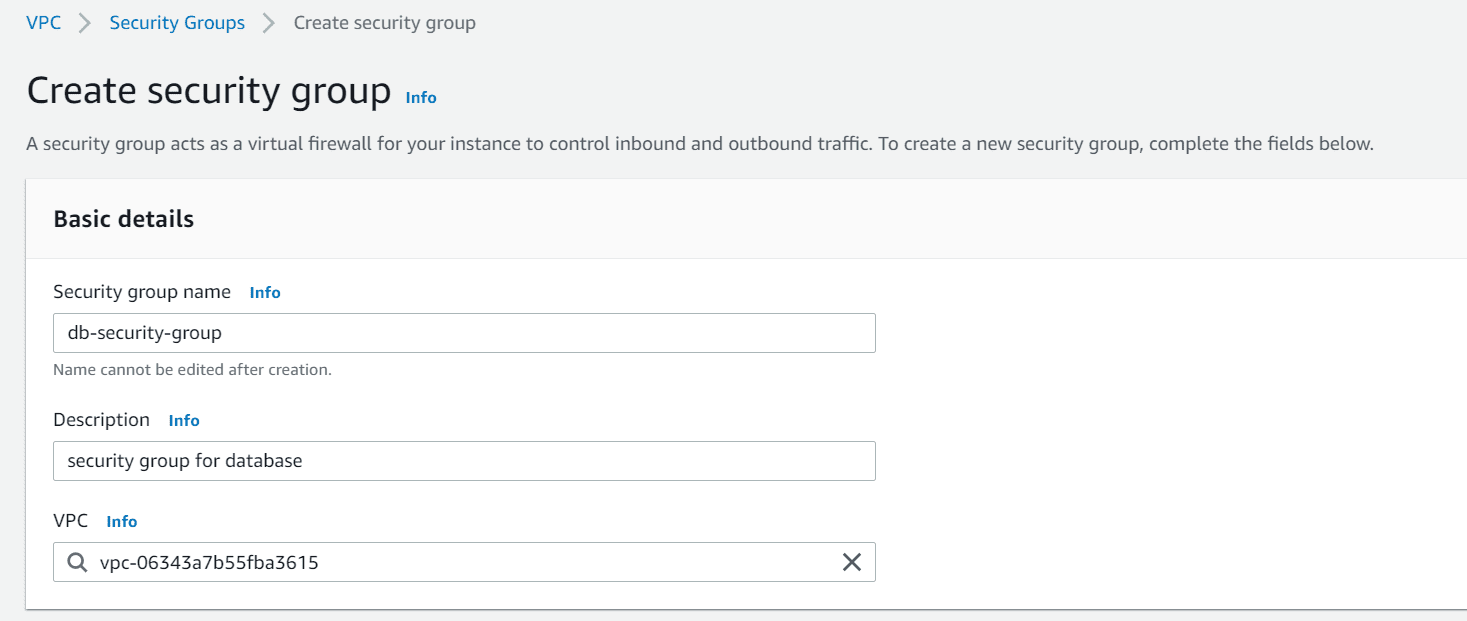
- Navigate to VPC section, click on security group from the left navigation panel. Click on create security group
- Provide the name, description, choose the VPC
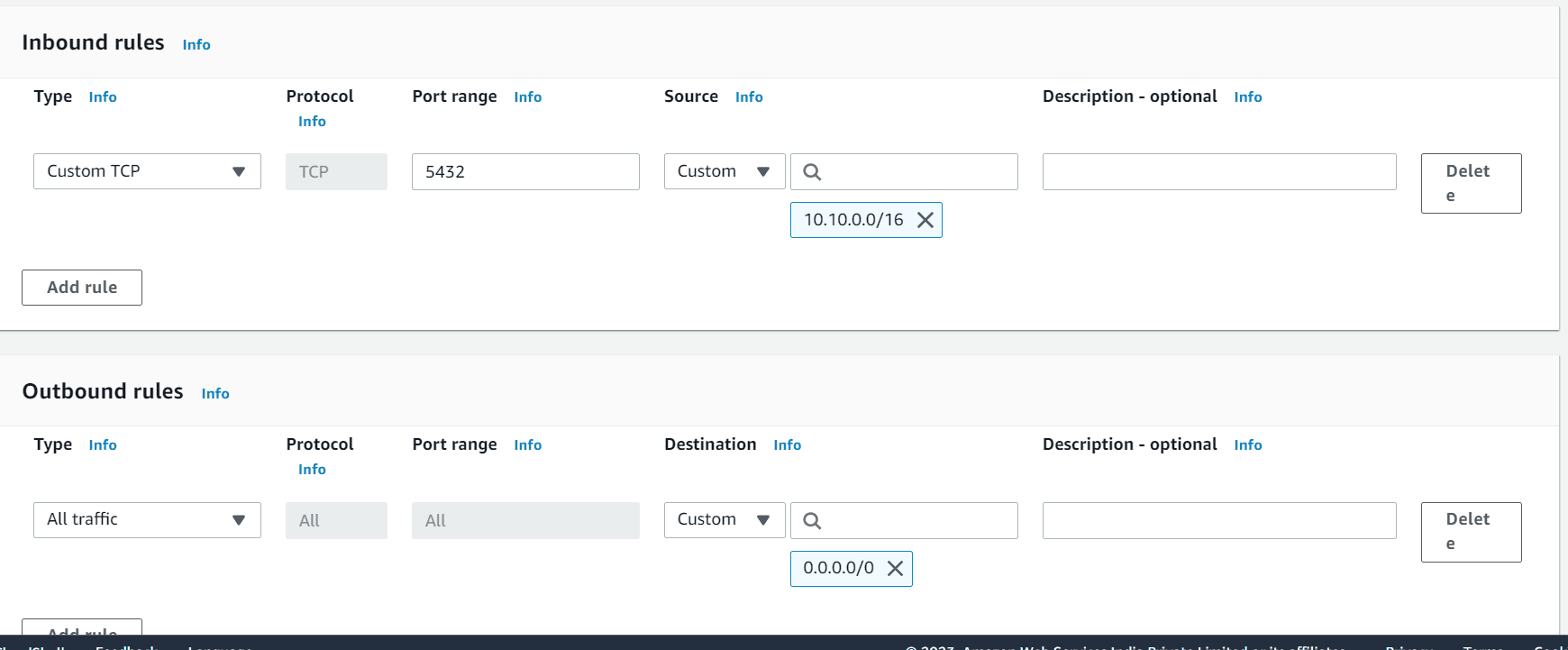
- Add an inbound rule with port 5432 for Postgresql from your VPC range
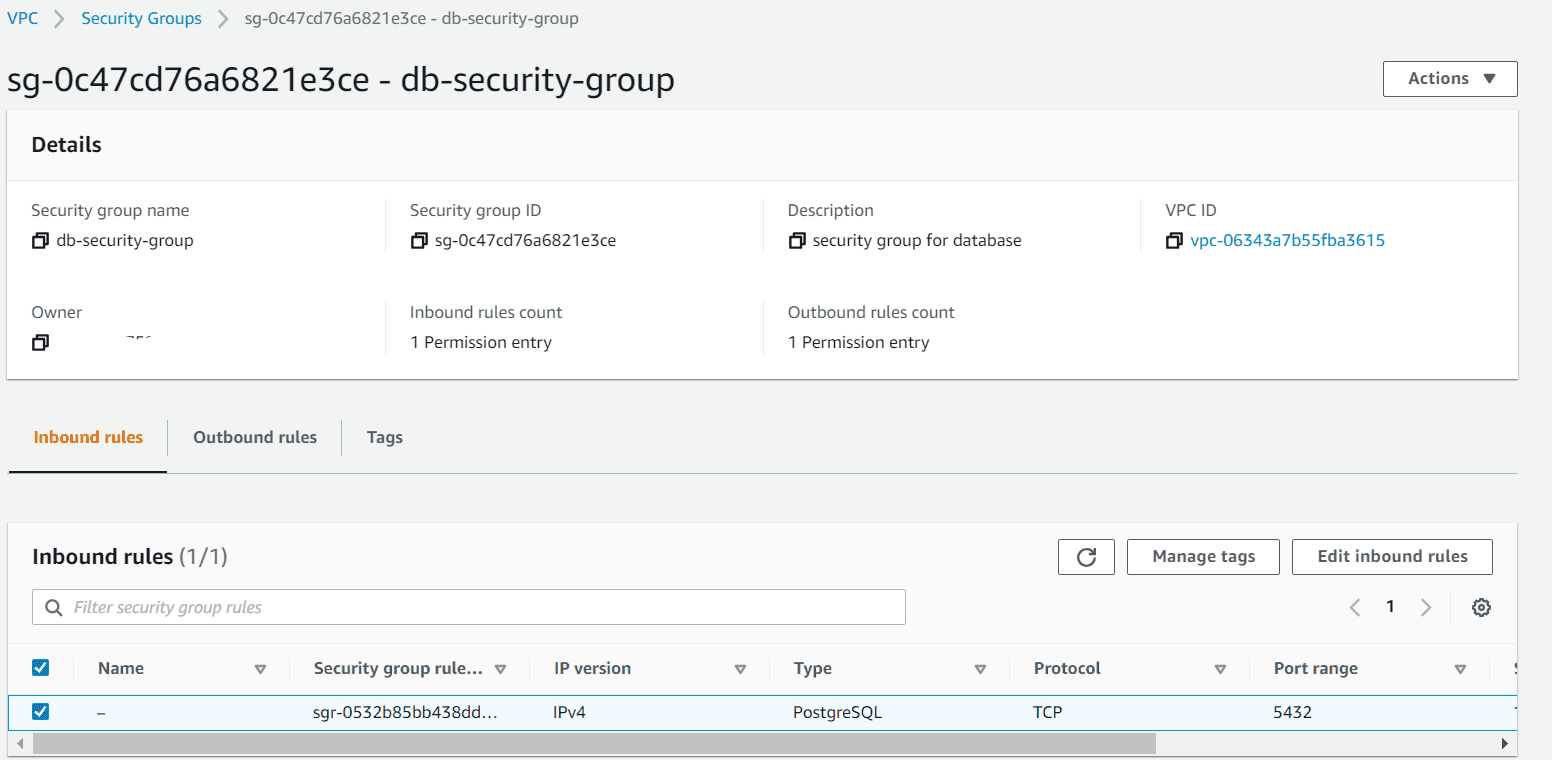
- Click on create security group
Create DB instance
- Navigate to RDS console, click on create database
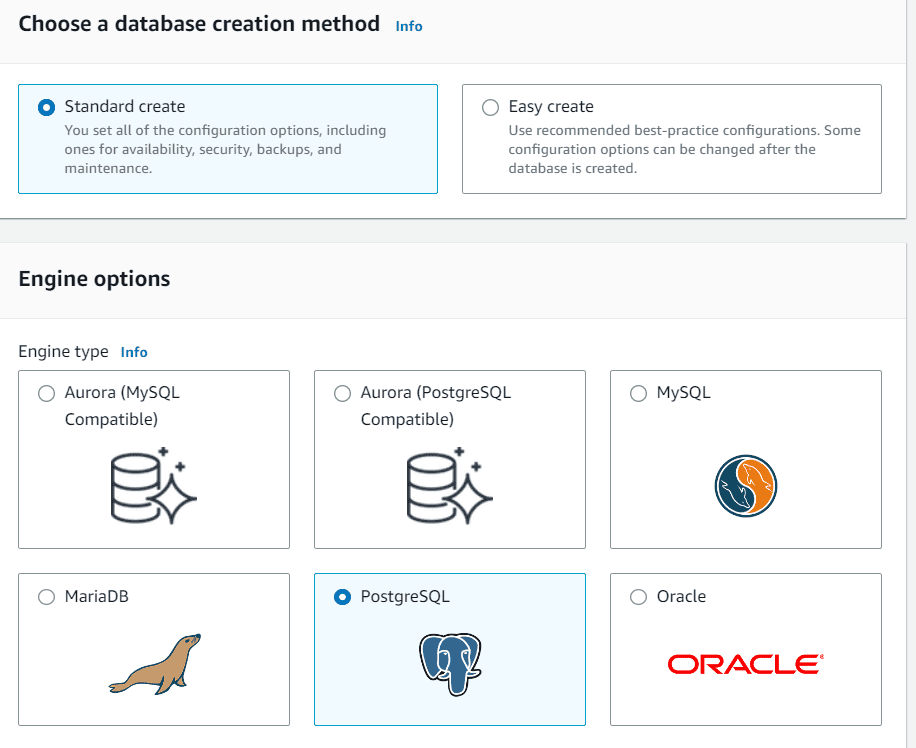
- Choose the database creation method as standard create
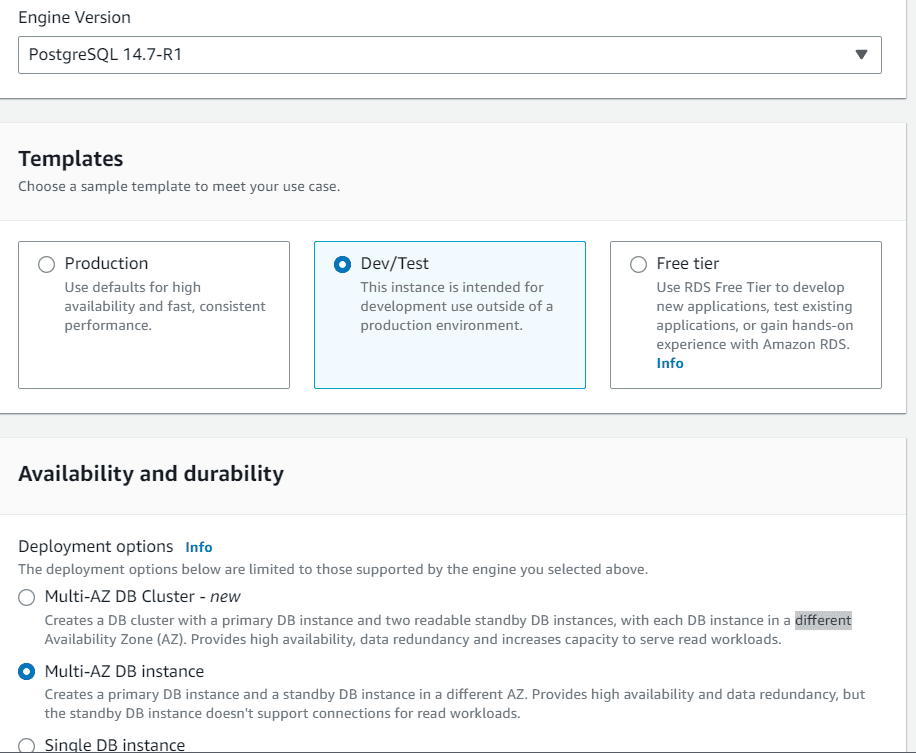
- Choose Engine option as PostgreSQL, choose the default PostgreSQL version
- In template choose Dev/test , Choose Multi-AZ DB instance in Availability & Durability
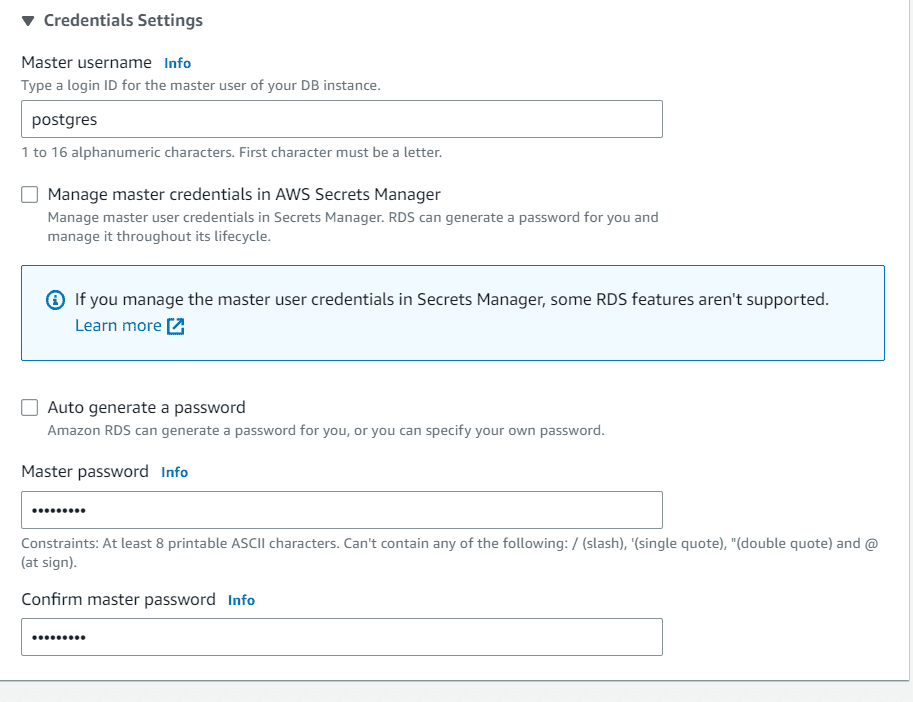
- Provide the master username and password
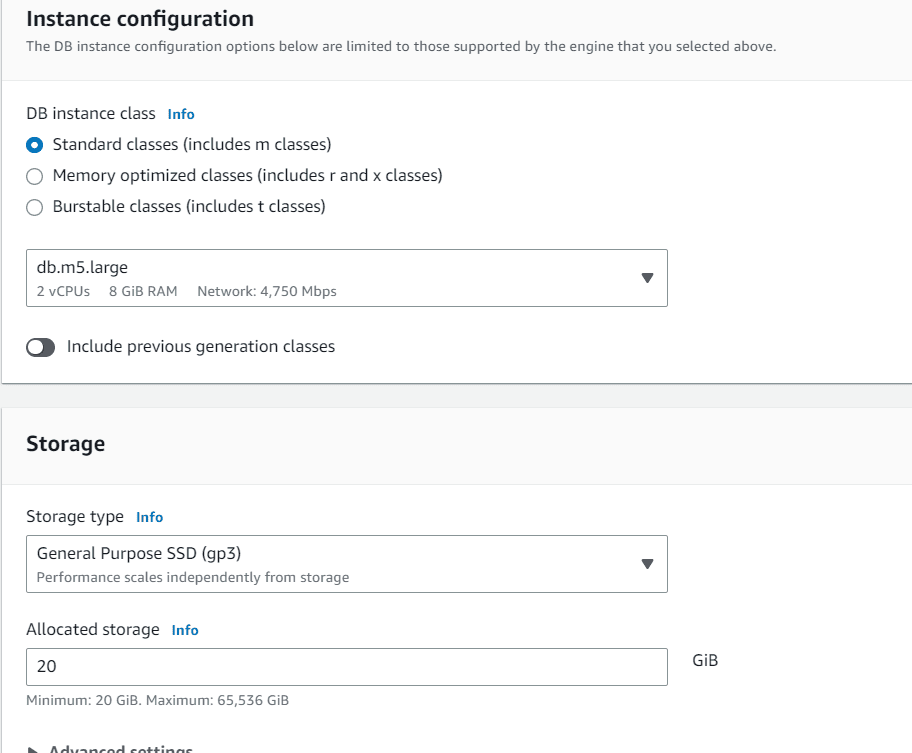
- Under Instance configuration, choose standard classes and 20Gb in allocated storage
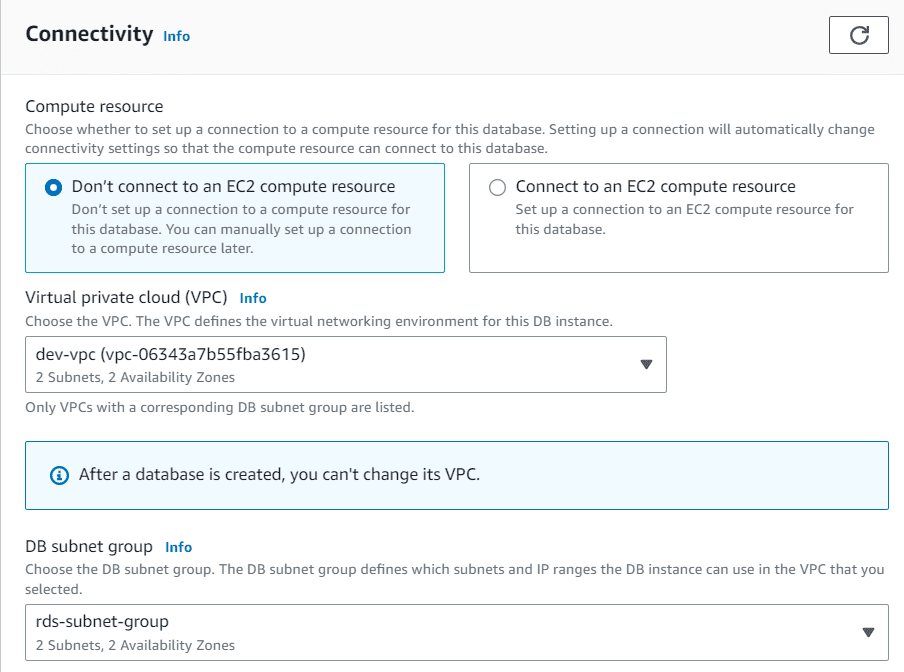
- Under connectivity, you have option to create a connection with existing EC2 instance
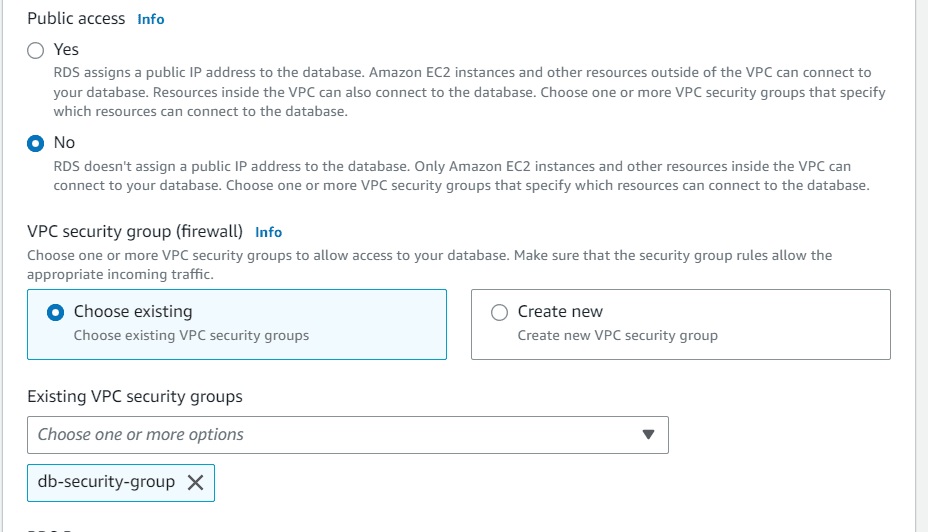
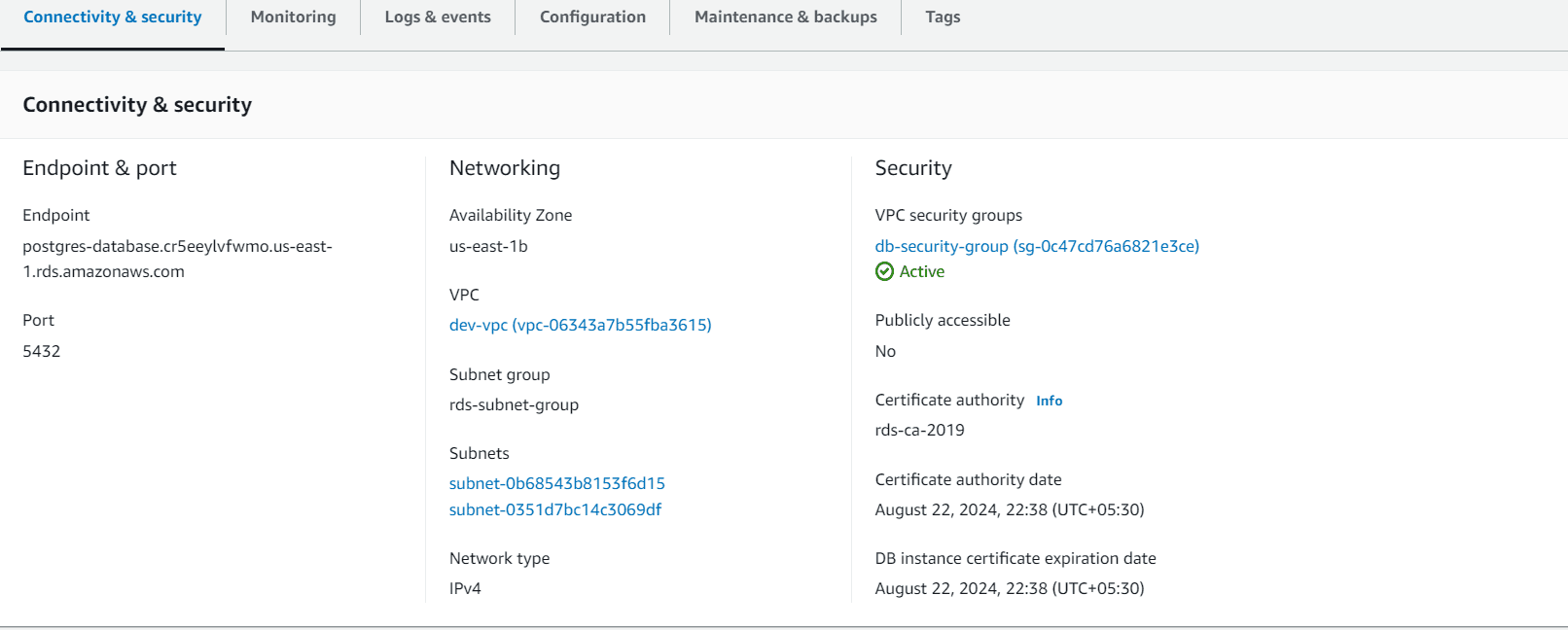
- Choose the VPC & DB subnet groups created earlier
- Choose the DB security group created earlier
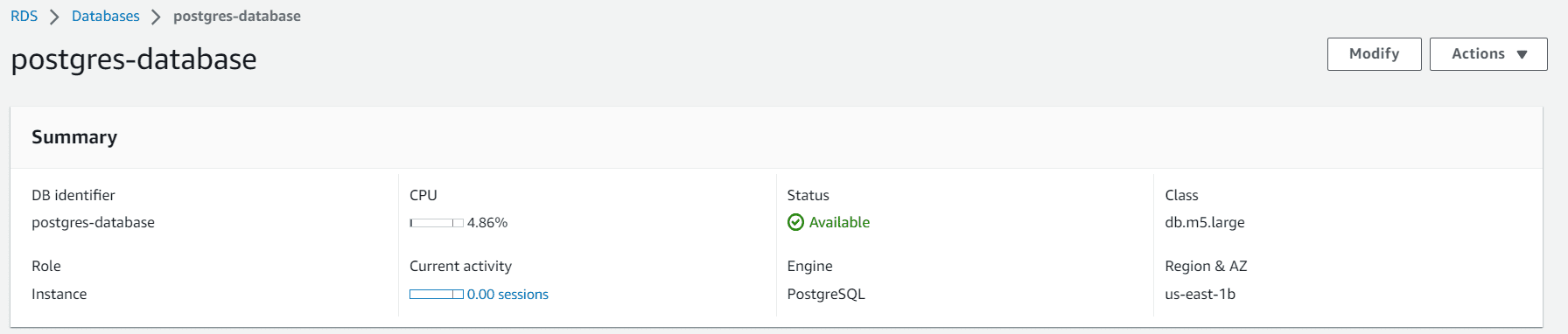
- Keep rest all setting as default and click on create database
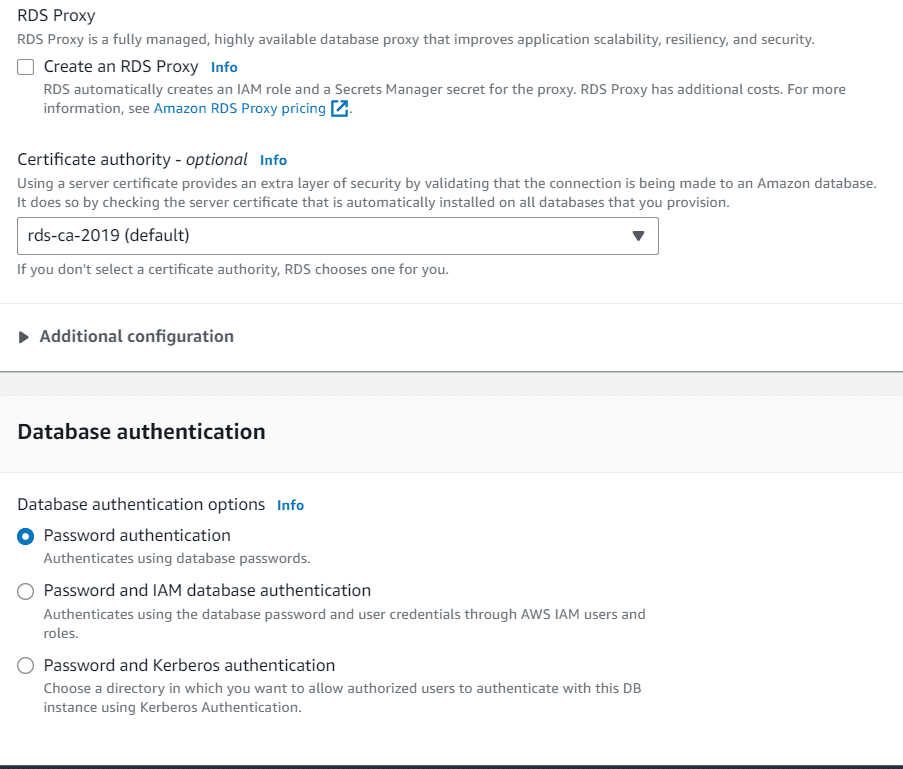
- RDS DB instance has also option for RDS proxy and different authentication method
- By default, all database backups are encrypted with kms key, you can create your own kms key
Conclusion
RDS is a fully managed database solution from AWS. It helps in auto-scaling the storage and maintain the high availability. All management overheads are taken care by AWS. You simply need to create a database and write the data. It helps in backup of the snapshots to different region. In case of disaster recovery you can setup your database from the backup.
Related Posts:
AWS for Beginners: Model deployment with Amazon SageMaker: Part 37
Follow our Twitter and Facebook feeds for new releases, updates, insightful posts and more.

