
TL;DR: This guide explains how to install and configure WSUS on Windows Server 2022 to centrally manage Windows updates. It covers prerequisites, role installation, post-install configuration, and best practices for secure patch management. Ideal for MSPs and IT admins managing multiple endpoints.
System Requirements
WSUS doesn’t require a lot of resources. In order to enable WSUS on your Windows Server 2022 or previous versions, you would need to assign a minimum of 1.4 GHz x 64 pCPU; however, 2 GHz or faster is recommended.
In addition to that, you should assign 2 GB of RAM memory and 40 GB or more disk space. In regards to memory, you should go with 2 GB of RAM memory, 40 GB or greater of disk space, and a 1 Gbit/s network adapter.
If you decide to store updates locally, you need to plan for secondary storage, which could range from 10 GB to even a few hundred GBs, depending on how many products and updates you select.
If your machine supports the aforementioned resources, we can proceed with the installation.
Before I move on, let me remind you that all your machines, including both the WSUS server and clients, need to be part of the domain.
My Environment Setup
I am running Windows Server 2022 on a virtual machine hosted on a Hyper-V server. It has 2 vCPUs, 6 GB of RAM, and 40 GB of disk space. The FQDN of the domain is wsus.techwithjasmin.com. This FQDN is important, as we will configure WSUS clients to obtain updates directly from it.
Step by step: How to install WSUS
Please log in to your Windows Server 2022 and proceed with the following steps.
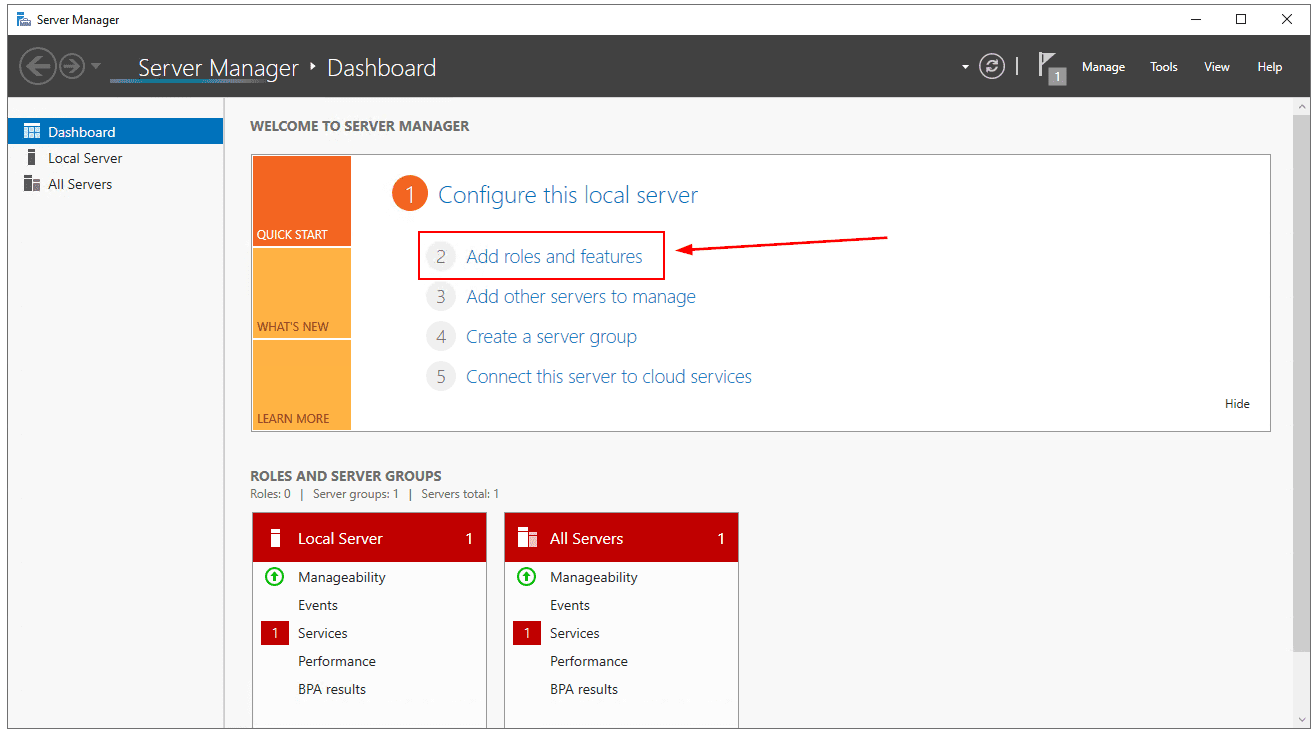
- Open Server Manager.
- Click on Add roles and features.
- Under Before you begin click Next
- Under Select installation type click Next
- Under Select destination server click Next
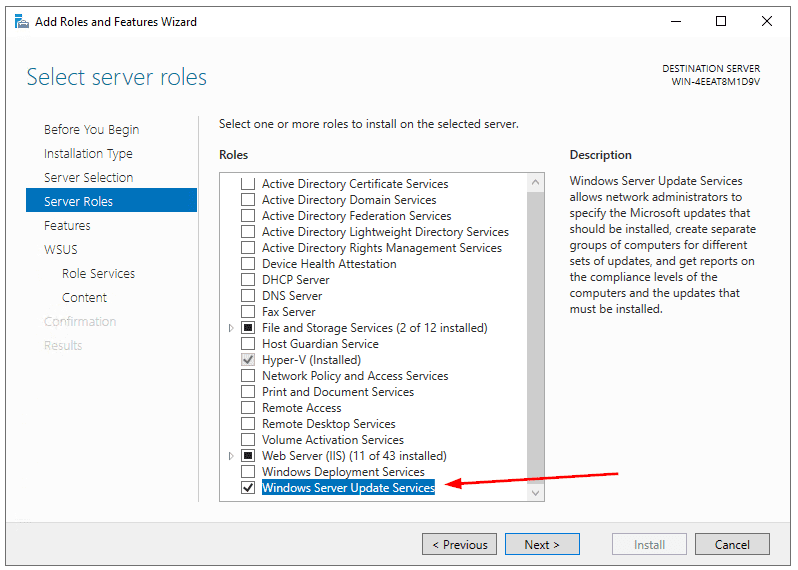
- Under Select server role, select Windows Server Update Services, and then click Add features
- Under Select features click Next
- Under Windows Server Update Services click Next
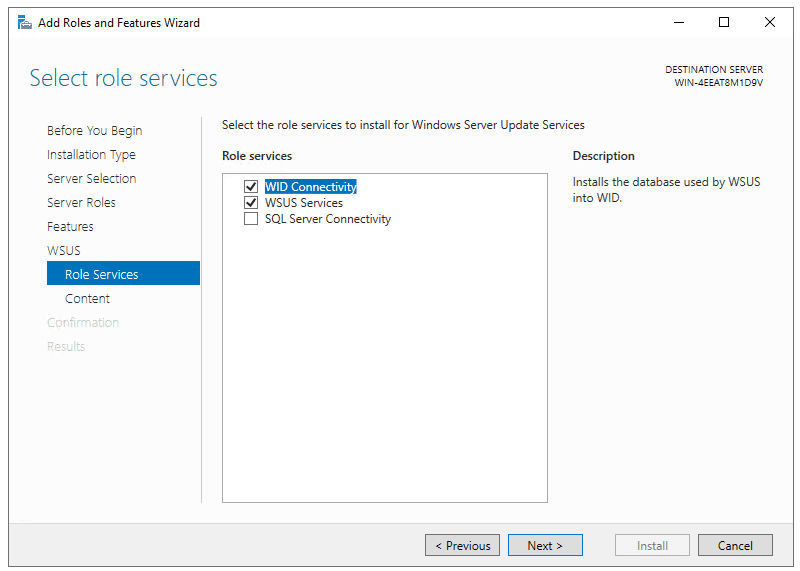
- Under Select role services, keep the default selected services and click Next
- In the Content location selection, decide whether you want to store updates locally on your server (for example, on a different partition or disk) or if you prefer not to store them but instead download them directly from Microsoft
If you choose to store them locally, select Store updates in the following location and provide a location path, such as D:\WSUS. If you do not wish to store them, unselect Store updates in the following location, and then click Next
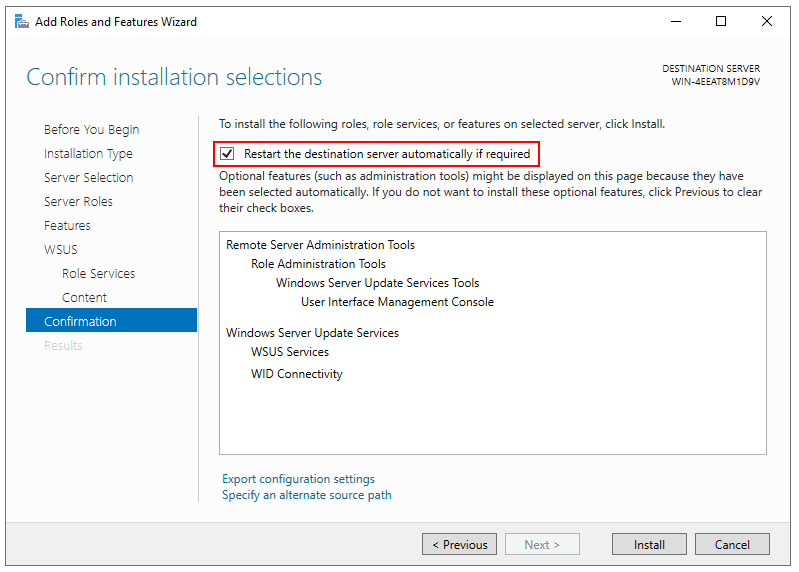
- In the Confirm Installation Selections section, choose Restart the destination server automatically if required, confirm by clicking Yes, and then click Install
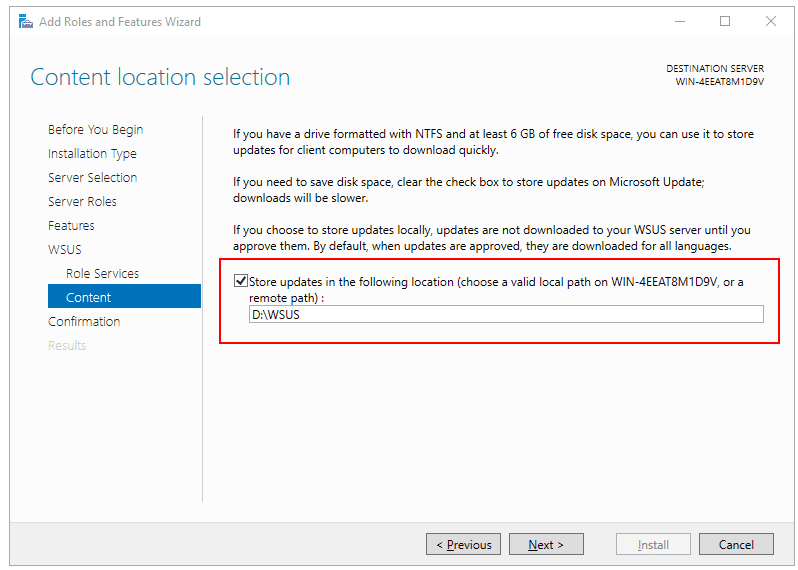
Select content location selection
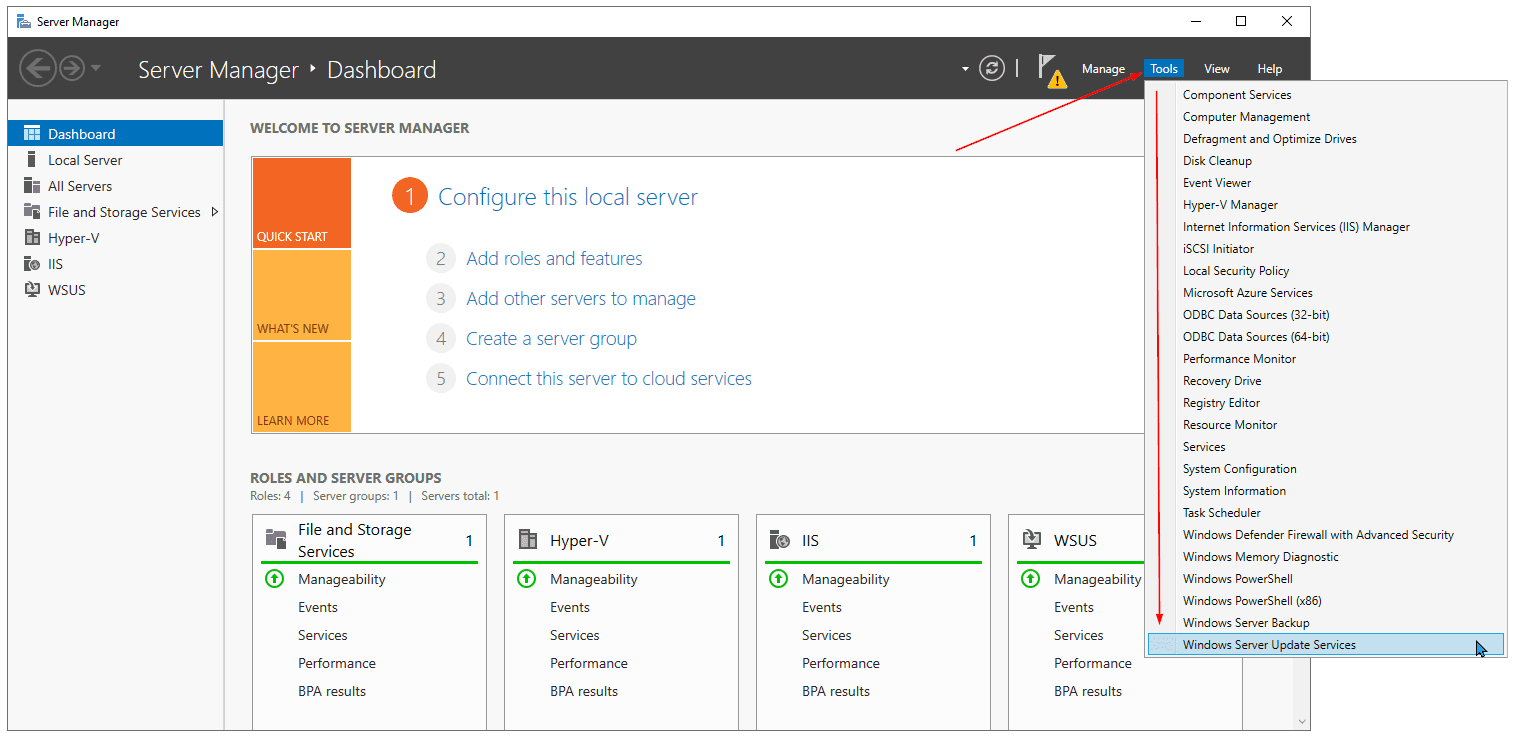
Wait until WSUS is installed, and you are ready to go. To open it, navigate to Server Manager > Tools > Windows Server Update Services.
BONUS: How to uninstall WSUS
As we discussed the installation of WSUS, it also makes sense to at least mention how to uninstall it. When it comes to Windows Server, you don’t uninstall roles and features from Control Panel or Apps and Features.
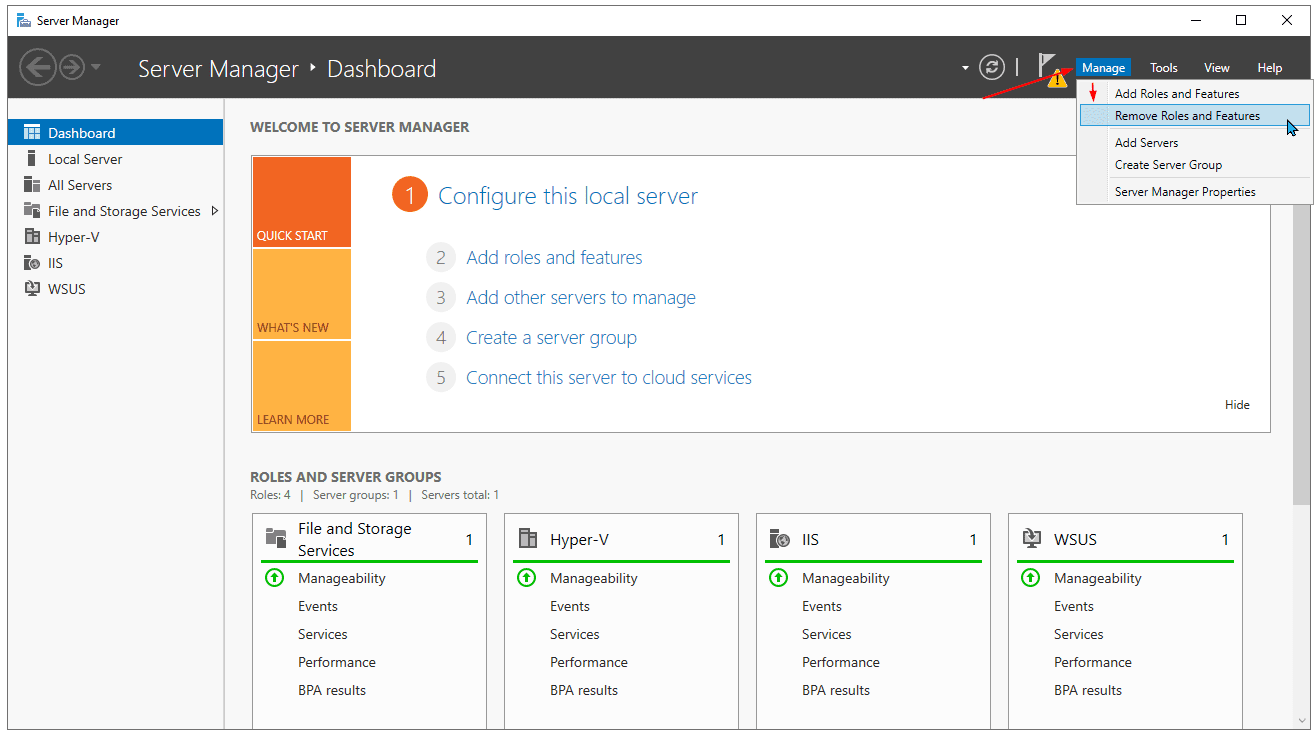
To do so, you need to open Server Manager, navigate to Manage, and then click on Remove Roles and Features.
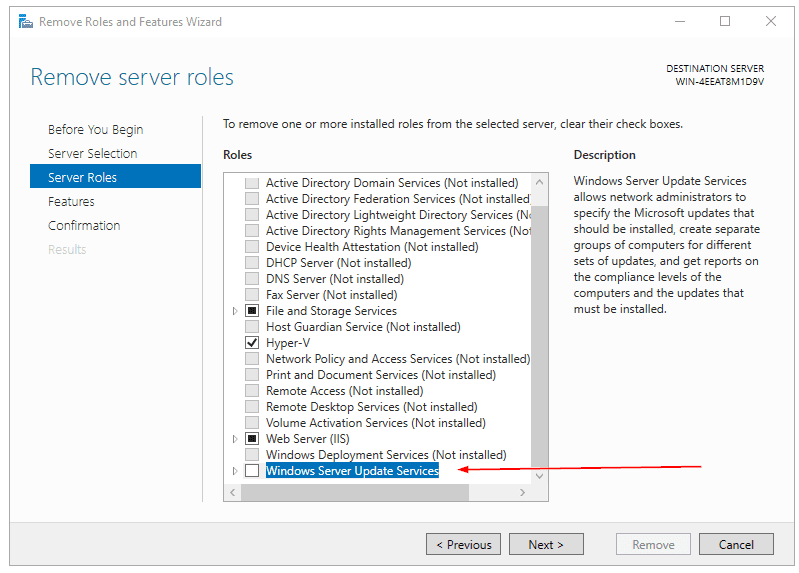
When you reach the Server roles section, unselect Windows Server Update Services, click Remove Features, and then click Next > Next > Remove.
In the next article, we will dive into the initial configuration of your WSUS server. Stay tuned.
FAQs
1. How do you install WSUS on Windows Server 2022?
To install WSUS on Windows Server 2022, open Server Manager, add the Windows Server Update Services role, select required role services (WID or SQL, WSUS Services), and complete the post-installation configuration wizard. After installation, configure synchronization settings and approval rules.
2. What are the prerequisites for WSUS on Windows Server 2022?
WSUS requires Windows Server 2022, IIS, .NET Framework, and sufficient disk space for update storage. You also need a database option (WID or SQL Server) and proper network connectivity to Microsoft Update or an upstream WSUS server.
3. Should I use WID or SQL Server for WSUS?
WID (Windows Internal Database) is suitable for small to mid-sized environments due to its simplicity and lower overhead. SQL Server is recommended for larger environments requiring scalability, reporting, and performance optimization.
4. How do clients connect to a WSUS server?
Clients connect to WSUS via Group Policy by specifying the intranet Microsoft update service location. Once configured, endpoints scan against the WSUS server instead of Microsoft Update directly.
5. Is WSUS still relevant compared to modern patch management tools?
WSUS remains useful for centralized Windows update control in on-prem environments. However, many MSPs prefer advanced patch management solutions or RMM platforms for automation, cross-platform support, and reporting.
Related Posts:
WSUS : Get Started with Windows Server Update Services (WSUS) – Part 1
WSUS: Post-deployment WSUS configuration – Part 3
WSUS: Create Computer groups in WSUS – Part 4
WSUS: Configure GPOs and Prepare your WSUS Clients – Part 5
Follow our Twitter and Facebook feeds for new releases, updates, insightful posts and more.

