
TL;DR: Cluster Shared Volumes (CSV) enable multiple Hyper-V nodes to access shared storage simultaneously, improving availability and performance. Proper CSV configuration ensures high availability, optimized storage performance, and simplified VM management. This guide walks IT admins through setup, validation, and best practices for stable cluster storage.
Introduction
This blog on Hyper-V Storage Configuration is a three-part series. We will cover a number of different storage configurations with Microsoft Hyper-V, including their characteristics, features, configuration, and use cases.
In the previous post – first part, we discussed the Hyper-V related storage technologies – Direct Attached Storage, Shared Storage, Cluster Shared Volumes, Storage Spaces Direct & ReFS and looked at the process of configuring Hyper-V Direct Attached Storage.
In this second part, we’ll discuss the process of configuring Hyper-V Shared Storage and the process of configuring Cluster Shared Volumes for Hyper-V.
Configuring Hyper-V Shared Storage
Once you decide to take your Hyper-V environment from running on top of standalone hosts with direct-attached storage and start utilizing a Hyper-V cluster configuration, you will need to start looking at shared storage.
Shared storage is one of the primary requirements needed to configure a Hyper-V cluster. Why is this?
Shared storage is required for Hyper-V clusters as all hosts in the cluster need to be able to see the storage for all the virtual machines being managed by the cluster.
Having shared storage provisioned between the Hyper-V cluster hosts allows you to take advantage of many of the great enterprise features that justify a Hyper-V cluster in the first place. Features like high-availability of the virtual machines running in the Hyper-V cluster as well as mobility of the VMs are two enterprise features that you will no doubt benefit from. Both of these require shared storage.
Hyper-V clusters take advantage of Windows Failover Cluster services running on the servers that are part of the Failover Cluster. The Hyper-V role is installed on the members of the Windows Failover Cluster. Virtual Machines that are running in the Hyper-V Failover Cluster can be added as highly available under the Virtual Machine role. In this way, when a Hyper-V host goes down due to a hardware or other failure, the virtual machine will be migrated to a healthy host in the cluster.
In this scenario the need for shared storage becomes apparent. When storage is shared between all the hosts in the cluster, there is no need to copy files to a different host to bring up the VM. The shared storage between the Hyper-V hosts means the VM files simply stay in place and a healthy host assumes ownership of compute/memory for the VM.
Generally, when thinking about configuring shared storage, this is accomplished by means of a Storage Area Network (SAN) where storage is provisioned on a SAN appliance and the SAN and Hyper-V hosts are connected to one another by means of a high speed (at least 10 GbE) network.
Let’s take a look at configuring shared storage on a couple of Hyper-V hosts that are part of a Hyper-V cluster. We will do this by means of an iSCSI LUN that is presented from a storage device.
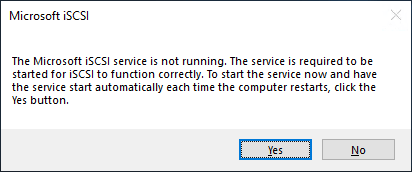
To add an iSCSI LUN to a Hyper-V host, we first need to enable and start the Microsoft iSCSI service. You can do that by simply typing the following command:
- Iscsicpl
- You will be presented with a message to enable the service and start it.
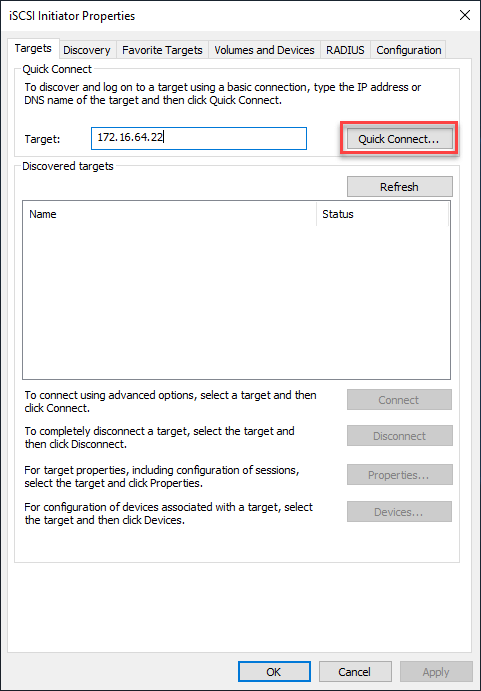
After enabling and starting the service, you then need to add the target using the Quick Connect feature to quickly add the iSCSI targets presented.
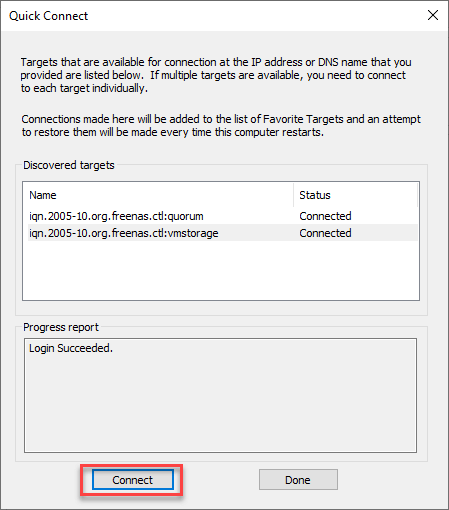
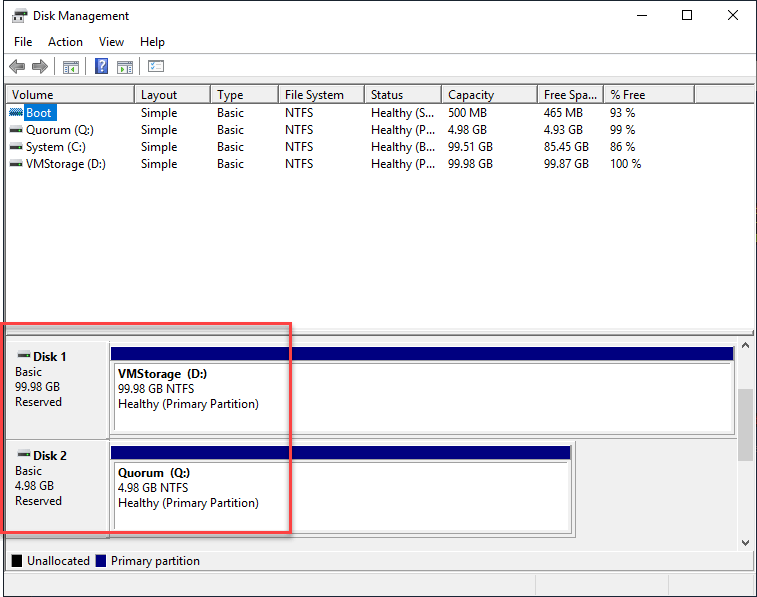
When you add the volumes on both hosts that are going to participate in the Hyper-V cluster, the cluster formation process will run several checks on the available disks to ensure disks meet certain requirements and are accessible from all hosts.
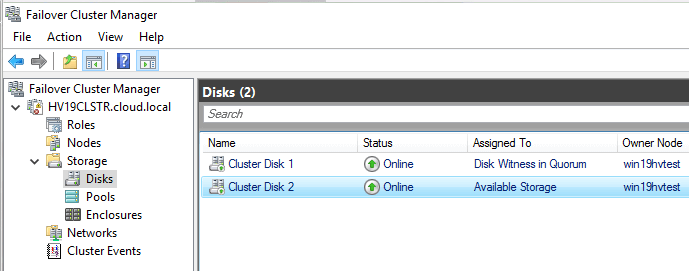
In the Failover Cluster Manager, under Storage, you will see the shared disks listed as cluster resources.
Now, you have satisfied the requirements for the Hyper-V cluster having shared disks between the cluster nodes.
As you can see above, one is a Disk Witness in Quorum to provide tie-breaker functionality in a “split-brain” scenario. The other volume is Available Storage for storing resources like virtual machines.
Configuring Cluster Shared Volumes
Another extremely important configuration related to Cluster storage specifically with Hyper-V is, enabling Cluster Shared Volumes (CSV).
What is Cluster Shared Volumes?
These enable multiple nodes in a failover cluster to simultaneously have read-write access to the same LUN that is provisioned as an NTFS volume.
With CSV enabled, clustered roles can failover quickly from one node to another node without changing the drive ownership or dismounting and remounting a volume.
When looking at the architecture of Cluster Shared Volumes, they are a general-purpose, cluster-aware file system that sits on top of NTFS or ReFS (starting in Windows Server 2012 R2). Specifically related to Hyper-V, Cluster Shared Volumes provide special-purpose functionality to the following:
- Hyper-V virtual machines that have VHD files hosted by a Hyper-V cluster made possible by Windows Failover Cluster services.
- Scale-out file servers that can host data such as Hyper-V virtual machine files.
Cluster Shared Volumes allow multiple Hyper-V hosts to have simultaneous read-write access to the same shared storage. When a given node performs disk I/O, the node is communicating directly with the storage appliance. However, a single node that is referred to as the coordinator node “owns” the physical disk resource that is associated with the LUN. This coordinator node as displayed in Failover Cluster Manager is designated as Owner Node.
Changes in the CSV volume file system are synchronized with the other members of the Hyper-V cluster. This is done through a special kind of metadata that is shared between the hosts. Examples of CSV activity that is synchronized include Hyper-V virtual machines being created, started, stopped, or deleted. Migration of virtual machines also needs to be synchronized on each of the physical nodes that access the VM.
The synchronization between the hosts is taken care of using SMB 3.0. In cases of storage connectivity failures and certain storage operations that can prevent a Hyper-V host from communicating directly with storage, the node redirects the disk I/O through a cluster network to the coordinator node where the disk is currently mounted. If the coordinator node fails, the disk I/O is queued while another coordinator node is designated that does have access.
When choosing a file system for formatting a Cluster Shared Volume, you need to take this I/O redirection into account along with the type of Hyper-V cluster storage being mounted.
It is highly recommended if you are not using Storage Spaces Direct, to use NTFS instead of ReFS. The reason for this is that when ReFS is used for Cluster Shared Volumes, it always runs in file system redirection mode which means all the I/O is redirected back through the coordinator node for the volume. This can lead to serious performance issues outside of Storage Spaces Direct.
How is the Cluster Shared Volume configured or enabled?
This is an extremely easy part of the process. You can enable Cluster Shared Volumes by right-clicking on the volume you want to use for your virtual machine storage and select Add to Cluster Shared Volumes.
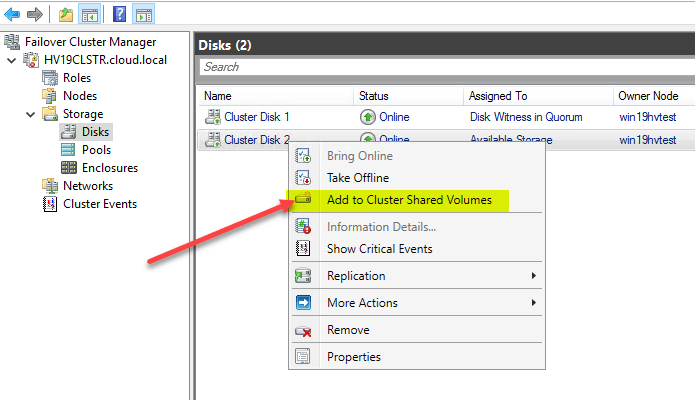
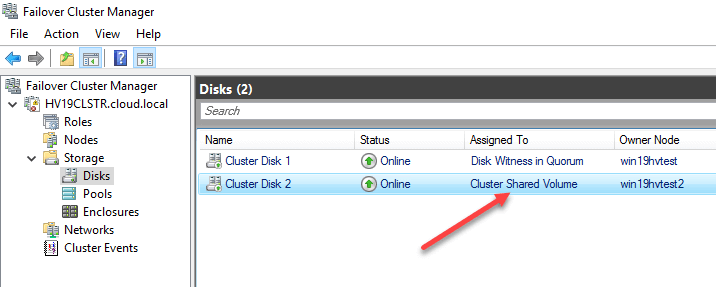
After you add the volume to a Cluster Shared Volume, the Assigned To column is designated as Cluster Shared Volume.
You can check and make sure you are not operating in File System Redirected Access mode by looking at the properties of the CSV volume.
In the next post and the last part of this series, we’ll look at the process of configuring Storage Spaces Direct and Resilient File System (ReFS).
FAQs
1. What is Cluster Shared Volumes (CSV) in Hyper-V?
Cluster Shared Volumes (CSV) is a feature in Windows Failover Clustering that allows multiple Hyper-V hosts to access the same shared storage simultaneously. It simplifies VM management and enables live migration without changing disk ownership. CSV improves availability and scalability in clustered environments.
2. How do you configure Cluster Shared Volumes?
To configure CSV, first validate your Windows Failover Cluster configuration. Then add shared disks in Failover Cluster Manager and enable them as Cluster Shared Volumes. Finally, verify access permissions and confirm all nodes can read and write to the volume.
3. What storage types are supported for Cluster Shared Volumes?
CSV supports several storage types, including iSCSI and Fibre Channel SAN. The storage must be accessible to all cluster nodes and meet Microsoft’s failover clustering requirements. Proper network configuration is essential for performance and redundancy.
4. What are common issues with CSV configuration?
Common issues include incorrect disk formatting, improper permissions, network misconfiguration, and storage latency. Running cluster validation tests and monitoring performance counters can help detect and prevent failures. Ensuring consistent firmware and driver versions across nodes also reduces risk.
5. Why is CSV important for MSPs and IT admins?
CSV enables high availability and seamless VM mobility in Hyper-V environments. For MSPs managing multiple client environments, it reduces downtime risk and simplifies storage administration. Proper configuration supports disaster recovery strategies and improves SLA compliance.
Related Posts:
Beginners Guide for Microsoft Hyper-V: How to Create Cluster Shared Volumes (CSVs) – Part 22
Difference between VMware and Hyper-V: A Complete guide
Follow our Twitter and Facebook feeds for new releases, updates, insightful posts and more.

