
TL;DR: Migrating VMs from VirtualBox to VMware allows administrators to move workloads to enterprise-grade virtualization platforms. The process typically involves exporting the VM as an OVA/OVF file and importing it into VMware. This guide explains the migration steps and compatibility considerations.
Introduction
When we talk about Virtual Machines (VMs) we always talk about VMware VMs. VMware has been dominating the x86 virtualization market for years. There are still other vendors out there that also deliver x86 virtualization solutions. One of those is Oracle VirtualBox for example.
VirtualBox is a free and open-source hypervisor for x86 virtualization that was originally released by Innotek GmbH in 2007. Sun Microsystems acquired Innotek in 2008 and Oracle bought Sun in 2010. Since then, the product is known as Oracle VirtualBox.
Migrating from VirtualBox to VMware can be a strategic decision in various scenarios, especially for those seeking enhanced performance, scalability, and enterprise-grade features. While VirtualBox serves well for personal or smaller-scale projects, VMware’s robust ecosystem is better suited for more demanding environments, including production-level deployments, advanced networking, and cloud integration.
VMware’s support for both type 1 and type 2 hypervisors, coupled with its seamless integration with other VMware products, makes it an attractive option for organizations looking to scale their virtual infrastructure or integrate with hybrid cloud solutions.
VirtualBox is a so-called “Type 2 hypervisor”, which means it runs on top of an operating system such as Windows, Linux or macOS. VMware Workstation for Windows/Linux and VMware Fusion for MacOS are type 2 hypervisors.
A “Type 1 hypervisor” runs directly on bare metal. KVM and VMware ESXi are examples of type 1 hypervisors.
Type 2 hypervisors are often used on workstations or laptops to spin up additional machines with isolated operating systems. For example, you can install Windows on a MacBook inside a type 2 hypervisor. Software developers also make frequent use of type 2 hypervisors because they can spin up isolated Dev/Test environments very easily.
This blogpost will explain how to migrate Virtual Machines from Oracle VirtualBox to VMware Fusion and to VMware ESXi.
Environment Setup
The environment used to detail the steps required for this migration is fairly straightforward.
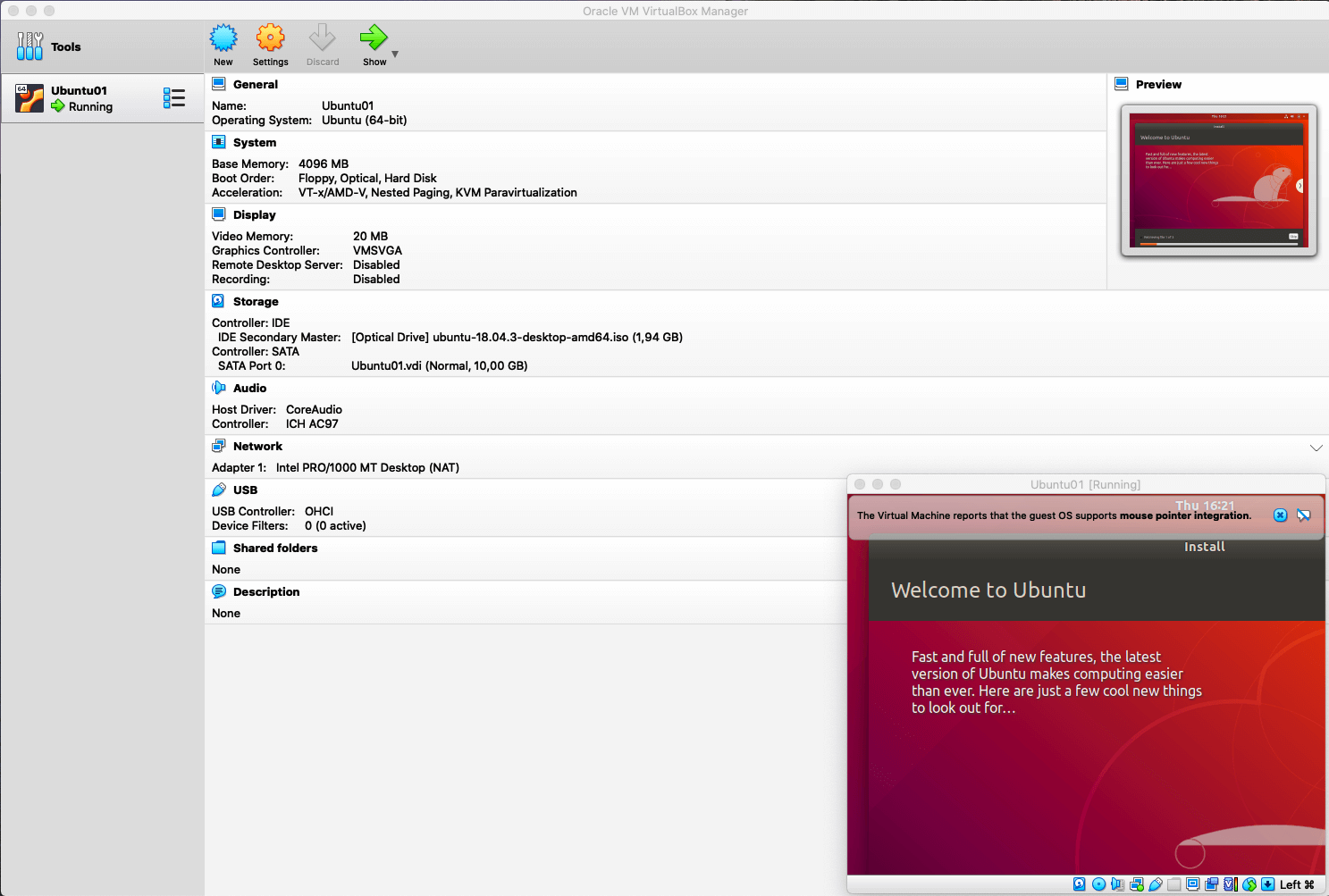
Oracle VirtualBox 6.1 is installed on a MacBook Pro and an Ubuntu 18.04 Virtual Machine is running inside VirtualBox:
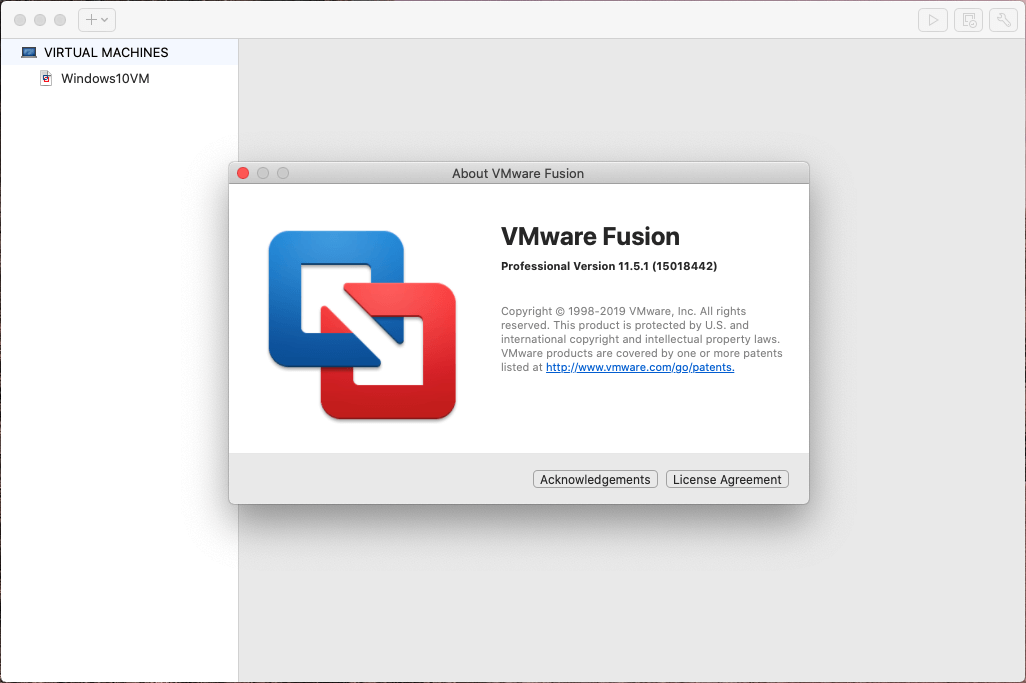
VMware Fusion 11.5.1 is also running on the MacBook Pro:
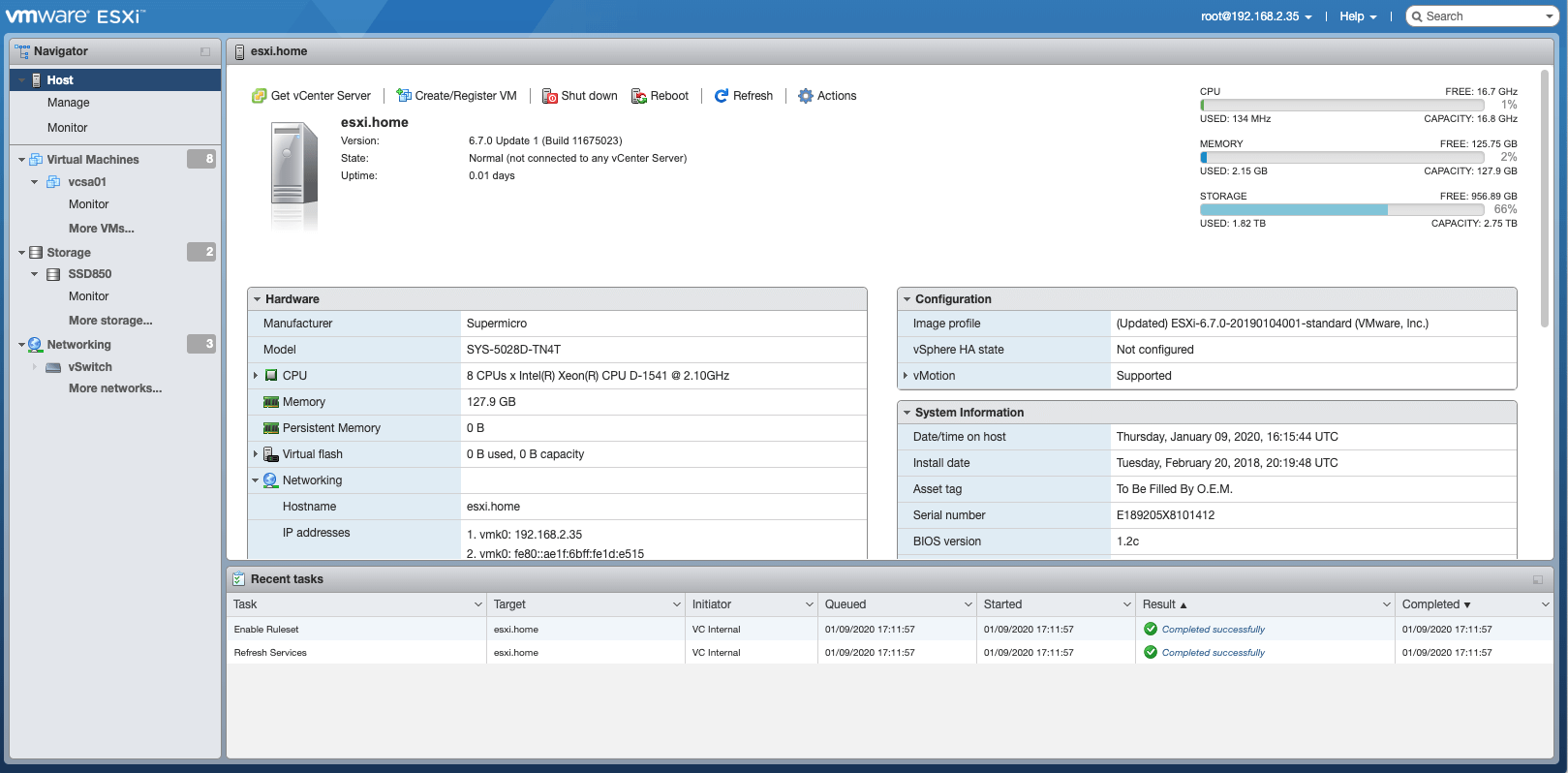
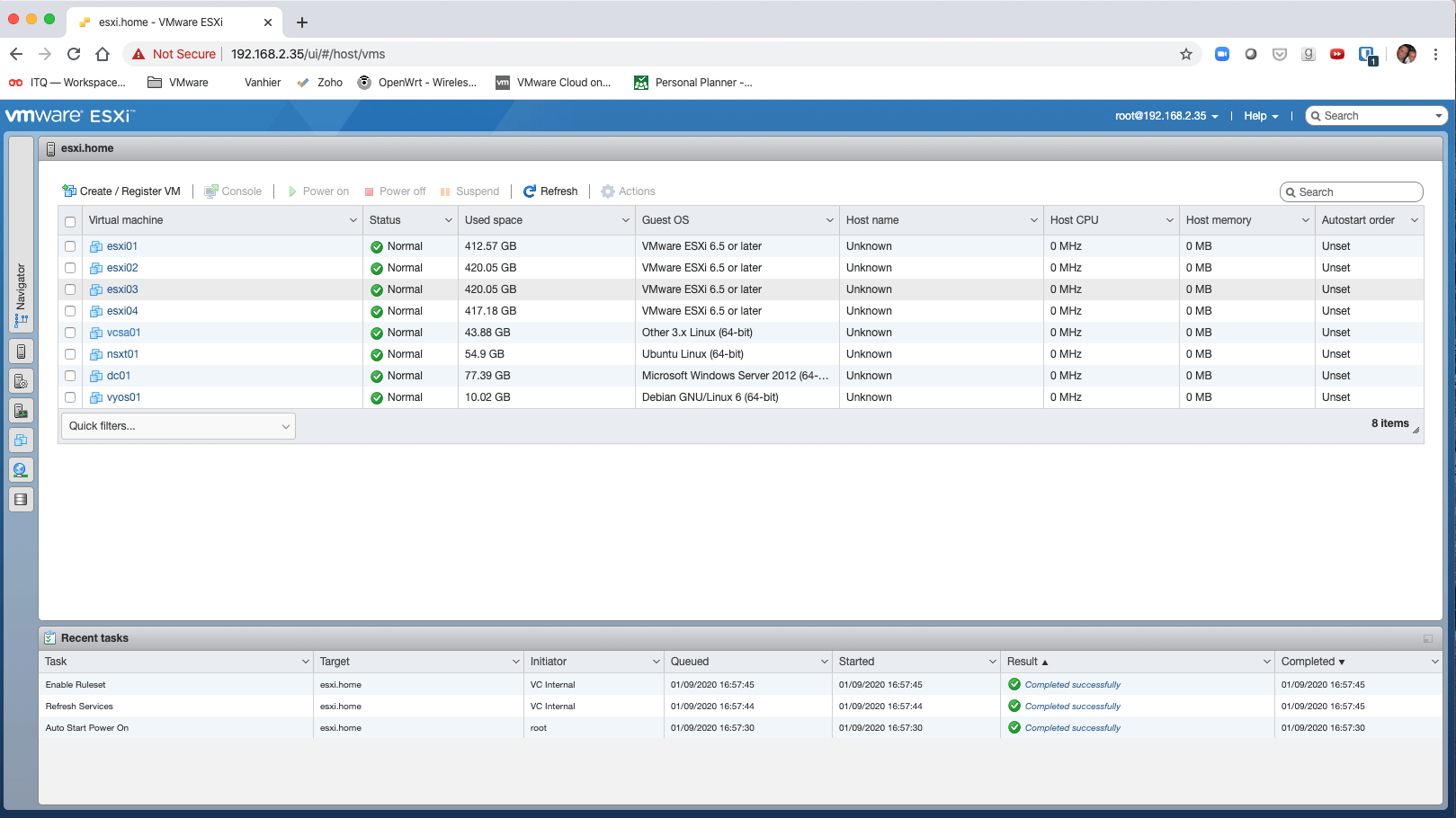
To test migration from Oracle VirtualBox to VMware ESXi, there is also a server running ESXi 6.7 U3 available:
Tools used for Migration
There are multiple ways to migrate a Virtual Machine between hypervisors and various tools can play a role. VirtualBox can export a Virtual Machine to an Open Virtualization Format Archive (OVA). OVA is an open standard for packaging and distributing virtual appliances and is widely supported. Finally, there are tons of third party solutions in the market that support this type of migration.
Step-by-step Migration from VirtualBox to VMware
In this process, we are going to export the VirtualBox VM to OVA format which we will be importing in VMware Fusion and ESXi.
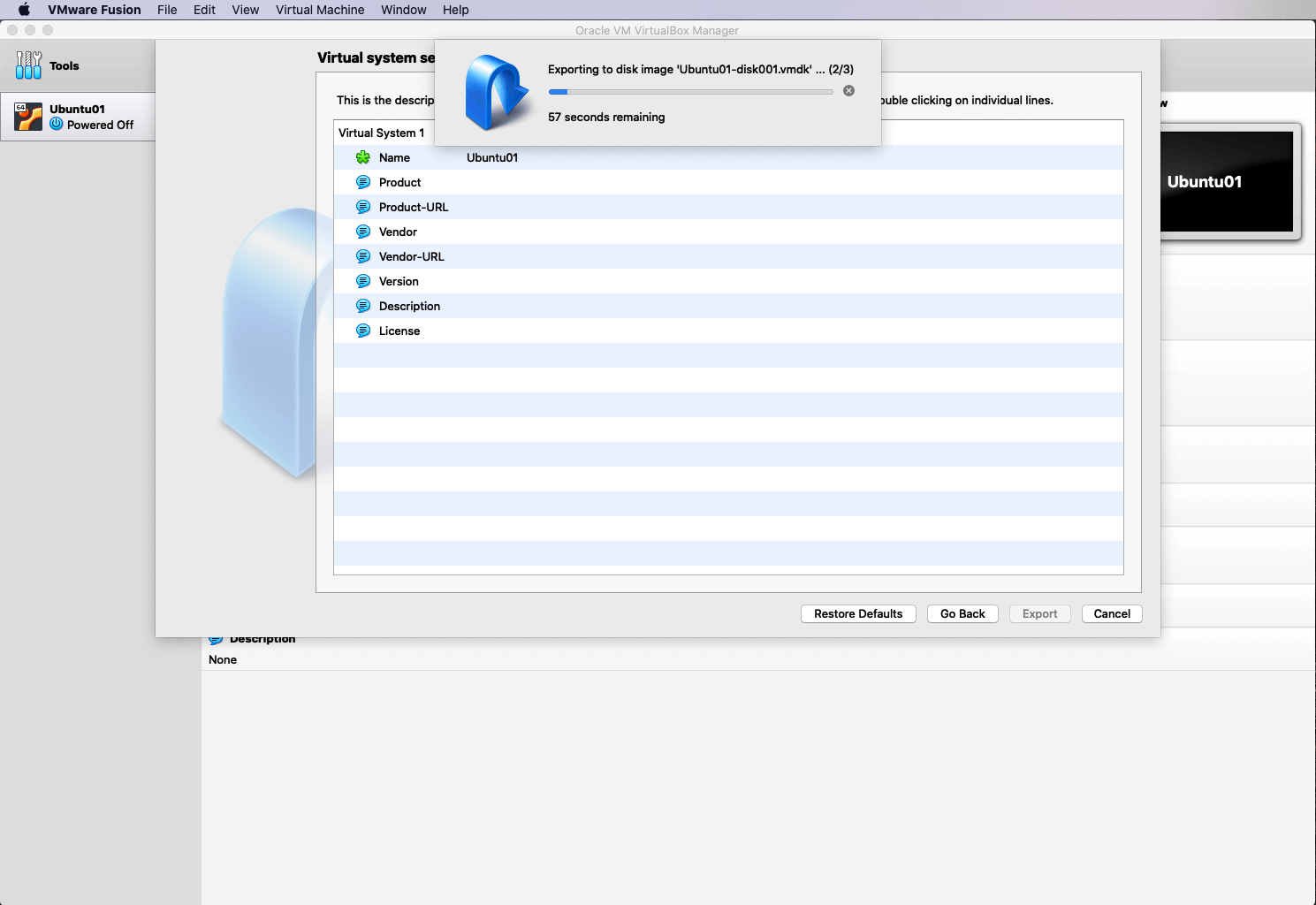
Exporting to OVA
- In VirtualBox, shut down the VM
- Go to File, Export Appliance and select the VM to export
- Click Continue
- Click Export
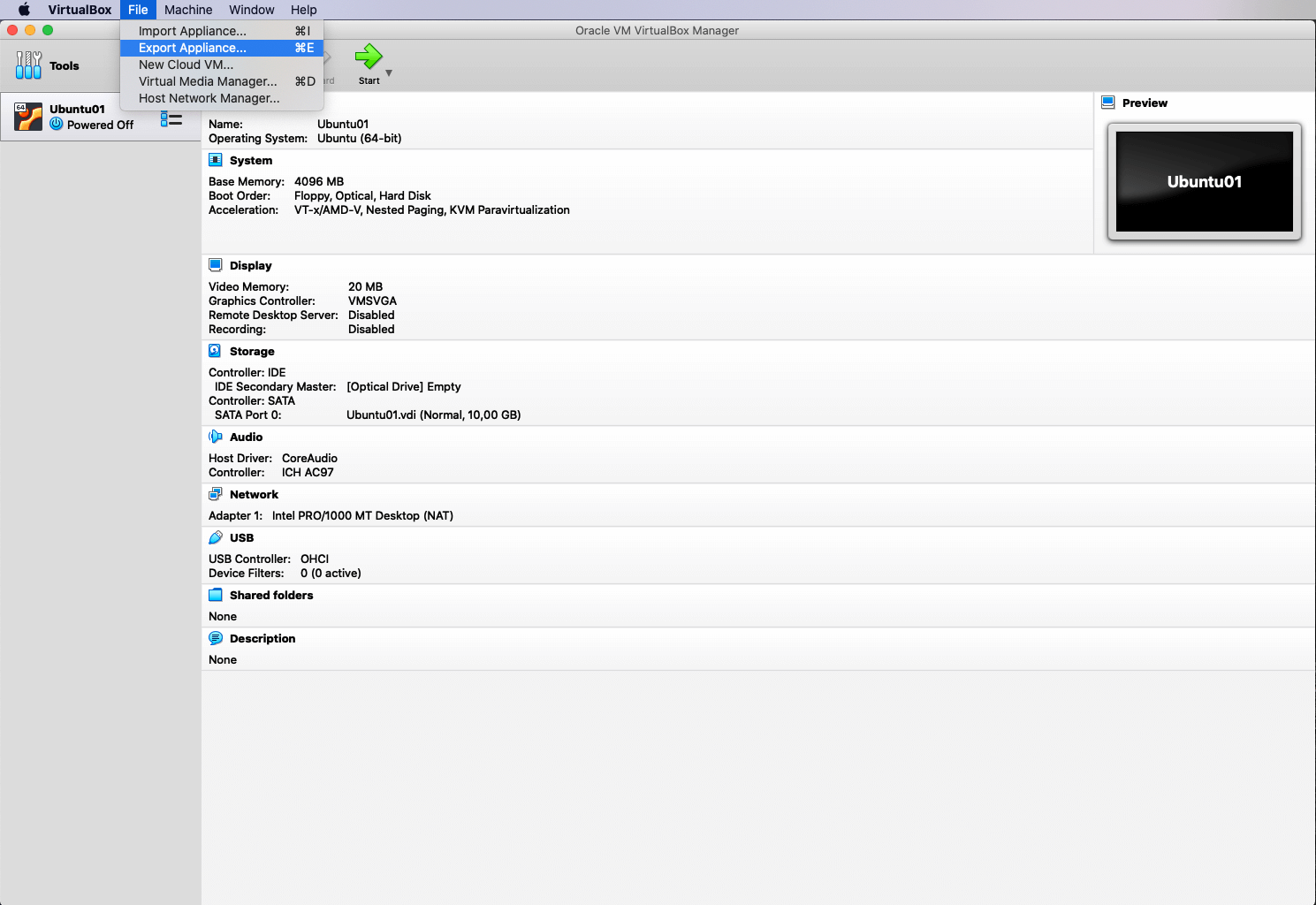
The VM is now being exported as an OVA which we can import into VMware Fusion
Importing the OVA in VMware Fusion
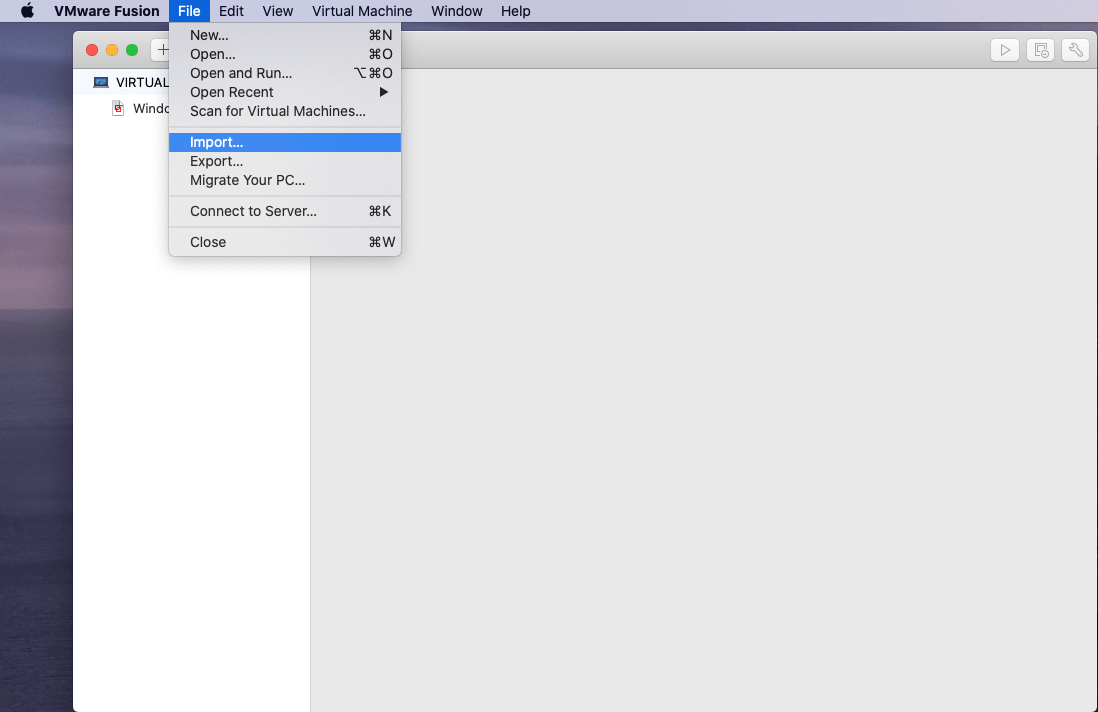
- In VMware Fusion, go to File, Import
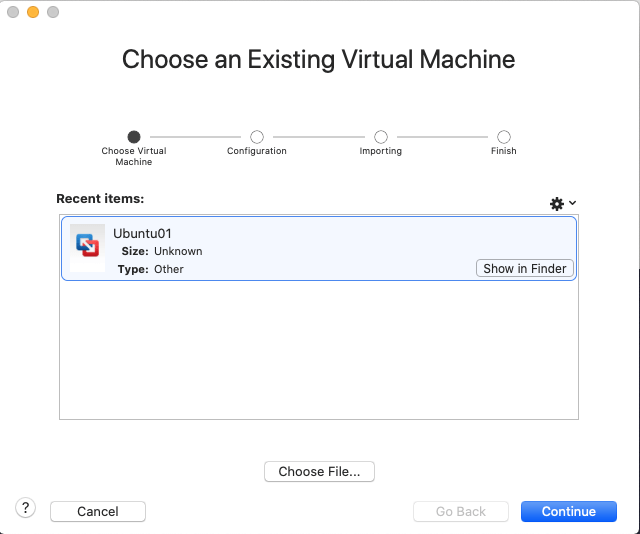
- Select Choose File and select the exported OVA
- Click Continue
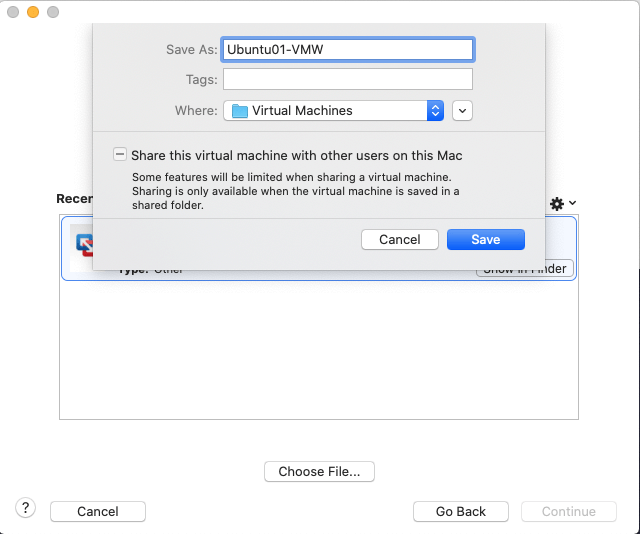
- Provide a name for the imported VM and click Save
- If you get an error on the OVF specification conformance or virtual hardware compliance, click Retry
- After the import completes, click Customize Settings to verify the VM specifications.
- If everything checks out, click Finish
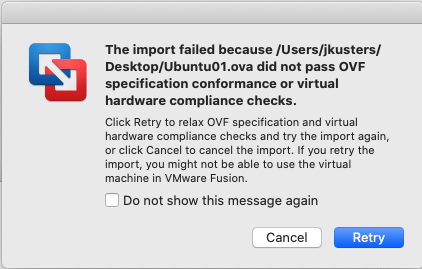
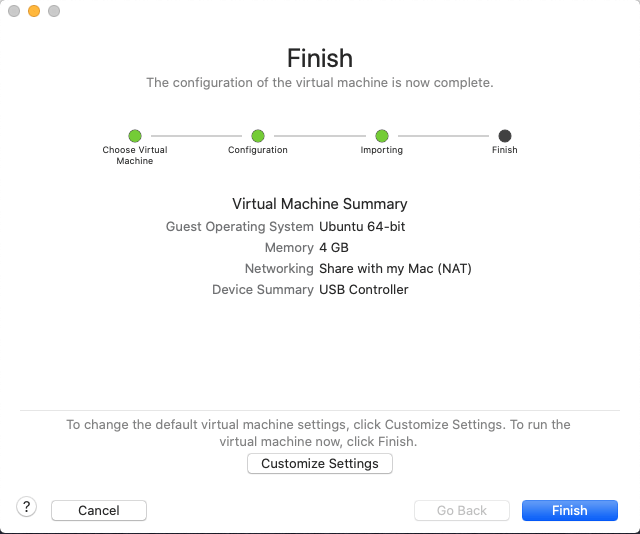
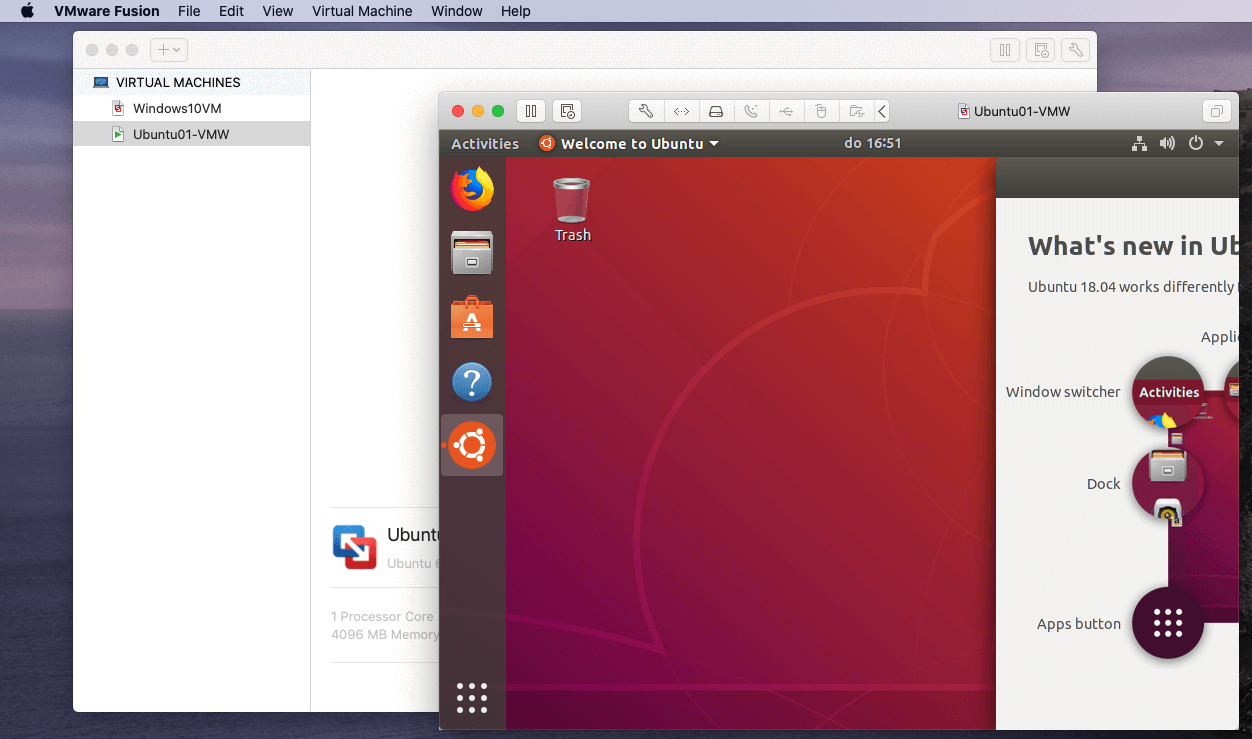
Depending on the version of VMware Fusion, there might pop up a question about upgrading the virtual machine hardware version. Verify your interoperability requirements and choose accordingly. The VirtualBox VM is now successfully migrated to VMware Fusion.
Importing the OVA in VMware ESXi
Using the same exported OVA from the previous process, we will now be importing it into VMware ESXi, which is a bare metal Type 1 hypervisor.
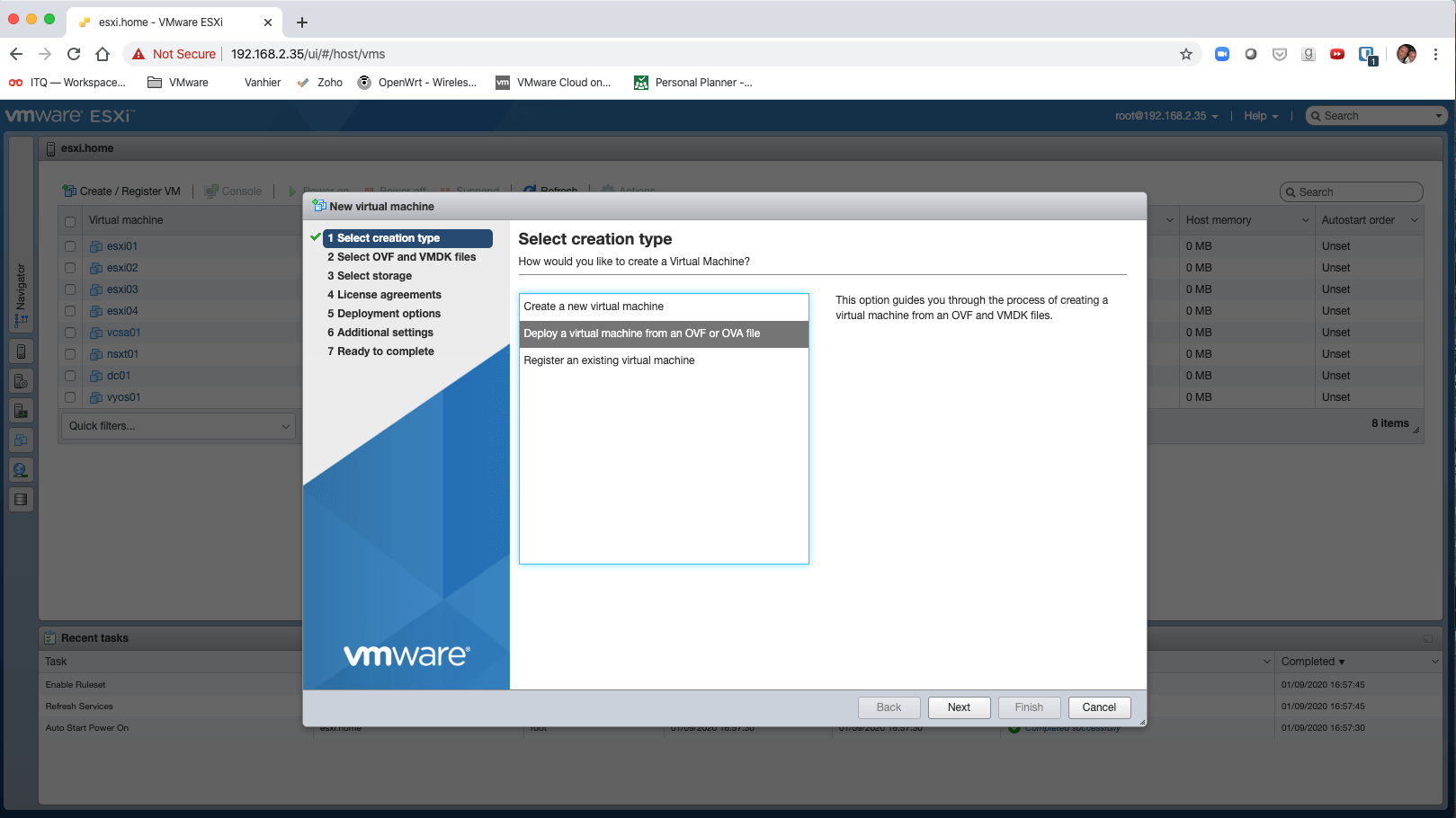
- In the ESXi UI, click Create / Register VM
- Select Deploy a virtual machine from an OVF or OVA and click Next
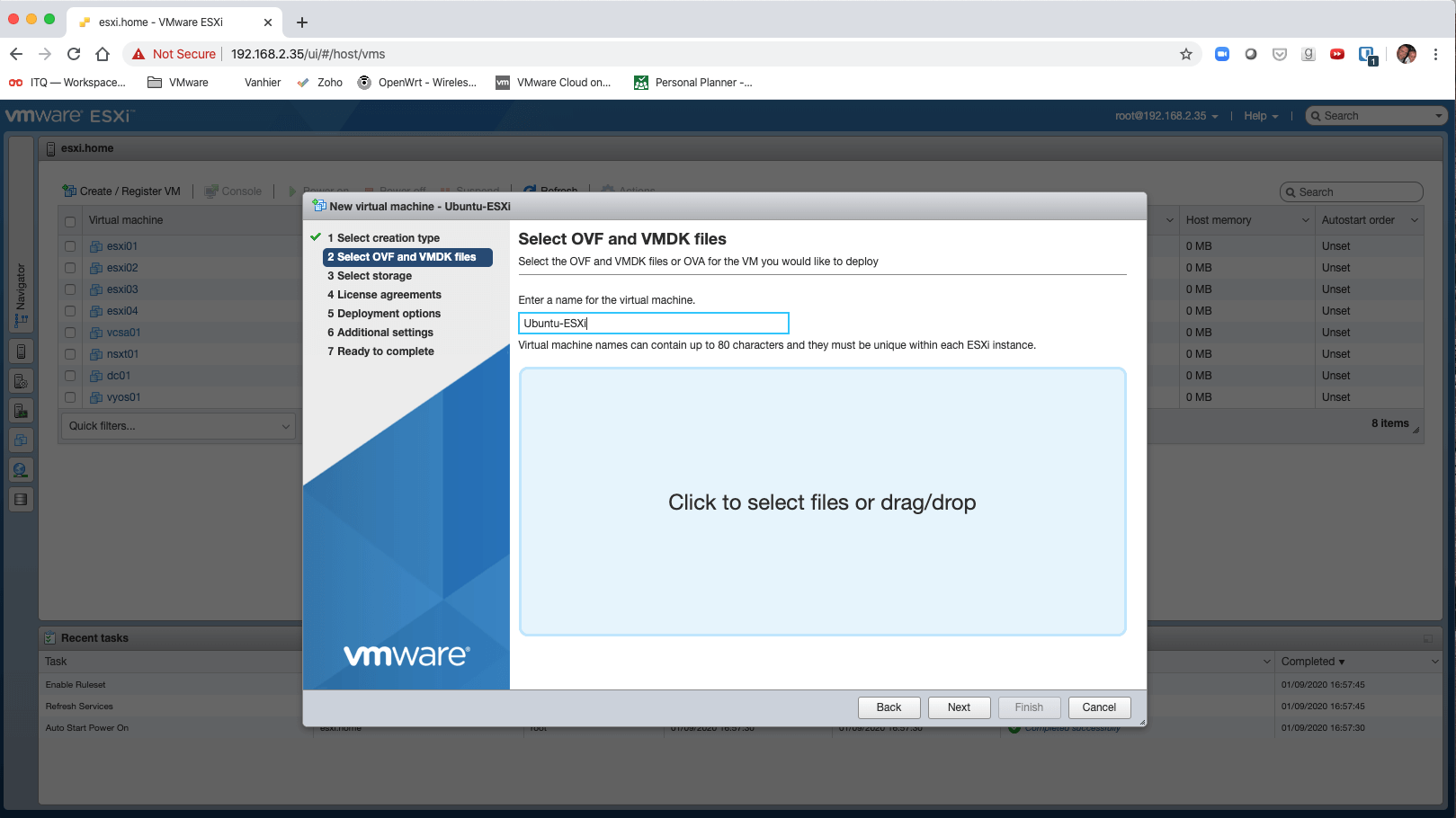
- Provide a name for the VM and “Click to select files or drag/drop”
- Select the OVA and click Next
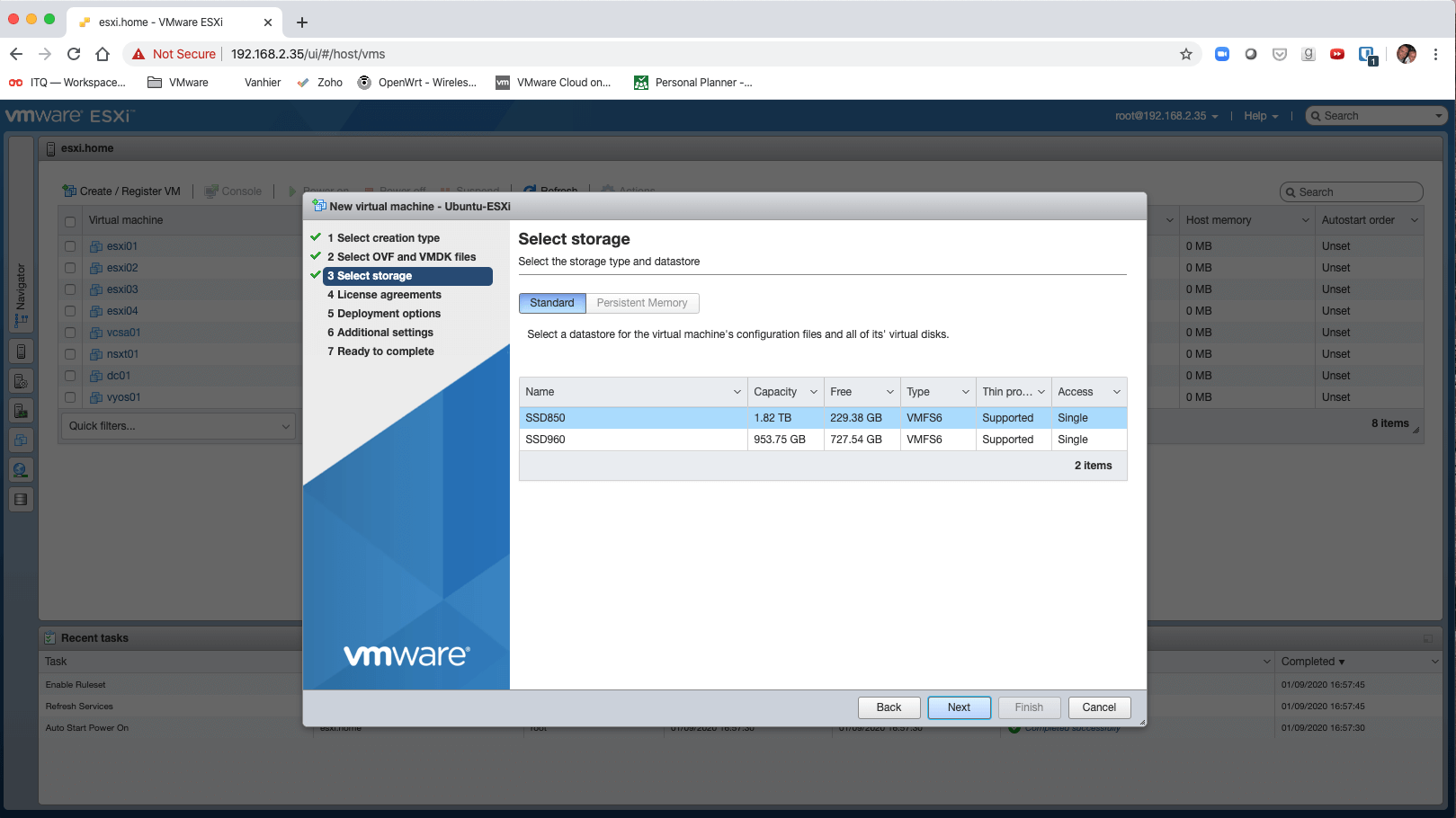
- Select a datastore and click Next
- Select a suitable network, disk provisioning method and click Next
- Click Finish and wait for the import to finish.
Conclusion
We have successfully migrated an Ubuntu VM to both VMware Fusion and to VMware ESXi. Typically, you would migrate more often from VirtualBox to Fusion because both are type 2 hypervisors that run on a workstation or laptop. ESXi is a datacenter product that mostly runs backend servers.
Check out our Beginners series on VMware, if you would like to learn more on VMware based virtualization and implement that in your environment.
FAQs
1. Can you migrate a VirtualBox VM to VMware?
Yes, you can migrate a VirtualBox VM to VMware by exporting the virtual machine as an OVF or OVA file. VMware supports importing these formats using tools such as VMware Workstation or vSphere. After import, you may need to adjust VM settings and install VMware Tools.
2. What format is used to migrate VirtualBox VMs to VMware?
The most common format used for migration is OVF (Open Virtualization Format) or OVA. VirtualBox allows you to export VMs in this format, which can then be deployed in VMware environments.
3. Do you need to reinstall the operating system when migrating VMs?
No, reinstalling the operating system is typically not required. The existing VM image is converted and imported into VMware. However, updating drivers and installing VMware Tools is recommended after migration.
4. What issues can occur during VirtualBox to VMware migration?
Common issues include incompatible virtual hardware settings, network adapter differences, or disk format compatibility. These issues are usually resolved by adjusting VM settings or converting the virtual disk format.
5. Why do organizations migrate from VirtualBox to VMware?
Organizations often migrate to VMware for better enterprise features such as high availability, centralized management, automation, and advanced networking capabilities. VMware platforms like vSphere also offer stronger scalability and reliability for production environments.
Embark on an Extraordinary Quest: Uncover the Ultimate VMware Backup Marvel!
Empower your critical data with the magic of secure and seamless VMware backup, forging an unbreakable shield of protection. Awaken the true potential of your virtual realm, preserving your invaluable information with unwavering confidence. This thrilling opportunity awaits — step into the realm of limitless possibilities and safeguard your data with a free trial today!
Ready to embark on this captivating adventure? Download BDRShield now and take the first stride towards securing your VMware environment. Embrace tranquility and immerse yourself in the realm of unparalleled VMware backup excellence!
Read More:
Migrating from VMware to Azure Using Azure Migrate – Part 1
Migrating from VMware to Azure Using Azure Migrate – Part 2
How-to Guide: Importing Oracle Virtualbox VM to Oracle Cloud Infrastructure
Follow our Twitter and Facebook feeds for new releases, updates, insightful posts and more.

