
If you have worked in a VMware vSphere environment, you have likely worked with OVA and OVF files for quickly importing virtual appliances in the environment. However, many use Hyper-V in production or lab environments and may want to import the same OVA or OVF files into Hyper-V. This post will look at how to import OVA into Hyper-V, making it easy to transfer and test virtual appliances in your Hyper-V environment.
TL;DR: Microsoft Hyper-V does not natively support OVA imports — you must convert the OVA file into a compatible virtual disk format like VHD or VHDX, then create a Hyper-V VM and attach that disk.
Quick process:
- Extract OVA to get the VMDK disk
- Convert VMDK → VHD/VHDX using tools like qemu-img, VBoxManage, or StarWind V2V
- Use Hyper-V Manager → New Virtual Machine → Use existing virtual hard disk to attach and deploy
- Configure and test
- Troubleshoot common import issues like incompatible hardware or unsupported OS
What are OVA files?
Before diving into importing OVA files into Hyper-V, it’s essential to understand what OVA files are and how they relate to virtualization. OVA, an acronym for Open Virtual Appliance or Open Virtualization Archive, is a file format that packages and distributes pre-configured virtual machines. OVA files are archives containing the virtual machine’s disk images, configuration files, and other relevant data.
The primary purpose of OVA files is to streamline the deployment of virtual appliances, simplifying the process of setting up and testing various solutions. Virtual appliances are pre-packaged software solutions in virtual machines ready for deployment in a virtualization environment. Using OVA files, developers can ensure that users have a consistent and hassle-free experience, regardless of the underlying hardware or software configuration.
OVA files are primarily associated with VMware vSphere environments, as VMware’s virtualization products natively support them. However, OVA files can also be used with other virtualization platforms like VirtualBox, KVM, and Hyper-V with some additional steps. For example, importing OVA files into Hyper-V involves converting the OVA file to a compatible format, preparing the Hyper-V environment, and configuring the imported virtual machine.
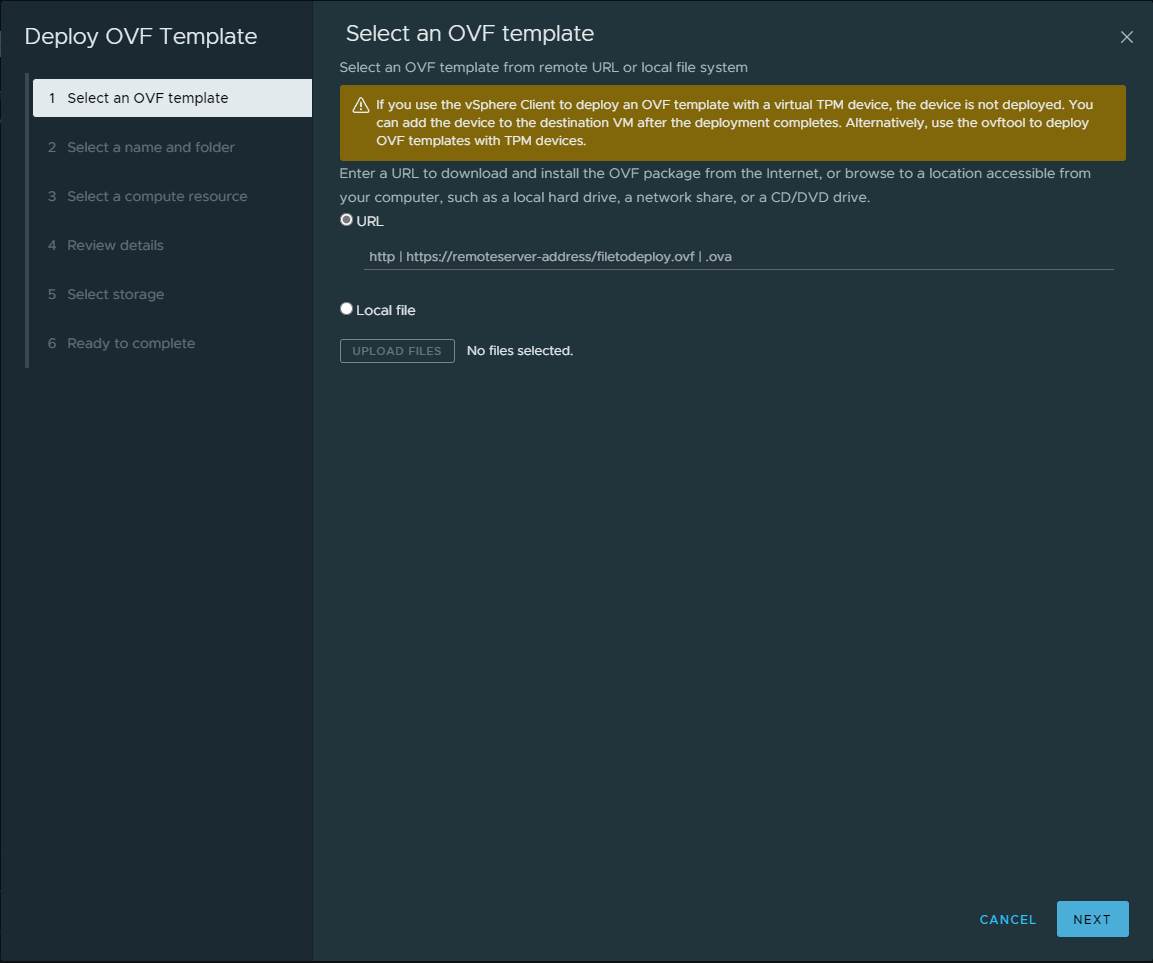
Below, you see the native wizard to import an OVA appliance in VMware vSphere using the vSphere Client.
The Challenges of Importing OVA Files into Hyper-V
Hyper-V doesn’t natively support importing OVA files, which creates some hurdles when attempting to import an OVA file. However, with the right tools and patience, you can overcome these challenges and import OVA files into Hyper-V. Let’s examine the process step-by-step. First, let’s consider the steps required to utilize OVA files in Hyper-V. These include the following:
- Convert the OVA to VHD
- Prepare your Hyper-V environment
- Create a new virtual machine
- Configure the imported virtual machine
- Test the imported virtual machine
Step 1: Converting OVA to VHD Format
Before you can import an OVA file into Hyper-V, you’ll need to convert it into a format that Hyper-V can recognize. The most common format for Hyper-V virtual machines is VHD (Virtual Hard Disk). Several tools can perform this conversion, including the qemu-img utility which is free to download.
With qemu-img.exe, you can point the tool to the OVA file you want to convert and then specify the destination file as a VHDX. For example, below, we are converting a freely available Linux OVA appliance to a VHDX disk.

Once you have the VHD or VHDX disk format, you can directly import the VHD into Hyper-V.
Step 2: Preparing Your Hyper-V Environment
Once you’ve converted the OVA file into a VHD format, it’s time to prepare your Hyper-V environment. First, ensure that your Hyper-V host is running properly and that you have enough resources to allocate to the new virtual machine. Verifying your network settings and storage configuration is essential to prevent any issues during the import process.
Step 3: Creating a New Virtual Machine
With the VHD file and your Hyper-V environment prepared, you can now create a new virtual machine to house the imported OVA file. First, in the Hyper-V Manager, select “New” and then “Virtual Machine.” Next, follow the New Virtual Machine Wizard, providing the necessary information such as name, generation, memory, and network settings.
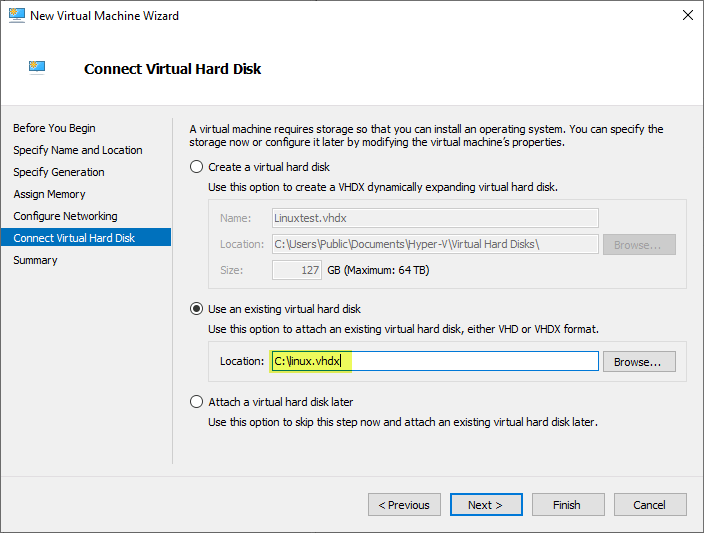
When you reach the “Connect Virtual Hard Disk” step, choose the “Use an existing virtual hard disk” option and browse to the location of your converted VHD file. Finish the wizard, and your new virtual machine will be created with the imported OVA file’s contents.
Step 4: Configuring the Imported Virtual Machine
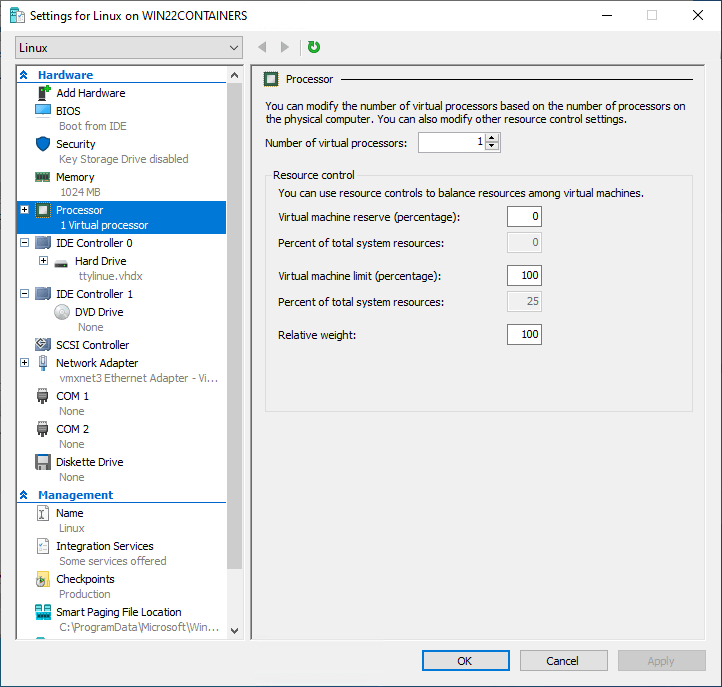
After creating the new virtual machine, you’ll need to configure it based on the requirements of the virtual appliance. This may involve adjusting the virtual machine’s settings, such as CPU, memory, and network adapters, to match the original OVA file’s specifications. Additionally, you may need to install Hyper-V Integration Services to improve the virtual machine’s performance and compatibility.
Step 5: Testing the Imported Virtual Machine
Once you’ve configured the virtual machine, testing its functionality is crucial. First, start the virtual machine and verify that the operating system boots and the applications function. This step is important to ensure that the import process is successful and that the virtual appliance performs as expected in the Hyper-V environment.
Troubleshooting Common Issues
You may encounter issues when importing OVA files into Hyper-V. Here are some common problems and potential solutions:
- Incompatible Virtual Hardware – Despite Hyper-V’s flexibility, some OVAs may have hardware configurations that Hyper-V doesn’t support. In such cases, you must modify the virtual machine’s settings to use compatible hardware options available in Hyper-V.
- Unsupported Guest Operating Systems – Hyper-V supports many guest operating systems but may not support every OS found in OVA files. If this happens, you could consider using alternative virtualization platforms like VMware or VirtualBox that support the specific OS.
- Performance Issues – If you experience performance issues with the imported virtual machine, ensure sufficient resources are allocated, and you have installed Hyper-V Integration Services. Verify that your Hyper-V host has the necessary hardware resources to support the virtual appliance.
FAQ
1. Can Hyper-V import an OVA file directly?
No — Hyper-V does not support native OVA import. You must extract and convert the contained disk (e.g., VMDK) into VHD/VHDX first.
2. What tools convert OVA to Hyper-V format?
Common tools include qemu-img, VBoxManage (from VirtualBox), and StarWind V2V Converter to convert VMDK → VHD/VHDX.
3. Is VHDX better than VHD when converting from OVA?
Yes — VHDX offers better performance, larger disk size support, and resilience for newer Hyper-V hosts; VHD is useful for older versions. (Best practice context)
4. How do I attach a converted VHD/VHDX to Hyper-V?
In Hyper-V Manager choose New > Virtual Machine → Connect Virtual Hard Disk → Use existing virtual hard disk → select your VHD/VHDX.
5. What is the difference between OVA and OVF?
An OVF (Open Virtualization Format) is a directory-based package containing separate descriptor and disk files, while an OVA is a single compressed archive (.tar) that bundles those same files together. They are commonly exported from VMware environments and require conversion for use in Hyper-V.
6. What common issues occur when importing OVA into Hyper-V?
The most frequent errors include: disk format incompatibility (VMDK not recognized), boot failure due to missing Hyper-V drivers, network adapter mismatches, and Generation 1 vs. Generation 2 VM conflicts. Most are resolved by reconfiguring the VM after import.
7: Will the imported VM work exactly the same in Hyper-V as in VMware?
Not always. Hardware configurations in VMware (like VMXNET3 NICs or PVSCSI controllers) have no direct Hyper-V equivalents. You may need to reconfigure network adapters, storage controllers, and install Hyper-V Integration Services for the VM to function properly.
8: Is there a way to automate OVA-to-Hyper-V migration at scale?
For large-scale or recurring VMware-to-Hyper-V migrations, Microsoft offers the Azure Migrate service and third-party tools like StarWind V2V Converter (free), which can simplify and automate the conversion process.
Wrapping up
While directly importing OVA files into Hyper-V isn’t natively supported, as shown, there is a way to convert the OVA file into a native Hyper-V virtual hard disk format, such as VHD or VHDX. By converting the OVA file to a compatible VHD format, preparing your Hyper-V environment, and properly configuring the imported virtual machine, you will likely be able to use the OVA appliance in your Hyper-V environment.
However, there are times when the process may not go smoothly and may require troubleshooting and configuration changes. Regardless, you can likely use OVA appliances in your Hyper-V environment with a few tweaks and configuration.
Read More on the Series:
Hyper-V Mastery: A Step-by-Step Guide for Beginners to Elevate Your IT Skills and Boost Your Career
Beginners’ Guide for Microsoft Hyper-V: How to Export and Import Hyper-V VM’s – Part 26
Beginners’ Guide for Microsoft Hyper-V: What is Azure Arc VM Management – Part 30
Beginners’ Guide for Microsoft Hyper-V: Hyper-V P2V Conversion – Part-55
Beginners’ Guide for Microsoft Hyper-V: Hyper-V AVHDX Files – Part-56
Beginners’ Guide for Microsoft Hyper-V: Hyper-V Clone VM – Part-52
How to export and import VMs from Hyper-V
Follow our Twitter and Facebook feeds for new releases, updates, insightful posts and more.

