
TL;DR: Hyper-V replication enables asynchronous VM replication between hosts for disaster recovery. Proper configuration requires enabling replication settings, configuring authentication, and validating failover. This guide walks IT admins through setup and best practices to ensure business continuity.
Now that we have a general overview of Hyper-V Replication, let’s look at how to set up the solution with two Hyper-V servers in a lab environment. Replication using two standalone servers is the most straightforward approach to Hyper-V Replication that helps build knowledge of how the process works.
The Hyper-V Replication test configuration
To level set on the lab configuration, we have two Windows Server 2022 hosts in the lab environment configured as standalone Hyper-V servers with local storage, etc. Both servers are fresh installations with the latest Windows patches. The Hyper-V Role has been installed on both servers via the PowerShell cmdlet:
Install-WindowsFeature -Name Hyper-V -IncludeManagementTools -Restart
Once you have Hyper-V installed on both of your Hyper-V hosts, you can set up Hyper-V Replication between them. You may wonder if you would use Hyper-V Replication between standalone hosts would never be used in production. However, there is a specific use case among others where this could be the case.
When would you use Hyper-V replication between two standalone servers?
Using Hyper-V Replication between two standalone servers is an excellent way to create a “poor man’s disaster recovery” solution if you don’t have the hardware or budget to create robust Hyper-V clusters at each location. In this way, businesses take a calculated risk to understand that if the primary host goes down, no other host can assume the workloads at the primary location.
However, you can assume this risk with replication, knowing you have a replica of your Hyper-V server at another location or even on the same site. The “same site” configuration is well-suited for losing your primary Hyper-V server but not for a site-level failure.
However, Hyper-V Replication can be used to configure multiple replicas to have multiple replica copies of your VMs to protect from inter-site failures and site-level.
Configuring Hyper-V Replication – Step-by-Step
To begin the configuration process for Hyper-V Replication, right-click on a virtual machine and select Enable Replication.
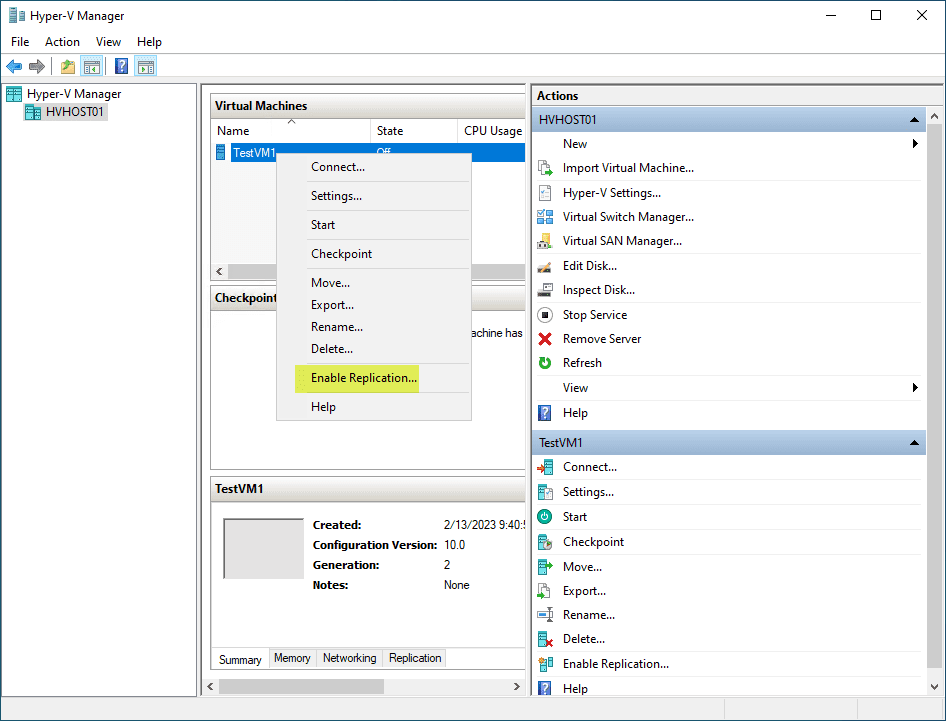
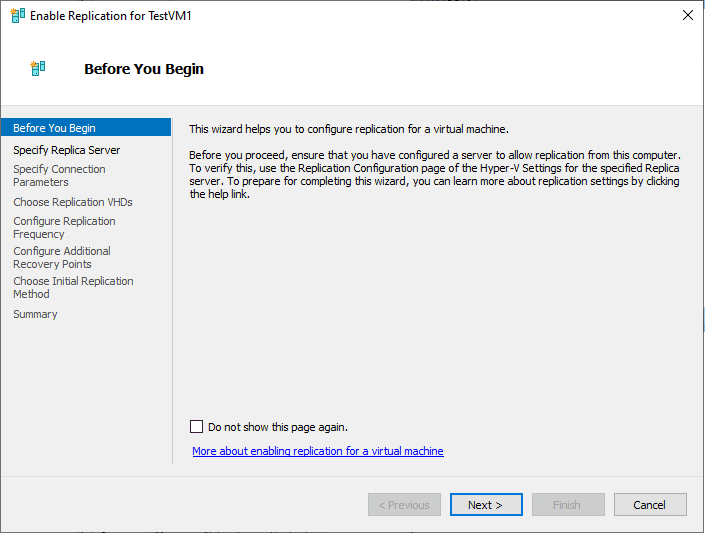
It will launch the Enable Replication wizard for the Hyper-V virtual machine. Click Next.
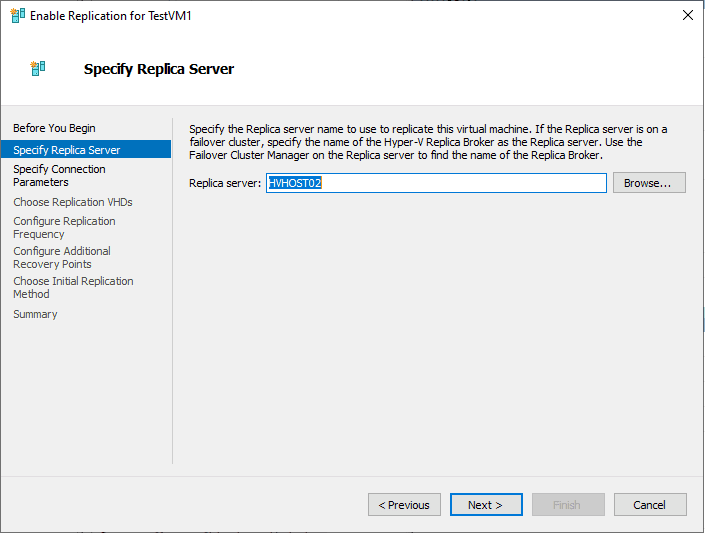
Next, you will need to choose the target for the Hyper-V replica. You can type in the name of your Hyper-V server or use the Browse button to find the server in Active Directory.
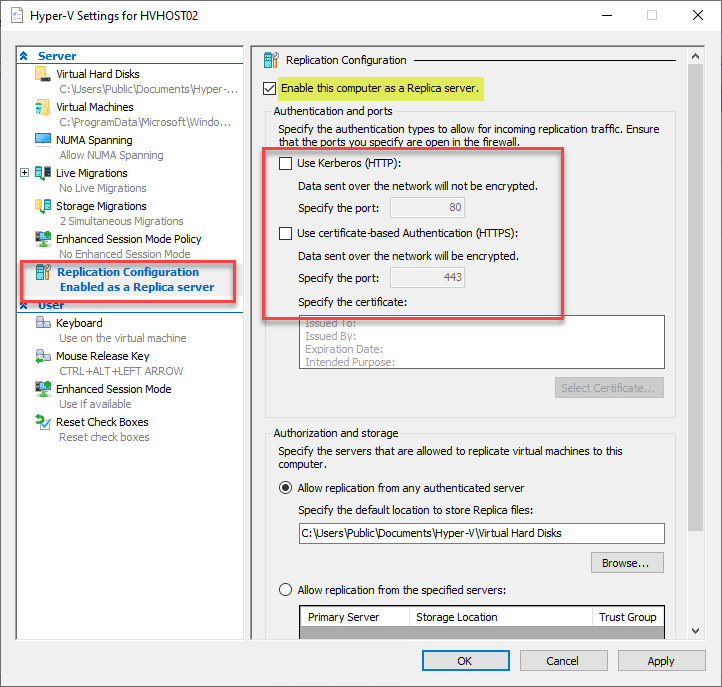
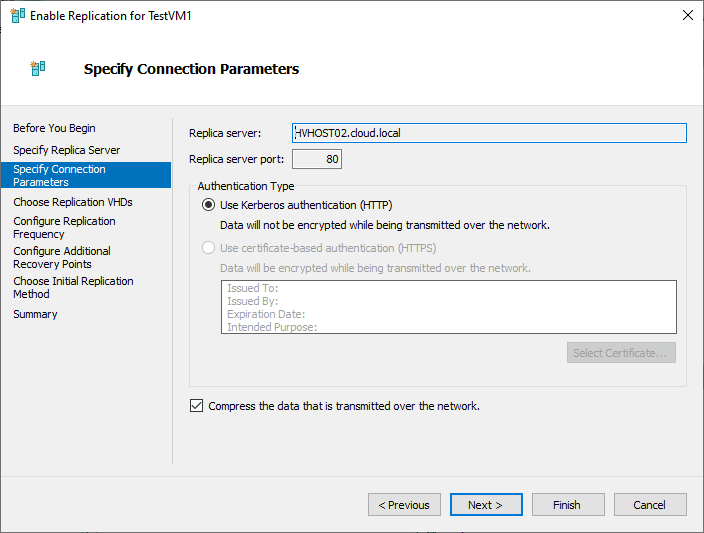
Before you can target a specific Hyper-V server for replication, you need to enable the server as a Replica Server. Under the properties of the Hyper-V host that will be the target of replication, you need to check the box, Enable this computer as a Replica server. Also, select either HTTP or HTTPS for the communication protocol.
You should never use HTTP for production environments. HTTPS requires the configuration of certificates to encrypt the communications between the two Hyper-V servers and ensures data is secure during transmission. You can also configure which servers are authorized to replicate machines to the target Hyper-V server.
Specify your connection parameters. It compresses data by default (configurable).
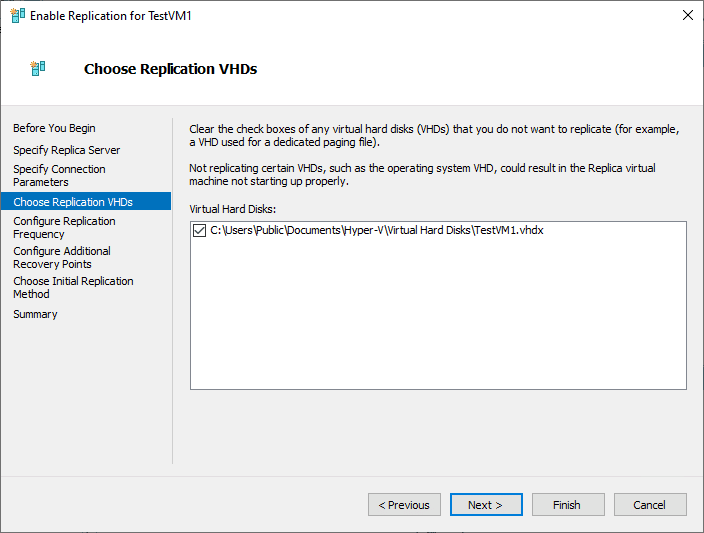
Choose the replication VHDs you want to replicate to the target server.
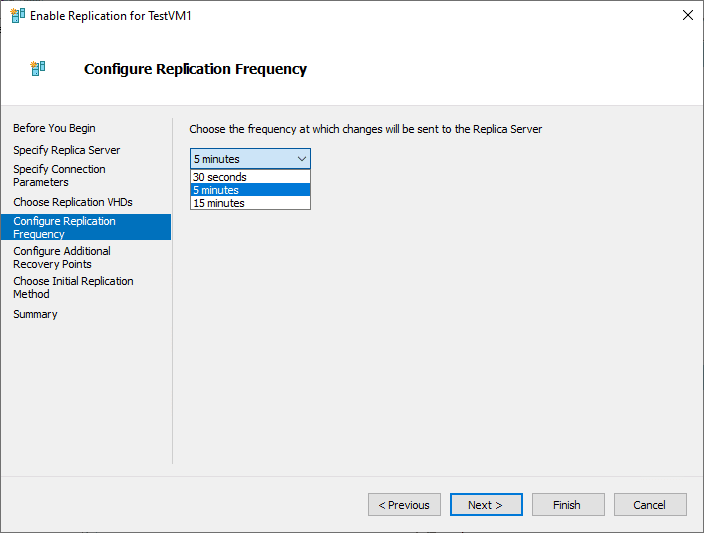
Configure the replication frequency for the Hyper-V Replica. It essentially configures your RPO value for the replication process. Here, you can see the available replication intervals in the wizard – 30 seconds, 5 minutes, and 15 minutes.
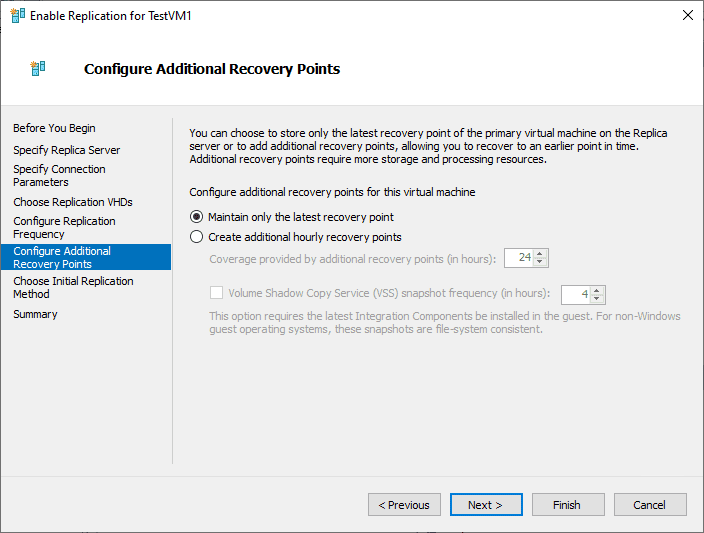
You can also choose to keep extra recovery points or maintain the latest recovery point. The additional recovery points will be kept as Hyper-V checkpoints on the Hyper-V replicas.
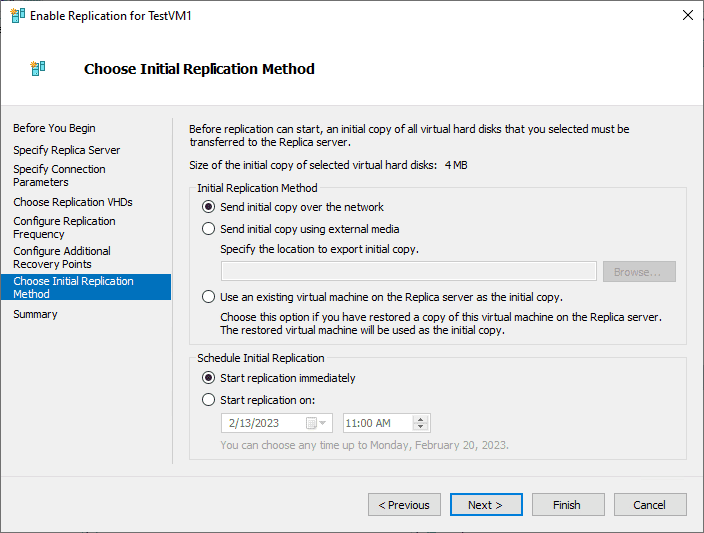
You can also choose your Initial Replication Method for your Hyper-V replicas. You can choose from the following:
- Send initial copy over the network
- Send initial copy using external media
- Use an existing virtual machine on the Replica server as the initial copy
- Schedule Initial replication
- Start replication immediately
- Start replication on
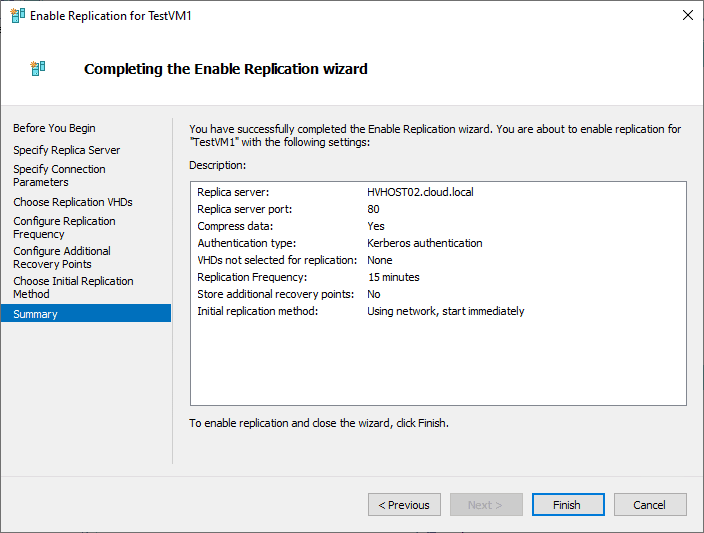
Finally, we come to the Summary screen for the Hyper-V replication configuration. Verify your configuration is accurate. You can hit the Previous button if needed or click Finish if everything looks okay.
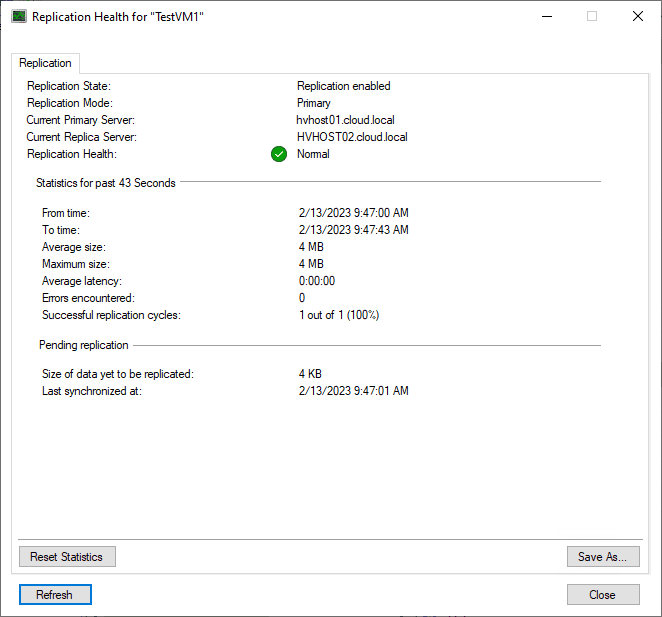
You can check out the status of Hyper-V replication by clicking the VM in Hyper-V Manager and choosing Replication > View Replication health. Below, I have replicated the shell of a virtual machine without an operating system installed.
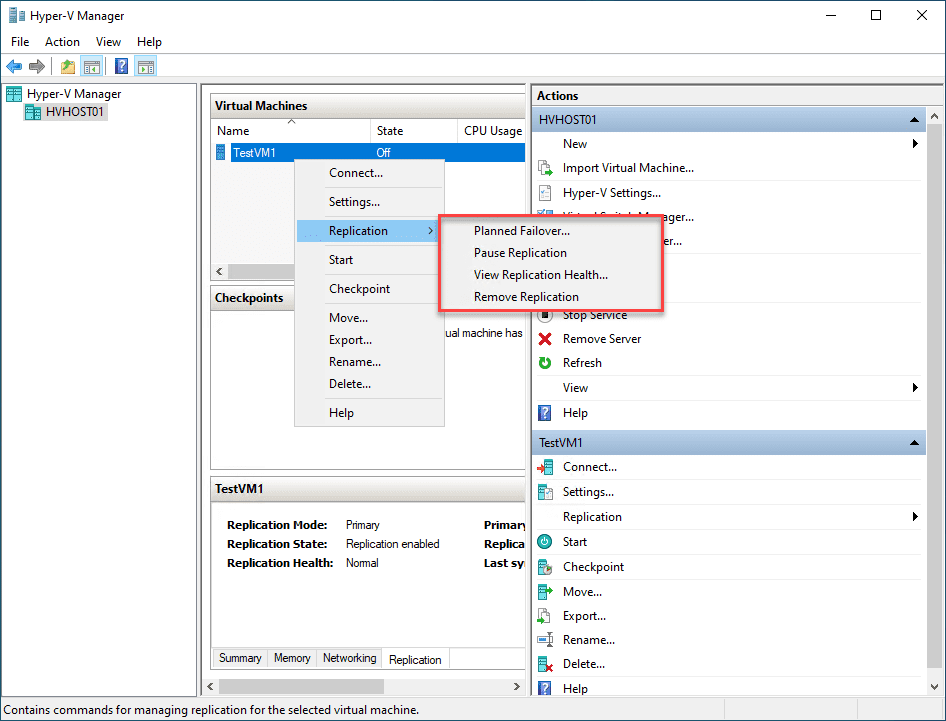
You can see all the Hyper-V Replication options by right-clicking the virtual machine and choosing Replication. You will see the following options:
- Planned Failover
- Pause Replication
- View Replication Health
- Remove Replication
FAQs
1. What is Hyper-V replication?
Hyper-V replication is a built-in disaster recovery feature that asynchronously copies virtual machines from a primary host to a secondary host. It enables failover in the event of hardware failure, site outage, or disaster.
2. What are the requirements for Hyper-V replication?
Both hosts must support Hyper-V and have network connectivity between them. Replication requires proper authentication configuration (Kerberos or certificate-based) and open firewall ports, typically 80 (HTTP) or 443 (HTTPS) depending on setup.
3. How do you configure Hyper-V replication?
To configure Hyper-V replication, enable replication settings on the replica server, then select “Enable Replication” on the source VM. Choose the replica server, configure authentication, set replication frequency, and complete the initial replication process.
4. What is the difference between Hyper-V replication and backup?
Hyper-V replication provides near-real-time VM copies for failover, while backup creates point-in-time restore versions. Replication supports quick recovery from site failure, but backup protects against corruption, ransomware, and accidental deletion.
5. How do you test Hyper-V failover?
You can perform a test failover in Hyper-V Manager without disrupting production. This creates a temporary test VM from the replica copy to verify recovery readiness and configuration integrity.
Wrapping Up
Hyper-V replication is a great way to provide disaster recovery options for critical applications in the environment. It can protect organizations from critical downtime from server failures, ransomware, natural disasters, and other threats. Businesses can also use it to protect data between standalone Hyper-V environments where they don’t have the hardware or budget to build a proper Hyper-V cluster to protect workloads.
Read More:
Beginners’ Guide for Microsoft Hyper-V: What is Hyper-V Replication and How it works: Part 66
Follow our Twitter and Facebook feeds for new releases, updates, insightful posts and more.

