
TL;DR:
- Hyper-V is Microsoft’s built-in hypervisor available on Windows 11 Pro, Enterprise, Education, and Windows Server 2022
- Before enabling, your system needs a 64-bit CPU with SLAT, at least 4 GB of RAM, and virtualization enabled in BIOS/UEFI
- On Windows 11: Go to Settings > Apps > Optional Features > More Windows Features > select Hyper-V > restart
- On Windows Server 2022: use Server Manager > Add Roles and Features > select Hyper-V role > allow restart
- Windows 11 Hyper-V is best for dev and test only. It lacks enterprise features like live migration, failover clustering, and SDN
- For production environments needing high availability and disaster recovery, Windows Server 2022 Hyper-V is the right choice
What Is Hyper-V and Why Enable It?
Hyper-V is Microsoft’s built-in virtualization platform that allows users to create and manage virtual machines (VMs). Whether you’re a developer, IT professional, or tech enthusiast, Hyper-V is an excellent tool for:
- Testing new software in a safe environment
- Running multiple operating systems without additional hardware
- Creating isolated environments with enhanced security
System Requirements and Prerequisites for Hyper-V
Before enabling Hyper-V in Windows 11, ensure your system meets these requirements:
- Operating System: Windows 11 Pro, Enterprise, or Education; or Windows Server 2022
- Processor: A 64-bit CPU with SLAT (Second Level Address Translation)
- RAM: Minimum of 4GB (8GB or more recommended)
- BIOS Settings: Virtualization must be enabled in the BIOS/UEFI firmware
- Windows Features: Ensure your version supports Hyper-V (Home editions do not)
To check if your CPU supports virtualization, open Task Manager, go to the Performance tab, and look for “Virtualization: Enabled” under CPU details.
How to Enable Hyper-V Client on Windows 11 (Step-by-Step)
Hyper-V, when installed on Windows machines, including Windows 11 and earlier versions, is referred to as a Hyper-V on the client machine. To enable Hyper-V, follow these steps:
- Press the Windows logo key + I simultaneously to open the Settings menu
- Click on Apps and then click Optional features.
- Scroll down to Related settings and click on More Windows features
- Select Hyper-V and then click OK
- Once completed, click Restart now
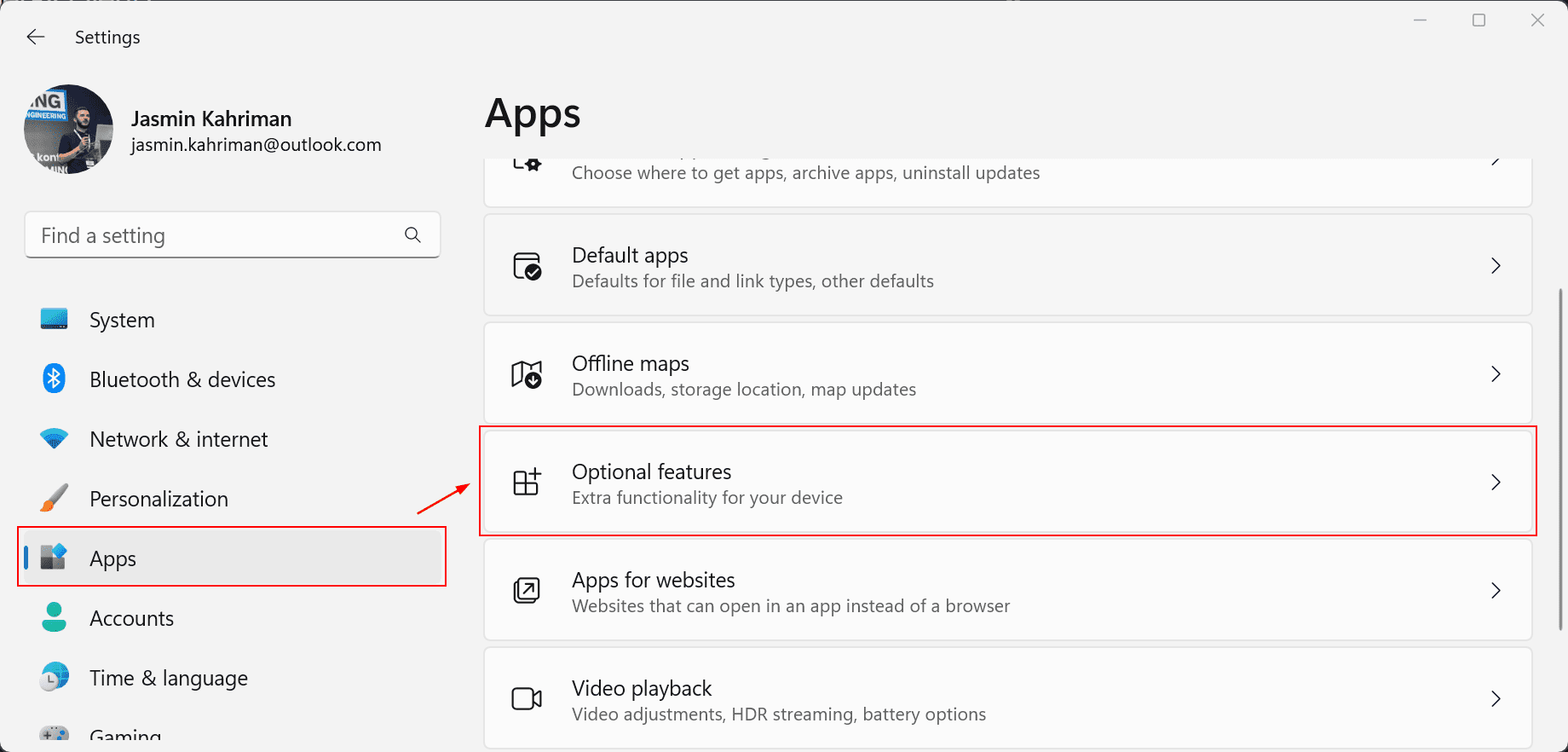
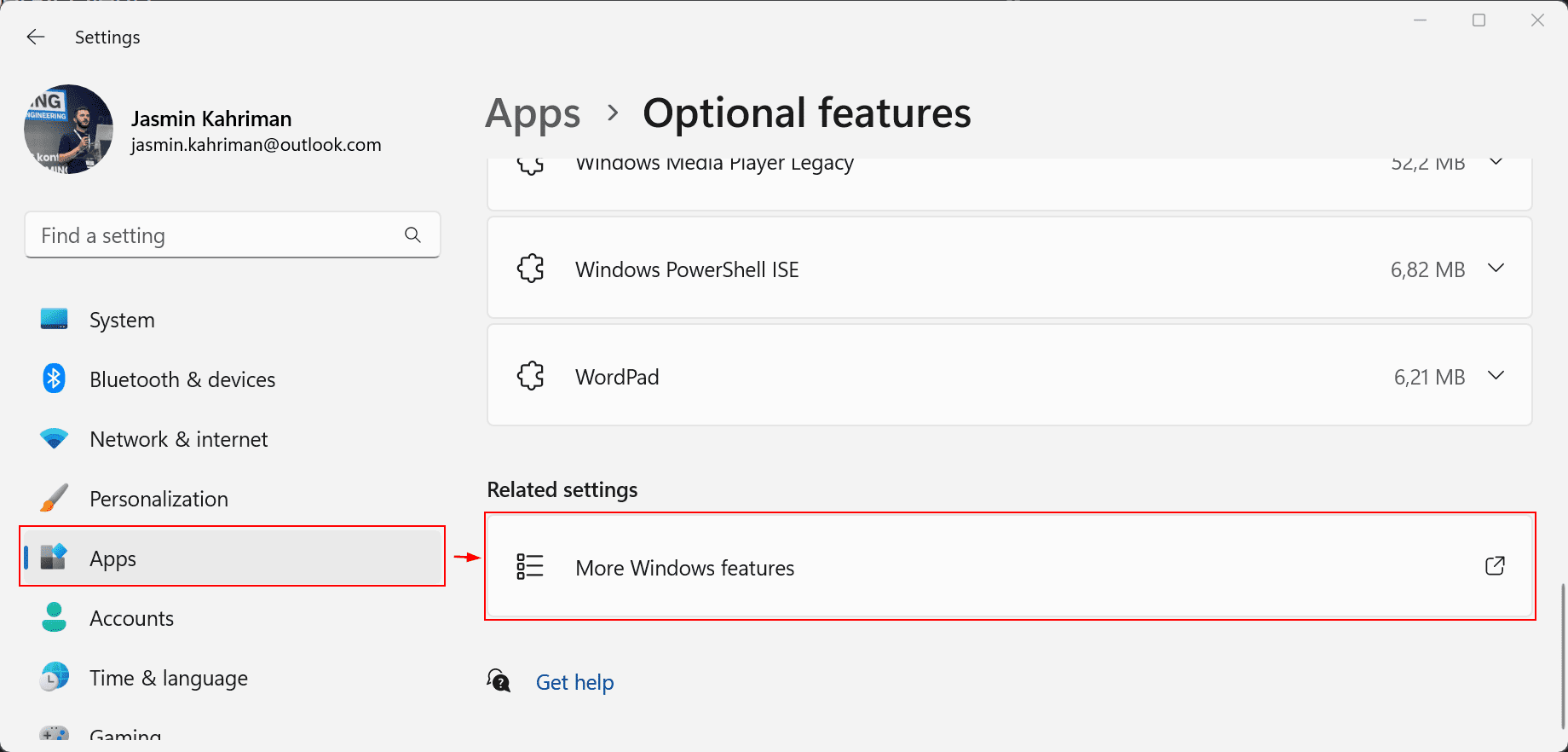
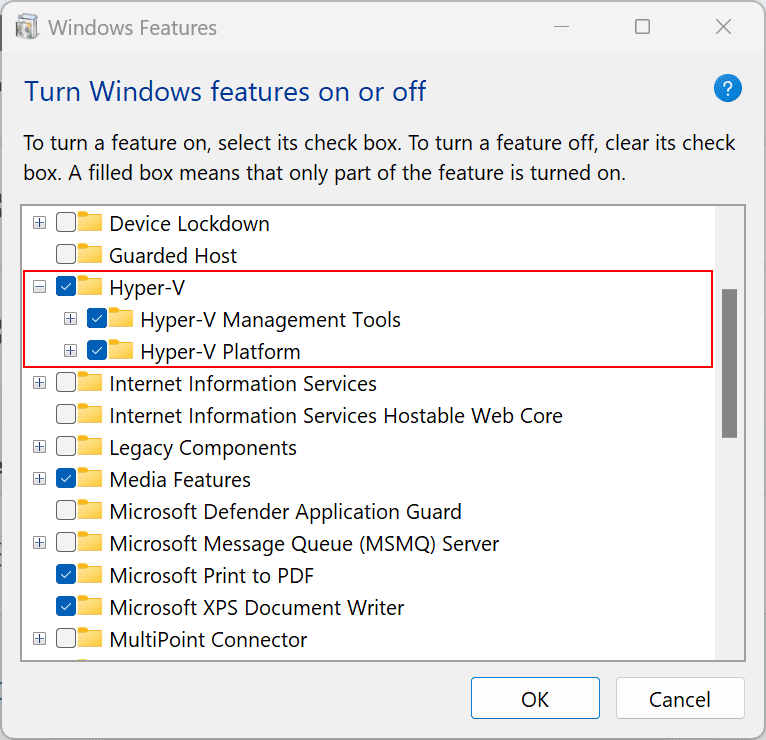
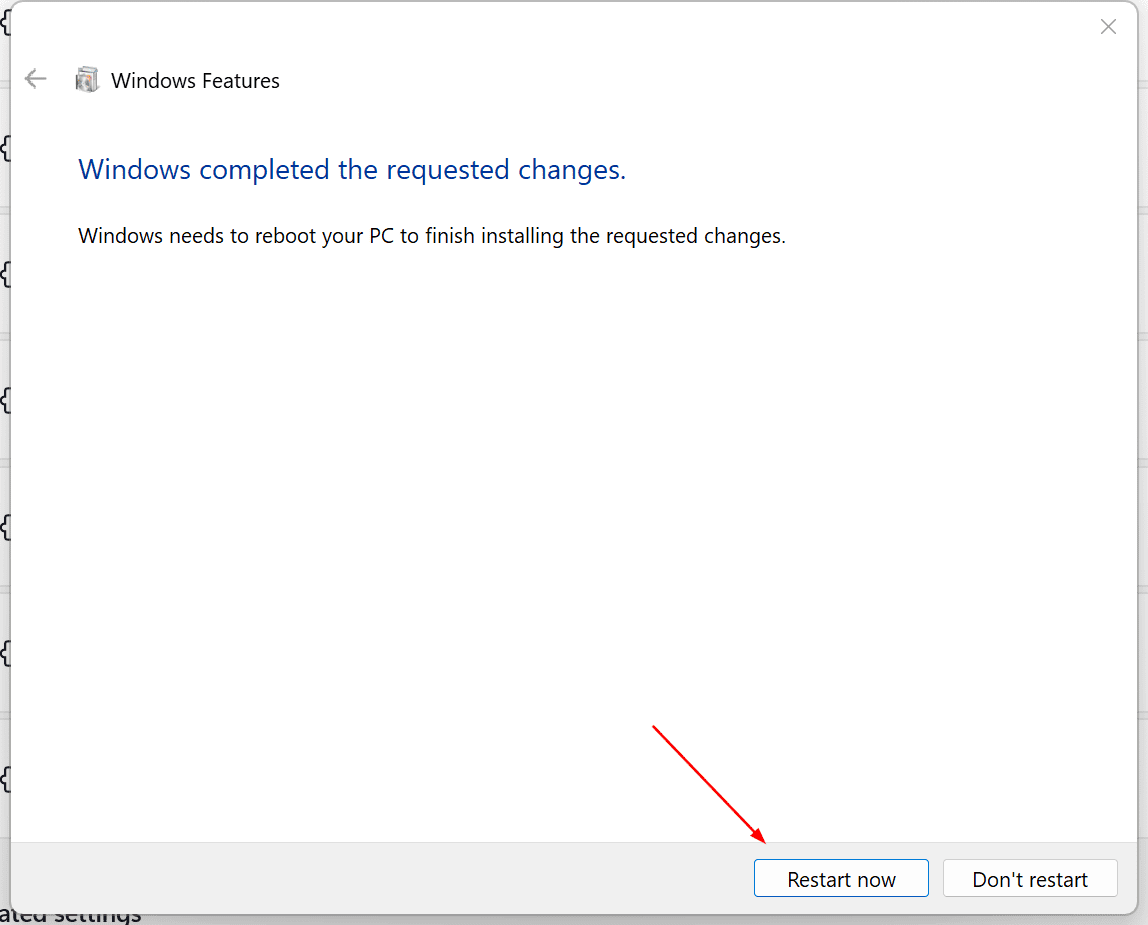
That is it. You successfully enabled Hyper-V in Windows 11.
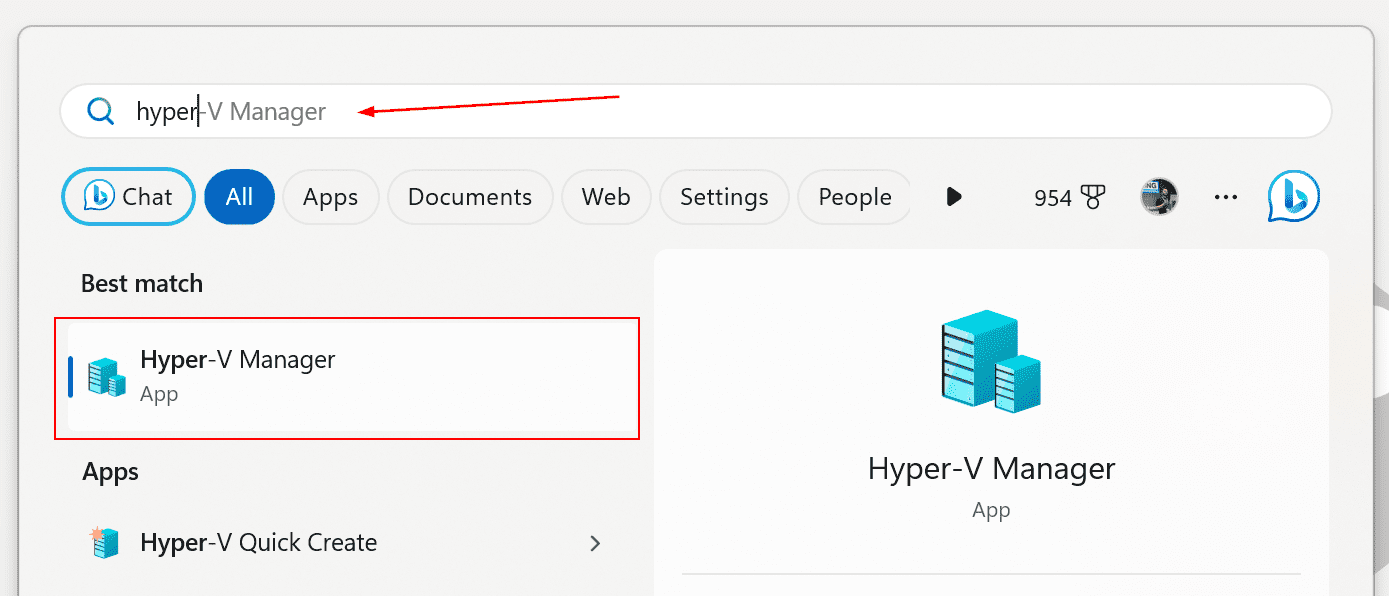
After Windows has rebooted, click on the Start Menu, and search for Hyper-V to run it.
How to Enable Hyper-V on Windows Server 2022 (Server Manager)
From Windows Server 2008 up to Windows Server 2019, you could install Hyper-V as a server role through Server Manager or as a standalone Hyper-V server (Server Core). Starting from Windows Server 2022, Microsoft didn’t release Hyper-V as a standalone product, but you can still install it as a server role. Here is how to do it.
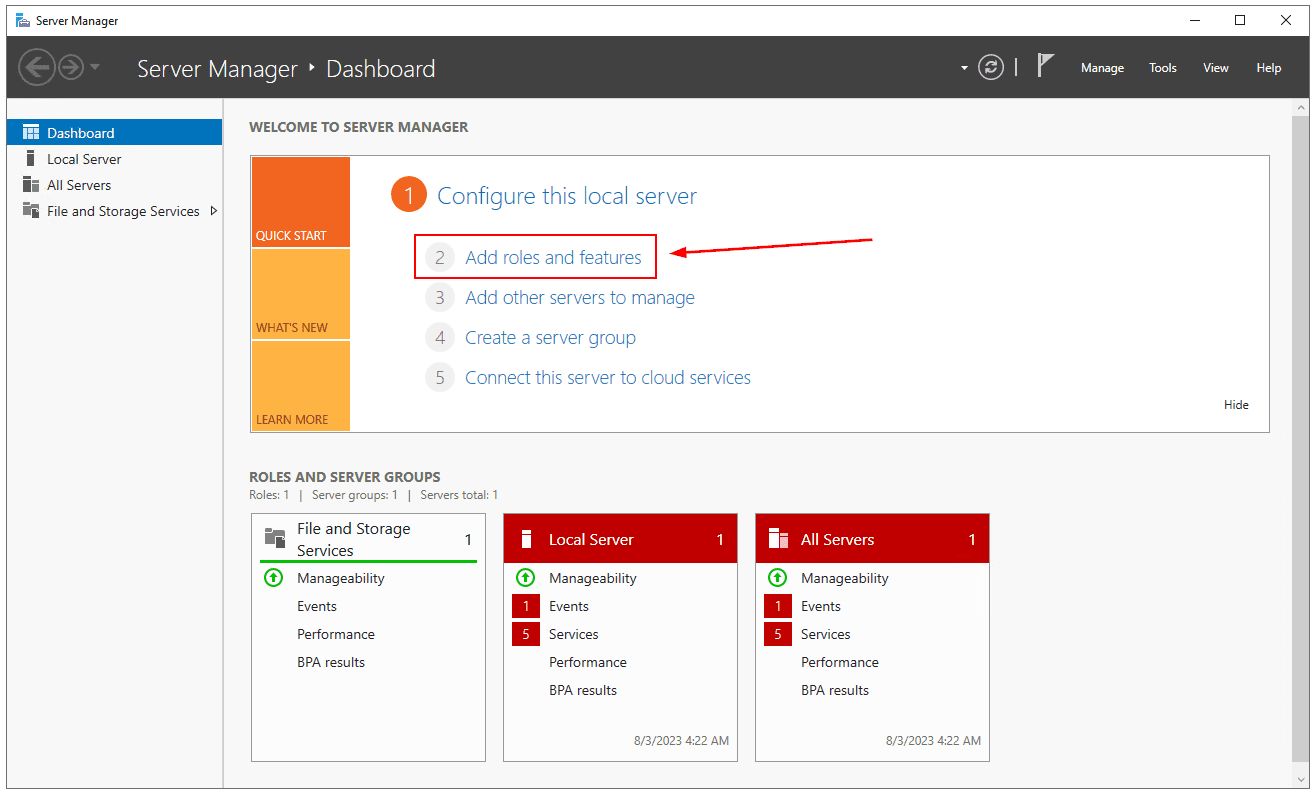
- Open Server Manager
- Click on Add roles and features
- Under Before you begin, click Next
- Under Select installation type, click Next
- Under Server selection, click Next
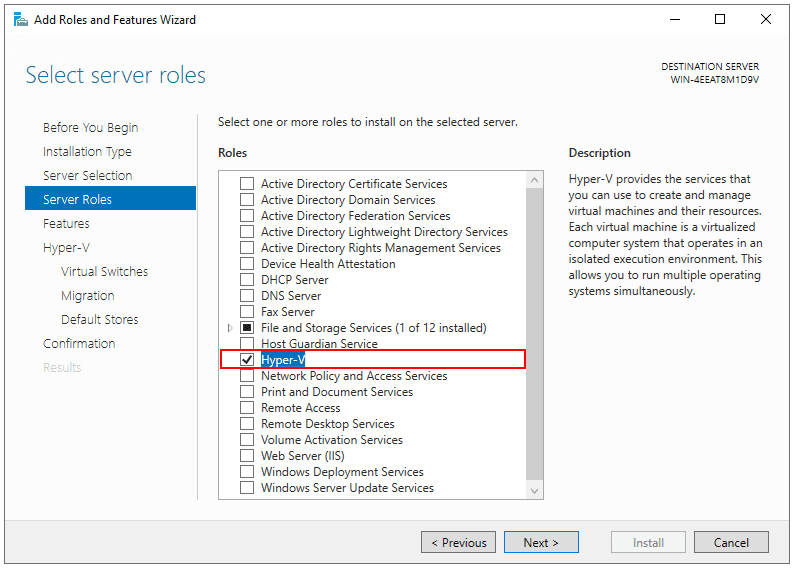
- Under Server roles, select Hyper-V and then click Add Features. Click Next
- Under Select features, click Next
- Under Hyper-V, click Next
- Under Create Virtual Switches, select network adapter/s and click Next
- Under Virtual Machine Migration, click Next
- Under Default Stores, click Next
- Under Confirm installation selections, select Restart the destination server automatically if required and then click Install
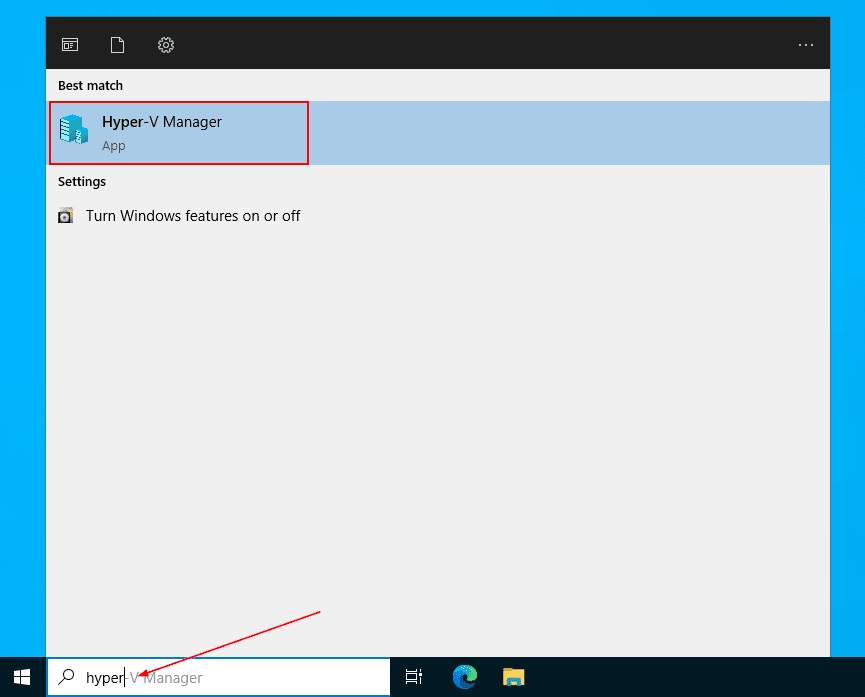
- You successfully enabled Hyper-V in Windows Server 2022. click on the Start Menu, and search for Hyper-V to run it
Windows 11 Hyper-V Limitations: What It Cannot Do
Hyper-V on Windows 11 is primarily designed for development and testing environments, and it lacks many of the enterprise-grade features found in Windows Server 2022 Hyper-V.
- Windows 11 Hyper-V is focused on basic virtualization needs and doesn’t include advanced networking features like Software-Defined Networking (SDN) and Network Virtualization
- Advanced storage features such as Storage Spaces Direct (S2D) and tiered storage might not be supported
- Fewer advanced management tools and options compared to the server version, limiting large-scale management and automation capabilities
- Hyper-V on Windows 11 does not support failover clustering for high availability and disaster recovery
- Limited or no support for live migration of virtual machines
- Hyper-V on Windows 11 lacks advanced features such as Hyper-V Replica, shielded virtual machines, and enhanced session mode
While in general Windows 11 Hyper-V can be used for basic virtualization tasks, it’s not recommended for production environments requiring high availability, disaster recovery, or advanced features. For these scenarios, Windows Server Hyper-V is the preferred choice.
FAQ
What are the system requirements to enable Hyper-V on Windows 11?
You need Windows 11 Pro, Enterprise, or Education; a 64-bit CPU with SLAT support; at least 4 GB of RAM (8 GB recommended); and hardware virtualization enabled in your BIOS or UEFI firmware. Windows 11 Home does not support Hyper-V.
How do I enable Hyper-V on Windows 11?
Press Windows + I to open Settings, go to Apps, click Optional Features, scroll to Related Settings and click More Windows Features, check Hyper-V, click OK, then restart your computer. After reboot, search for Hyper-V in the Start Menu to open Hyper-V Manager.
How do I install the Hyper-V role on Windows Server 2022?
Open Server Manager, click Add Roles and Features, proceed through the wizard until Server Roles, select Hyper-V, click Add Features, configure virtual switches and storage paths, then check the option to restart automatically and click Install.
Can I enable Hyper-V on Windows 11 Home?
No. Windows 11 Home does not support Hyper-V. You need the Pro, Enterprise, or Education edition to use Hyper-V natively.
Do I need to enable virtualization in BIOS before installing Hyper-V?
Yes. Intel VT-x or AMD-V must be enabled in your BIOS or UEFI settings. You can check if it is already on by opening Task Manager, going to the Performance tab, and checking for ‘Virtualization: Enabled’ under CPU.
Is Hyper-V on Windows 11 suitable for production use?
No. Hyper-V on Windows 11 is designed for development and testing. It does not support enterprise features like failover clustering, live migration, Software-Defined Networking, or Hyper-V Replica. For production workloads, use Windows Server 2022 Hyper-V.
Is Hyper-V still available as a standalone product in Windows Server 2022?
No. Starting from Windows Server 2022, Microsoft no longer offers Hyper-V as a standalone server product. It is still available as a server role installed through Server Manager.
Can I enable Hyper-V without PowerShell on Windows Server 2022?
Yes. You can enable Hyper-V through the graphical Server Manager interface without using PowerShell. The wizard guides you through role selection, virtual switch configuration, and migration settings step by step.
We hope you found these steps straightforward. If there are any questions, please let us know in the comment section.
Fortify the security of your Hyper-V environment effortlessly by acquiring BDRShield: Download BDRShield
Discover the remarkable capabilities of Hyper-V backup with BDRShield and witness its effectiveness firsthand: Hyper-V Backup with BDRShield
Related Posts:
Hyper-V Configuration Versions and Generations
Securing Hyper-V Hosts and Virtual Machines
Hyper-V Mastery: A Step-by-Step Guide for Beginners to Elevate Your IT Skills and Boost Your Career
Follow our Twitter and Facebook feeds for new releases, updates, insightful posts and more.

