
TL;DR
Hyper-V on Windows Server Core provides a lightweight, secure virtualization platform. You can manage it using Hyper-V Manager, Failover Cluster Manager, PowerShell, or Windows Admin Center, enabling full control without a GUI while improving performance and reducing attack surface.
Read on:
Beginners’ Guide for Microsoft Hyper-V: What is Hyper-V Azure Site Recovery – Part 49
Running Hyper-V inside a Windows Server Core installation or Hyper-V Server means running your Microsoft virtualization environment on top of Windows Server Core. Windows Server Core is a stripped-down version of Microsoft Windows Server that drastically reduces the attack surface and streamlines the resources required for running Windows Server. As a result, it has a positive effect on your virtualization environment.
What is Windows Server Core?
Windows Server Core is a minimalistic installation of Windows Server, allowing you to have a “headless” operating system without a GUI. However, when the Desktop Experience is installed in Windows Server, it adds many services and files that are often unnecessary when hosting a specific service like a virtualization server running Hyper-V.
Free Hyper-V Server is based on Windows Server Core
In case you haven’t realized, the free Hyper-V Server offering available in its last iteration with Hyper-V Server 2019 and earlier is based on Windows Server Core installations of Windows Server. It is a unique offeringof Windows Server Core with the Hyper-V role preinstalled from Microsoft.
Non-LTSC releases of Windows Server are Windows Server Core
The only Windows Server version released with the non-LTSC releases of Windows Server are only offered as Windows Server Core installations.
Server Core management options
With Hyper-V, admins can use many great management tools to manage the underlying Windows Server operating system and Hyper-V role. These include traditional tools, such as Hyper-V manager and Failover Cluster Manager. In addition, admins now have access to the modern management tooling found in Windows Admin Center.
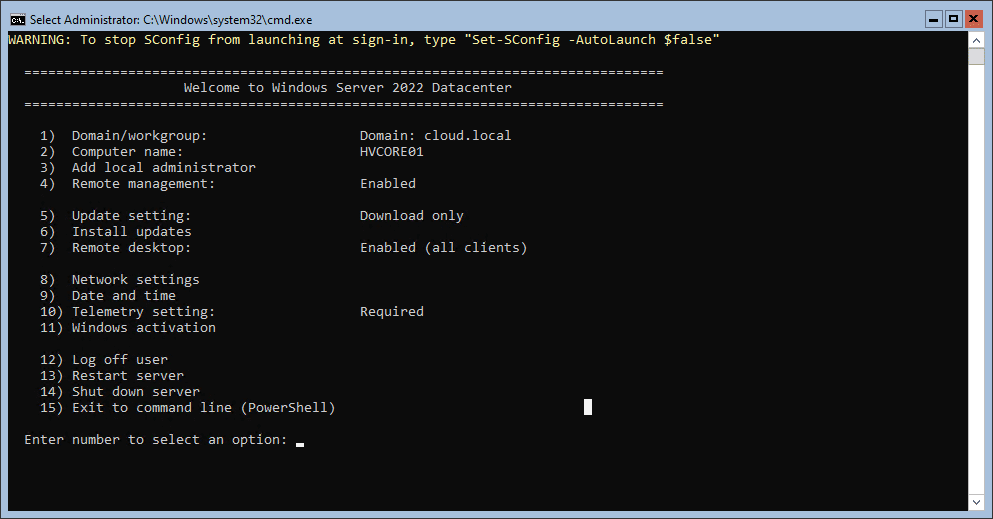
There are also other traditional management tools included with RSAT that admins can use to manage Server Core and PowerShell for scripting and automation. Windows Server Core also has a Server Core-specific tool, known as sconfig that provides a text-based, command prompt menu system to perform the basic configuration of your Server Core installation.
The sconfig utility automatically launches when you install Windows Server Core.
Hyper-V on Server Core management
As mentioned, admins can use traditional management tools for Hyper-V and Hyper-V clusters to configure and administer Hyper-V environments. Even though Server Core does not have the Desktop Experience installed, we can still manage the server with GUI tools, giving us the best of both worlds. Let’s look at the conventional tools first, and then we will consider using Windows Admin Center.
Managing Hyper-V on Windows Server Core with traditional tools
The most common conventional tools used to manage Windows Server with Hyper-V are arguably the Hyper-V Manager and Failover Cluster Manager. Hyper-V Manager allows managing Hyper-V-specific settings and configuration. Failover Cluster Manager enables cluster-specific management and administration, including configuring virtual machine high-availability.
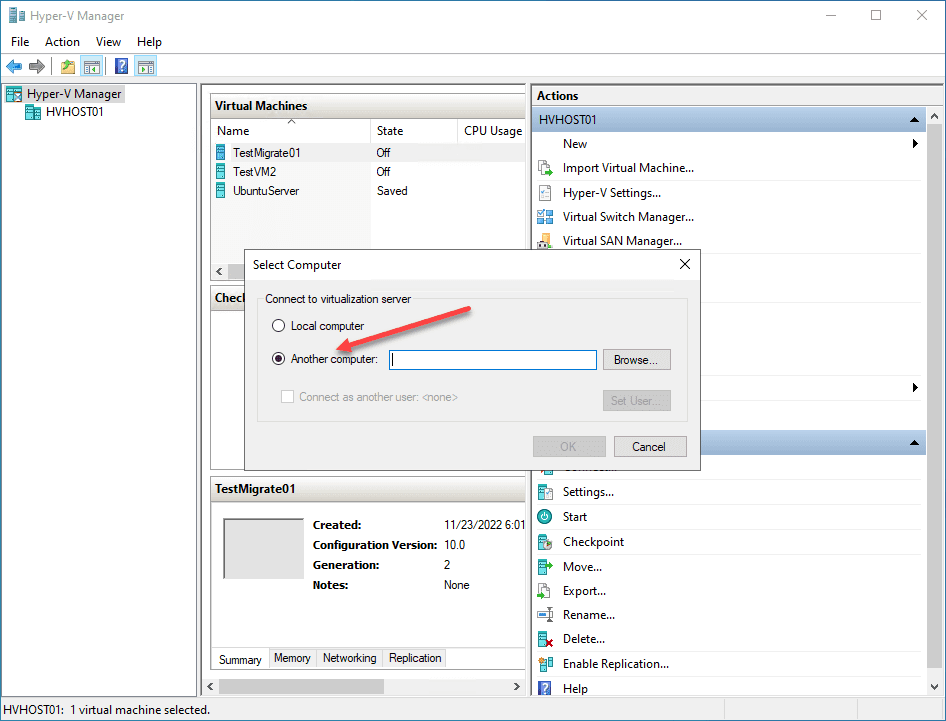
You can connect to a remote Hyper-V server for management in Hyper-V Manager. Here, we are adding the name of the Server Core installation of Hyper-V for management in Hyper-V Manager.
After connecting to the remote Hyper-V server running on Server Core, it is now listed in Hyper-V Manager for configuration.
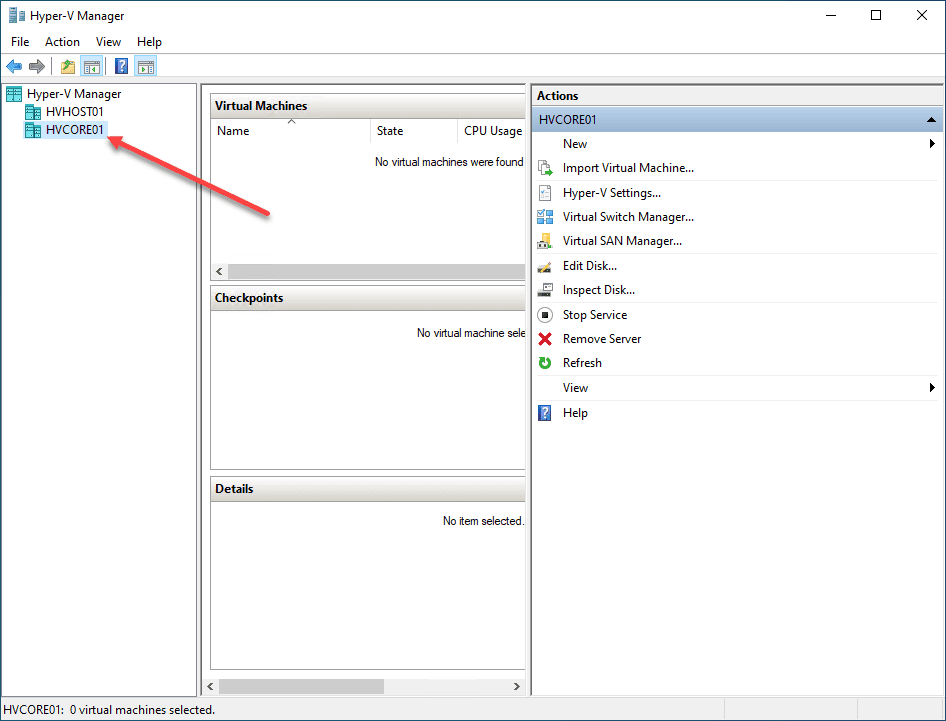
As you can see below, we can configure and administer the Server Core server like a Hyper-V server running in Windows Server with the Desktop Experience installed.
Hyper-V on Windows Server Core management with Windows Admin Center
Windows Admin Center is a more all-in-one solution that allows managing all aspects of your Server Core installation outside of Hyper-V. You don’t have to launch a specific management console with Windows Admin Center. Instead, all management areas are available using the various Windows Admin Center extensions.
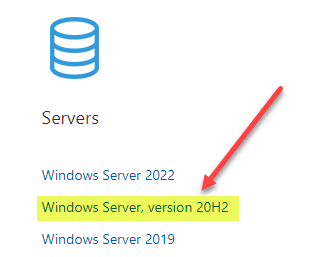
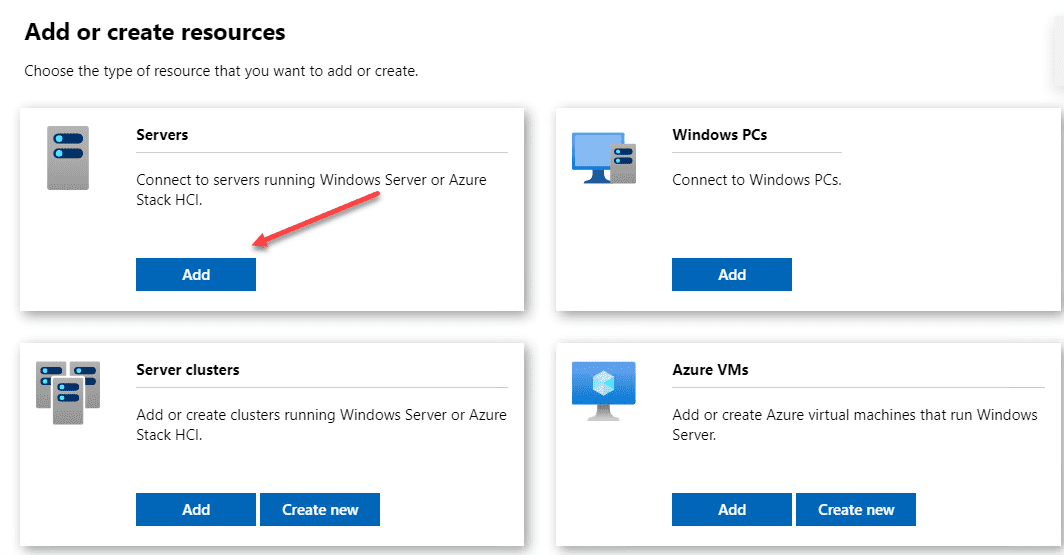
To add your Server Core installation of Hyper-V to Windows Admin Center, Add or Create resources using the appropriate options in Windows Admin Center. For a standalone Hyper-V server on Server Core, choose Servers.
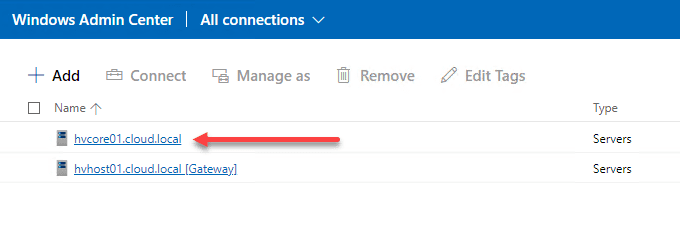
The Hyper-V server running on Server Core is now listed in the Windows Admin Center-managed servers.
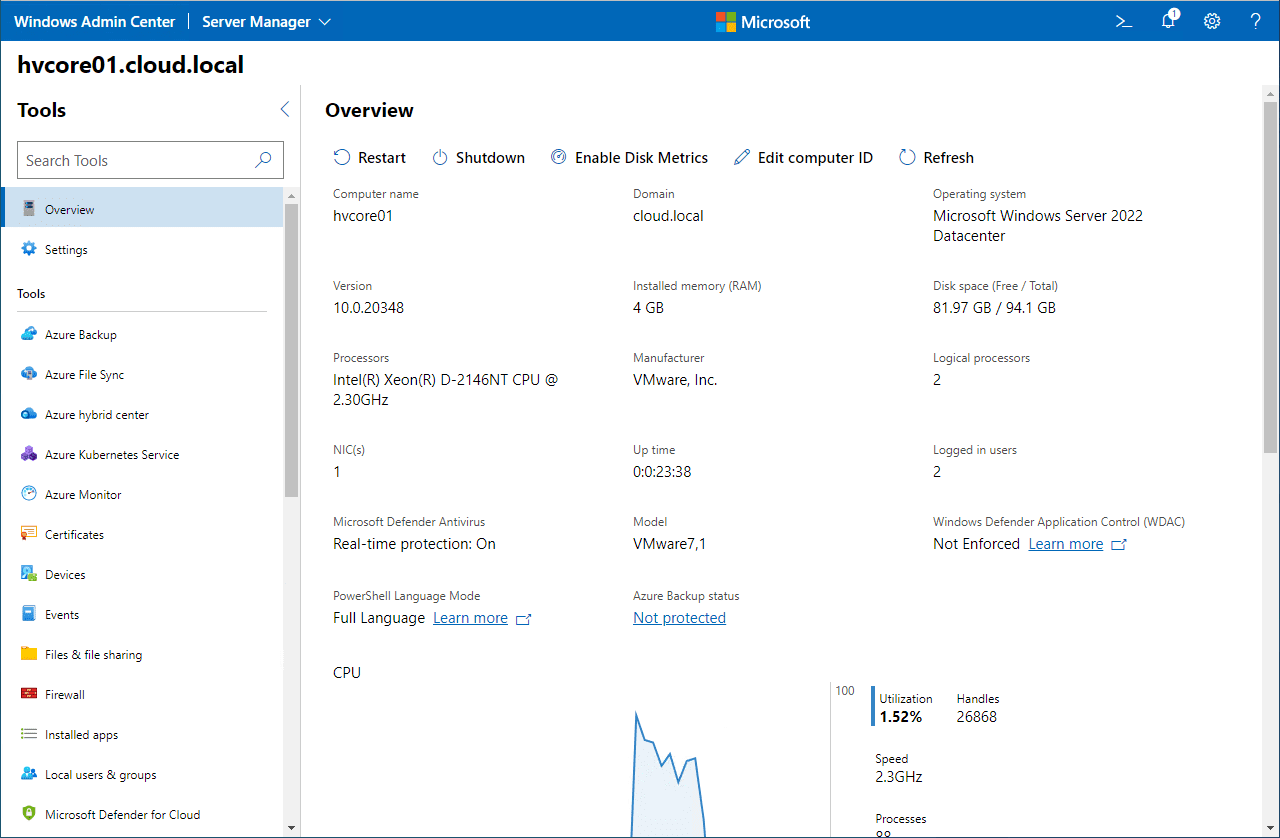
Immediately after adding your Hyper-V server running on Server Core, you will see a wealth of information in the Overview dashboard, including performance metrics, hardware information, operating system information, and graphical representations of the performance metrics.
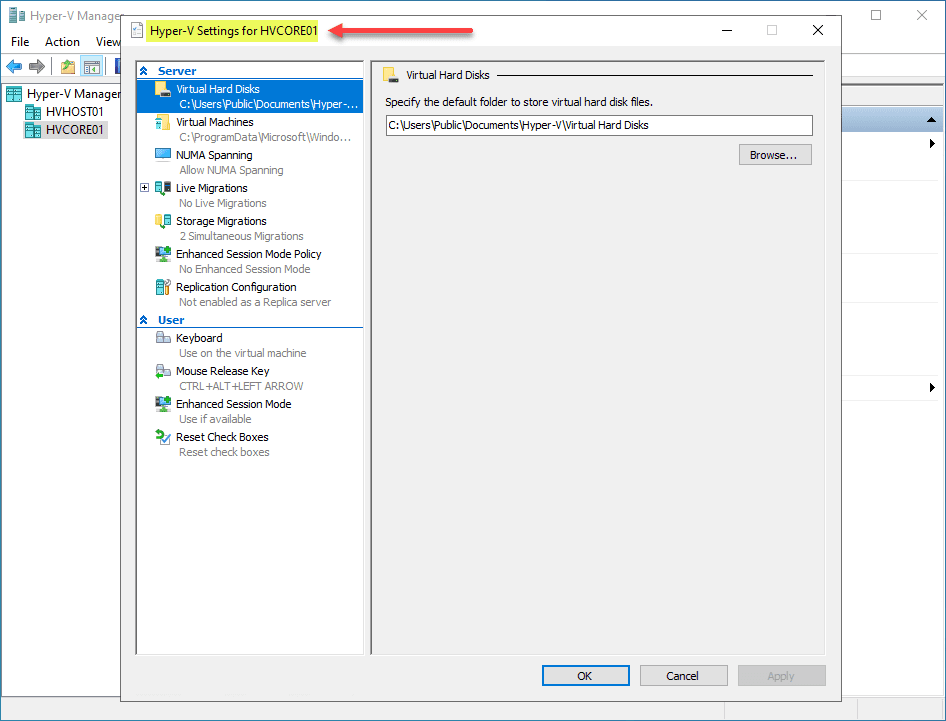
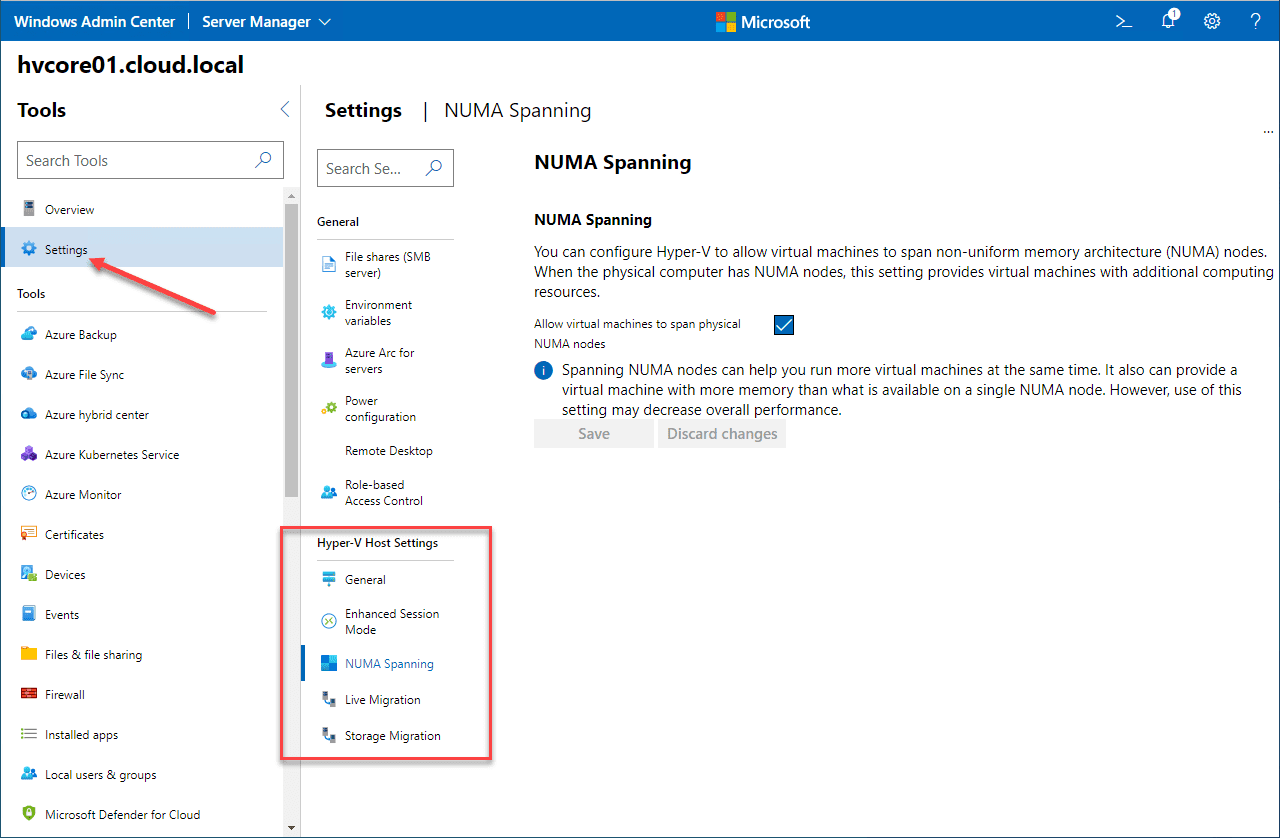
In the Settings dashboard, Windows Admin Center displays Hyper-V Settings as part of the overall settings configurable.
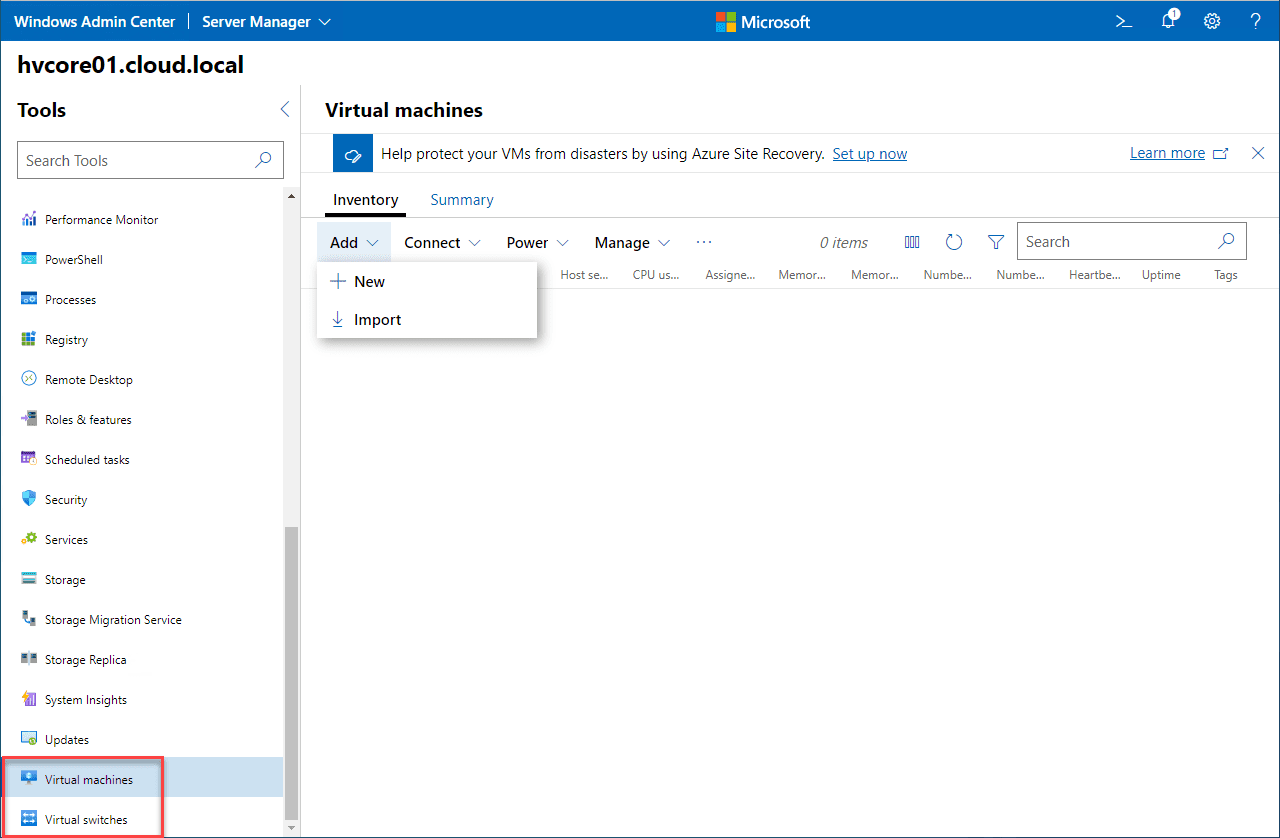
You can also manage Virtual Machines and Virtual Switches in Windows Admin Center. You can perform the following tasks, including:
- Monitor Hyper-V host resources and performance
- View virtual machine inventory
- Create a new virtual machine
- Change virtual machine settings
- Live migrate a virtual machine to another cluster node
- Advanced management and troubleshooting for a single virtual machine
- Manage a virtual machine through the Hyper-V host (VMConnect)
- Change Hyper-V host settings
- View Hyper-V event logs
- Protect virtual machines with Azure Site Recovery
Hyper-V on Windows Server Core FAQs
Can you run Hyper-V on Windows Server Core?
Yes. It is one of the popular use cases for Windows Server Core. It is preferred, even recommended running your production Hyper-V clusters on Windows Server Core due to the reduced attack surface and more streamlined resource requirements.
Can you manage Windows Server Core with traditional tools like Hyper-V Manager?
To manage Hyper-V, you can still use familiar tools like Hyper-V Manager and Failover Cluster Manager.
Can you manage Server Core with Hyper-V installed with Windows Admin Center?
Windows Admin Center is a great solution for managing your Server Core installations, including those with Hyper-V. It is a modern, web-based solution that provides all management tools in a single location. Unfortunately, it doesn’t quite have feature parity with legacy Hyper-V management tools. However, this should be coming soon.
Wrapping Up
Hyper-V on Windows Server Core is a great way to run production Hyper-V environments and offers a highly efficient, streamlined, and secure version of Windows to run your production workloads. In addition, many tools are available to manage your Server Core installations, including traditional tools like Hyper-V Manager and modern tools like Windows Admin Center.
FAQ
1. Is Windows Server Core better for Hyper-V?
Yes, Windows Server Core is preferred for Hyper-V because it reduces the attack surface, improves performance, and minimizes resource usage compared to GUI-based installations.
2. How do you manage Hyper-V without GUI?
You can manage Hyper-V on Server Core using:
- Hyper-V Manager (remote)
- Windows Admin Center
- PowerShell
- RSAT tools
3. Does Server Core support clustering for Hyper-V?
Yes, Server Core fully supports Failover Clustering, enabling high availability and live migration of virtual machines.
4. Is Windows Admin Center required for Server Core?
No, but it is recommended because it provides a centralized, web-based interface for managing Hyper-V and Server Core environments.
Follow our Twitter and Facebook feeds for new releases, updates, insightful posts and more.

