
TL;DR: Cluster Shared Volumes (CSVs) allow multiple Hyper-V hosts in a failover cluster to access shared storage simultaneously. Proper CSV configuration improves VM mobility, high availability, and storage efficiency. This guide walks IT admins through creating and validating CSVs for production-ready environments.
Introduction
Correctly configuring your Hyper-V storage is extremely important and can help or hinder performance, stability, and other factors in your Hyper-V virtualized environment. In addition, there is a particular type of storage that you want to be familiar with when running Hyper-V virtual machines. It is called Cluster Shared Volumes (CSVs). Let’s look at Hyper-V Cluster Shared Volumes for beginners and see what they are and how you use them.
What are Cluster Shared Volumes (CSVs)?
First, what are Cluster Shared Volumes? Historically, we are used to the common way of sharing storage between clusters with NTFS LUNs. If we go back to Windows Server 2008 Hyper-V, if you remember, you couldn’t store multiple virtual machines on the same storage LUN and also multiple Hyper-V hosts can’t have simultaneous access to those volumes.
It is not desirable or feasible for enterprise virtualization to run workloads in high-availability configurations. As a result, Microsoft released Cluster Shared Volumes (CSVs) in Windows Server 2008 R2 that changed how storage is provisioned in a Hyper-V cluster.
Cluster Shared Volumes allow multiple Hyper-V hosts to access the same storage simultaneously, with read-write access. In addition, it enables multiple hosts to have ownership over multiple virtual machines running on the same Hyper-V backend storage. An added benefit of Cluster Shared Volumes is they allow much quicker failover between Hyper-V hosts.
The failover process with Cluster Shared Volumes does not require transferring ownership from one host to another and the additional tasks of dismounting and remounting drives between them. As you can imagine, CSVs dramatically simplify configuring Hyper-V storage for virtual machines between multiple Hyper-V hosts. In addition, the reduced complexity of managing Hyper-V storage significantly reduces the total cost of ownership (TCO) for organizations managing Hyper-V clusters.
Cluster Shared Volume architecture and use cases
The architecture of Cluster Shared Volumes is interesting. CSV is a general-purpose clustered file system that sits above the layer of NTFS or ReFS on disk. It provides many use cases for workloads running in the enterprise. These use cases include:
- Hyper-V virtual machine storage for simultaneous access from Hyper-V hosts
- Scale-out file shares running on Scale-Out File Server configured in a clustered role in Windows Failover Cluster Services
- SQL Server Failover Cluster instances. You must be running SQL Server 2014 and higher
- Microsoft Distributed Transaction Control (MSDTC)
Cluster Shared Volumes I/O synchronization and redirection
All of the nodes in a CSV-enabled cluster take part in I/O synchronization. With I/O synchronization, all nodes can communicate directly with the underlying storage. However, a single node “owns” the physical disk resource.
The disk owner is referred to as the Coordinator node. The ownership process is handled automatically. Starting from Windows Server 2012 R2, CSV ownership is automatically balanced between the nodes in a cluster. The cluster also rebalances ownership between nodes.
The CSV changes are synchronized between the nodes in the cluster, including the coordinator node. The CSV synchronization is taken care of with a metadata exchange between the nodes using SMB 3.0.
Another characteristic you want to pay attention to with Cluster Shared Volumes is I/O redirection. The I/O redirection functionality prevents failures related to connectivity issues or other storage-level operations. For example, if connectivity from a single node is lost to the underlying CSV, the node redirects the I/O through the Coordinator node for the specific CSV.
If communication with the Coordinator node is lost, all disk I/O operations are temporarily queued until a new host is designated the Coordinator node for the CSV. There is also a configuration that you want to pay attention to related to the ReFS file system.
While ReFS provides many benefits, there is a major downside to using ReFS as the on-disk format for your CSV volumes. When the CSV disk is provisioned with ReFS, it is configured in Redirected Mode for all disk operations. With Redirected Mode enforced when using ReFS, you will see severe performance penalties running in this configuration.
Cluster Shared Volume (CSV) requirements
There are a few requirements with Cluster Shared Volumes of which to be aware. These include:
- NTFS is the recommended file format for CSV volumes, as there are severe performance penalties with ReFS
- A CSV volume cannot serve as a quorum drive
- After adding a CSV, it is designated in the CSVFS format
- You cannot use a disk for a CSV volume that has been formatted with FAT or FAT32
- Each path of the CSV volume appears to be on the system drive of the node under the \ClusterStorage folder
Creating a Cluster Shared Volume (CSV)
Creating a new Cluster Shared Volume is very straightforward in Windows Server Failover Cluster. There are only a few steps involved. In the walkthrough below, I have created a simple two-node Windows Server Failover Cluster with two shared disks provisioned.
After creating the cluster, I ran through the Add Disks to Cluster wizard and added the second disk as cluster storage.
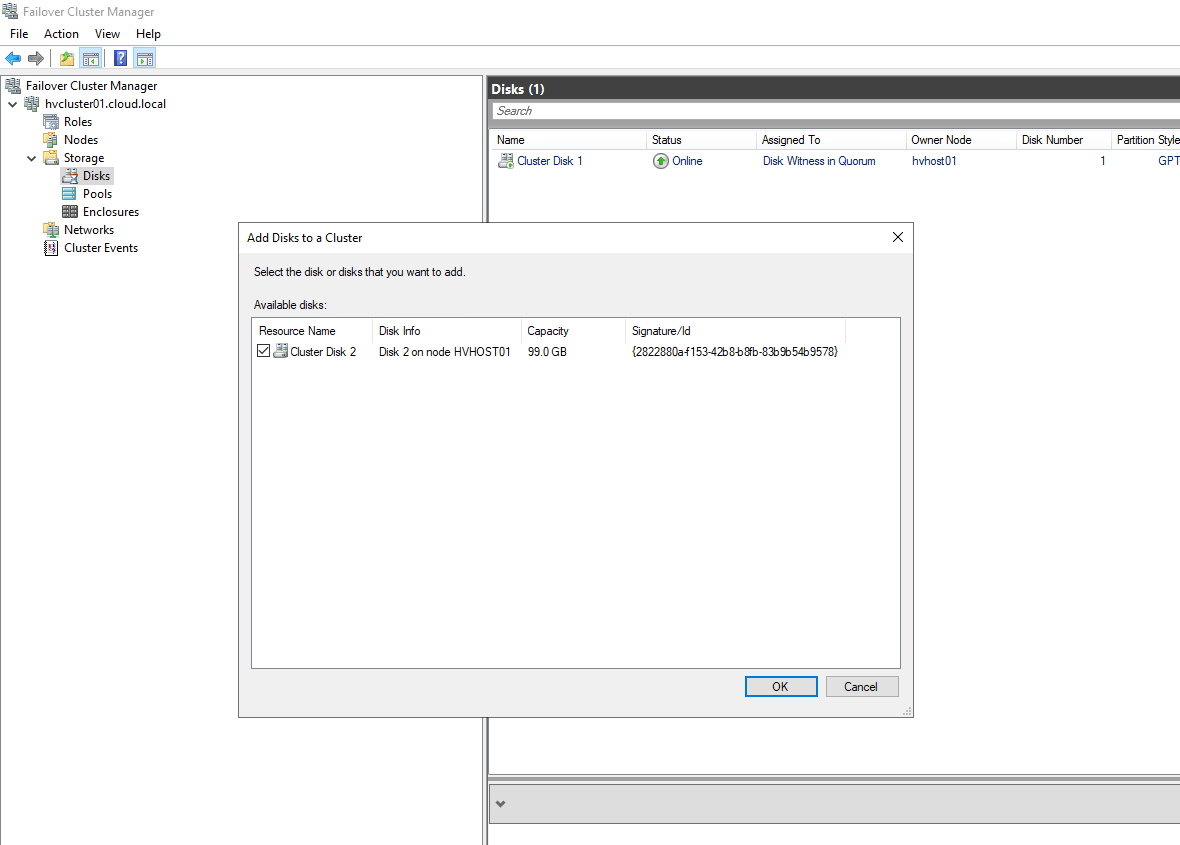
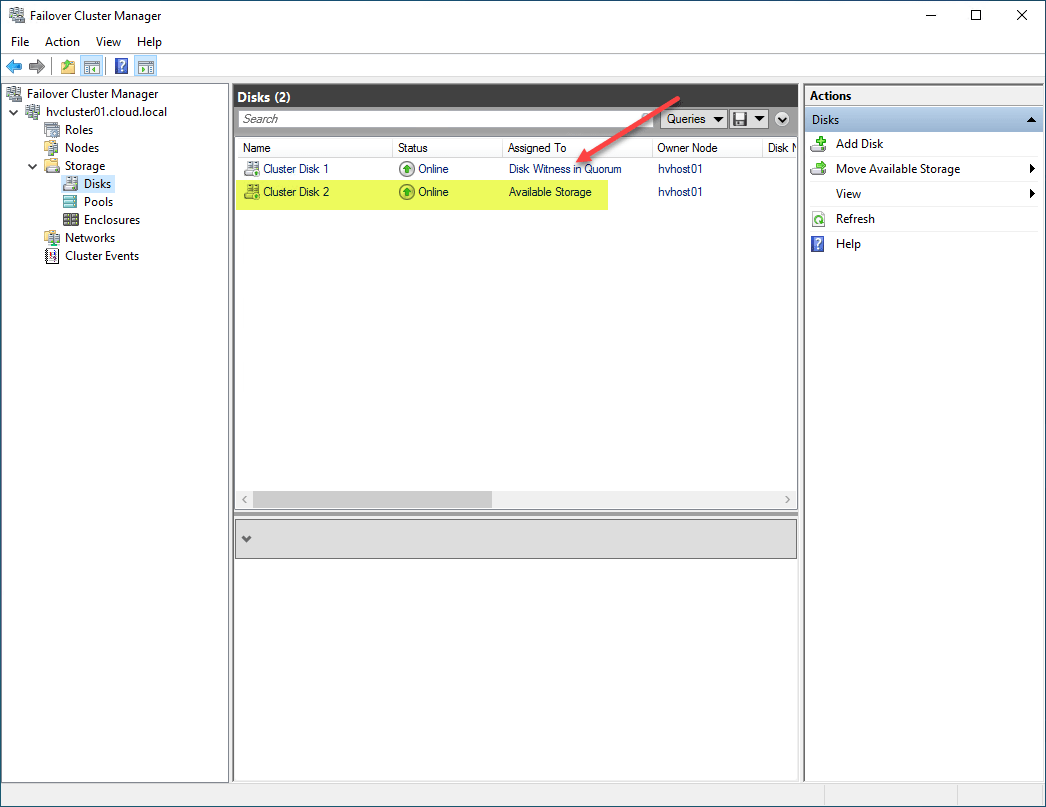
The storage is listed as Available storage. However, as mentioned earlier, you can’t use the disk witness (quorum disk) as a CSV.
After adding the new cluster storage, right-click the disk and select Add to Cluster Shared Volumes.
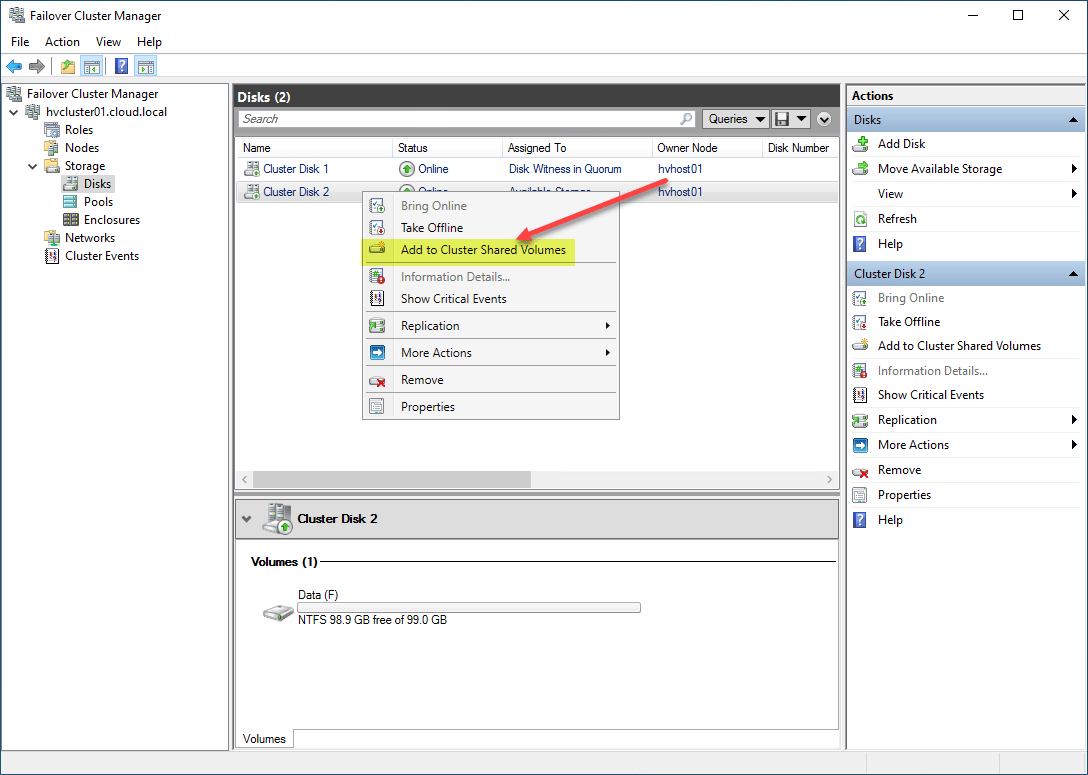
After adding the disk to cluster shared volumes, the disk will be listed under the Assigned To column as Cluster Shared Volume. It means the disk is now designated as a Cluster Shared Volume.
FAQs
1. What is a Cluster Shared Volume (CSV) in Hyper-V?
A Cluster Shared Volume (CSV) is a shared storage feature used in Windows Failover Clustering that allows multiple Hyper-V nodes to access the same NTFS or ReFS volume simultaneously. It enables live migration and high availability for virtual machines. CSV simplifies storage management in clustered environments.
2. How do you create a Cluster Shared Volume in Hyper-V?
First, configure shared storage accessible to all cluster nodes. In Failover Cluster Manager, add the disk to the cluster and then enable it as a Cluster Shared Volume. The volume will appear under C:\ClusterStorage\ on each node.
3. What storage types are supported for CSV?
Cluster Shared Volumes (CSV) support shared block-level storage presented to all cluster nodes, including:
- iSCSI
- Fibre Channel
- SAS
- Storage Spaces Direct (S2D)
The storage must be visible to all cluster nodes and successfully validated using the Cluster Validation wizard.
Proper multipathing and redundancy are recommended for production use.
4. Why are Cluster Shared Volumes important for high availability?
CSVs allow virtual machines to move between nodes without losing access to storage. This enables live migration, failover protection, and load balancing across cluster hosts. Without CSV, only one node could access a disk at a time.
5. What are common issues when configuring CSVs?
Common problems include incorrect disk formatting, lack of shared storage visibility, networking misconfiguration, and storage latency. Running cluster validation tests before production deployment reduces these risks. Monitoring storage performance helps maintain stability.
Wrapping up
Cluster Shared Volumes (CSVs) are a great way to provision storage for Hyper-V virtual machine workloads and offer many benefits. However, there are caveats to using CSVs that admins need to be aware of that can affect usability and performance. Understanding the basics of CSV storage allows Hyper-V beginners to use this new storage type effectively and understand its limitations.

