
TL;DR
Windows Server Core is Microsoft’s GUI-free version of Windows Server, and it can be managed with five main tools: Remote PowerShell, Sconfig, Server Manager, RSAT, and Windows Admin Center.
- Server Core cuts space requirements by roughly 50% compared to a full GUI install and is the default option in Windows Server 2019 setup.
- Remote PowerShell handles automation at scale; Sconfig and Server Manager are legacy but still viable; Windows Admin Center is Microsoft’s current direction.
- You cannot switch between Server Core and Desktop Experience after install on Windows Server 2016 and later, so the choice has to be made upfront.
- Not every Windows Server role is supported on Core, so role compatibility should be checked before committing.
The trend for both on-premises housed servers, as well as those servers in the public cloud, is leaner, is better and automation is king. This is driving servers that are “headless” or GUI-less and using configuration management tools and other automation tools to interact with and configure these server resources.
Since Windows Server 2008, Microsoft has had the Server Core version of the Windows Server operating system that could be installed rather than the full GUI enabled traditional Windows Server environment. Server Core has many advantages from a security and footprint standpoint that make it a great choice for “cattle” type servers that are part of today’s immutable infrastructure.
In this post, we will take a look at:
- Benefits of Windows Server Core
- How to manage Windows Server Core
- Install considerations for using Windows Server 2019
Windows Server Core Benefits
The “pets vs cattle” debate has been won by the “cattle” and immutable infrastructure is the way of the future. For agile, fast-paced infrastructure needs both on-premises and in the cloud, servers treated as “pets” that are cared for, updated, massaged to continue working, are no longer viable.
Immutable infrastructure dictates that a server will only exist in its current form. If there is a new software update or component required, a new server will be built to take its place. This allows for a more consistent and reliable approach to infrastructure. It leads to a more predictable and stable environment with fewer issues coming from the unknowns and artifacts left over from a previous software installation on the same server.
Since Windows Server Core does not run the classic GUI frontend for Windows Server, it is a much smaller footprint and contains much less complexity than the GUI-enabled Windows Server counterparts. This lends itself very well to automation and scalability when thinking about rolling out Windows Server deployments in mass. Mass automation is only possible by having a standardized configuration. This is how public cloud infrastructure is possible and so powerful.
Server Core lends itself to this type of operational model due to its smaller footprint including reduced hard drive space, memory consumption, and increased security posture. In fact, comparing a full installation of Windows Server with the GUI installation to a Server Core installation, organizations will see roughly a 50% reduction in space requirements.
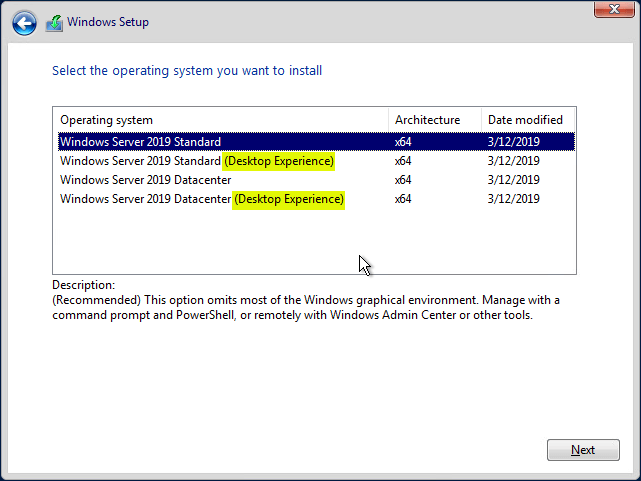
Windows Server Core installation is actually the default installation type when performing a new Windows Server 2019 installation. As you notice, if you simply “click” through the installation of Windows Server, Windows Server 2019 Standard operating system (non-GUI) is selected as default. The GUI-enabled variants are highlighted in the Windows Setup screen below.
Once organizations get on board with Windows Server Core, it has many tremendous benefits.
However, its slow adoption can be attributed to factors including the lack of comfort from an administrative standpoint in managing Windows Server Core installations. This can easily be overcome by administrators understanding and getting used to the available Server Core management tools.
Windows Server Core Management
Becoming accustomed to the management with Windows Server Core is key to successfully utilizing this powerful variant of Windows for immutable infrastructure, scripting, automation, etc. This has been the major deterrent among administrators who are used to managing Windows using the traditional Windows Server GUI. There are many tools and utilities that can be used to successfully manage and maintain Windows Server Core.
Let’s take a look at the following tools:
- Remote PowerShell
- Sconfig
- Server Manager
- Remote Server Administration Tools (RSAT)
- Windows Admin Center
Let’s briefly look at the capabilities of each management tool and how it can be utilized.
| Tool | Interface | Status per article | Primary use noted in article |
|---|---|---|---|
| Remote PowerShell |
Command line | Current, primary automation framework |
Automates anything doable in the GUI; scales to dozens or hundreds of servers |
| Sconfig | Command line | Legacy, since Windows Server 2008 |
Still present in 2019 but no longer launches by default; viable “for now” |
| Server Manager |
GUI (from another machine) |
Legacy, being succeeded by Windows Admin Center |
Manage roles and features on an added Core server; launched via servermanager.exe |
| RSAT | GUI (installed on a client workstation) |
Current, supporting toolkit |
Not a provisioning tool; provides the console suite (including Server Manager) for managing local and remote servers |
| Windows Admin Center |
Web-based | Current, Microsoft’s stated “way forward” |
Extensible management for Server Core and Windows HCI; accessible via Gateway Mode; includes in-browser PowerShell |
Managing Server Core with Remote PowerShell
PowerShell is the framework for automating Microsoft Windows Server. Basically, anything you can do in the Windows GUI, you can do with Windows PowerShell. It allows effectively automating Windows Server functions so tasks and provisioning can be performed at scale when dozens or even hundreds of servers need to be configured or provisioned.
With Windows Server 2019, upon first boot, you will be prompted to change your password of the local Administrator account. Unlike previous Windows Server Core releases, the default Sconfig application does not run (more on this utility later).
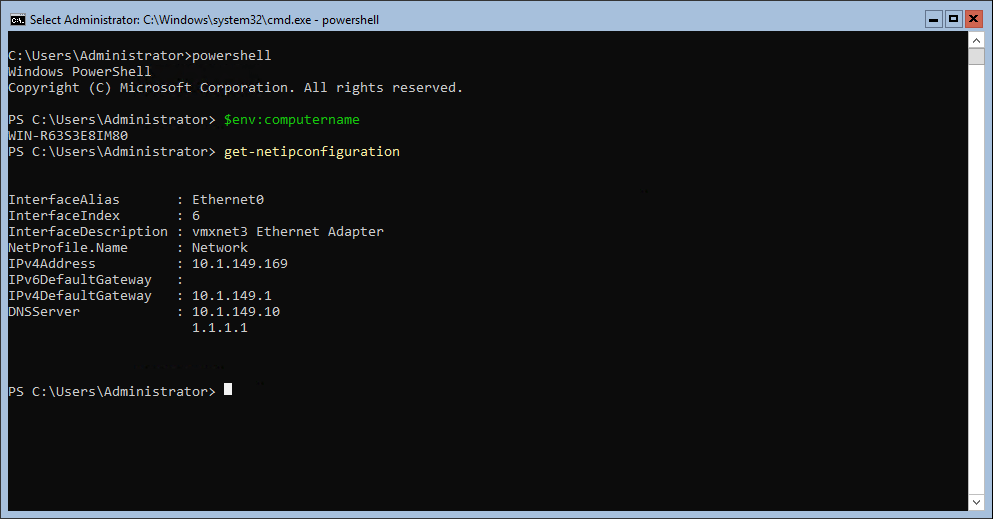
Using the Get-NetIPConfiguration cmdlet to get the current IP address information.
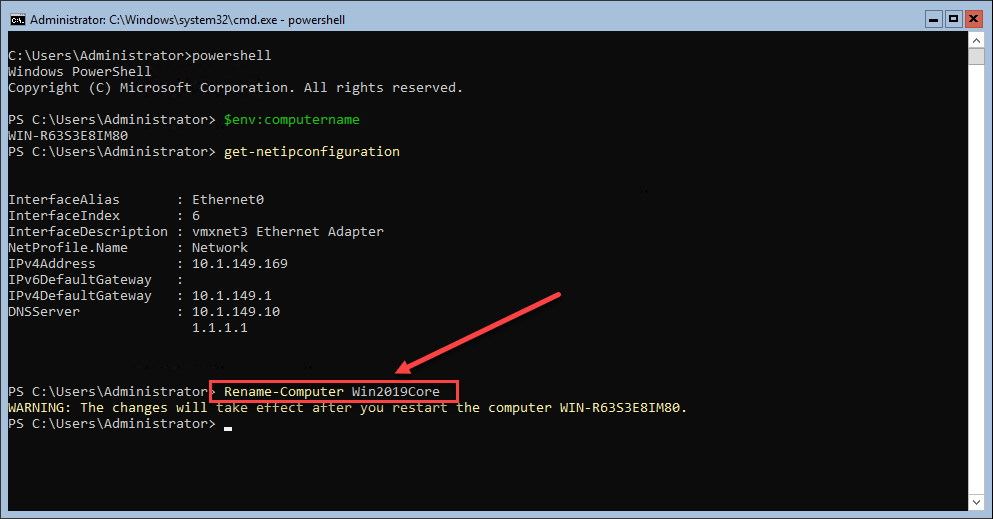
Just a quick example of having no GUI to work with and effectively renaming your Windows Server 2019 Core server with the Rename-Computer cmdlet.
The sky is the limit with PowerShell and using it for automating any of the configuration and deployment processes with Windows Server Core.
Sconfig
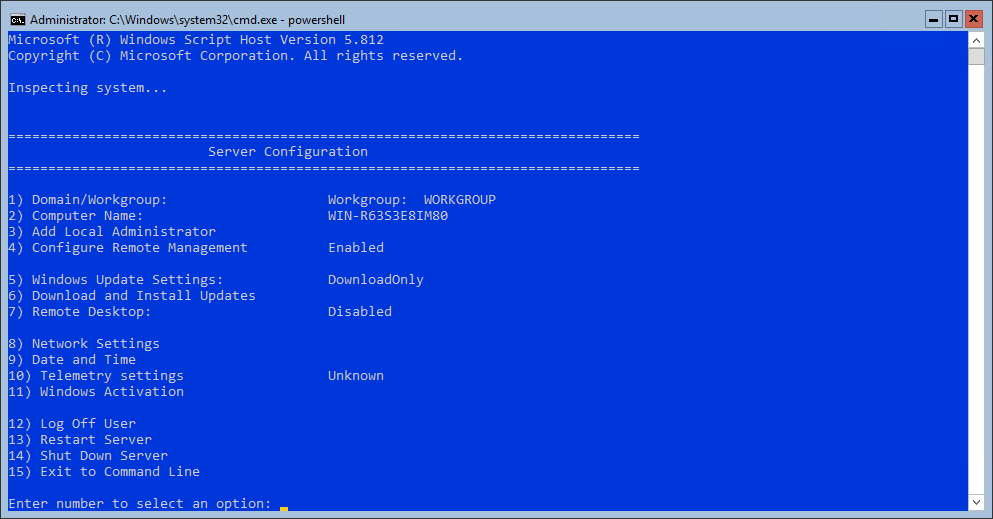
The Sconfig utility is the legacy utility for managing Windows Server Core installations since the very beginning with Windows Server 2008. Sconfig is still present in Windows Server 2019 Core installations, however, it is no longer launched by default which may indicate Microsoft’s thinking on the future of the utility. It is still viable as a tool for use for now.
To launch the Sconfig utility, simply type “sconfig” from the command line or PowerShell.
Managing Server Core with Server Manager
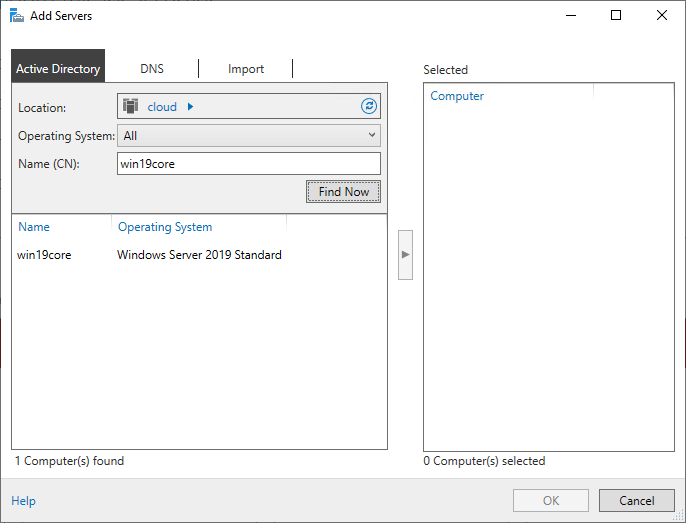
Like the Sconfig utility, Server Manager is more of a legacy utility for managing servers now with the introduction of the Windows Admin Center. However, it is still a very viable solution for managing Windows Server Core installations. Simply add the Core Server via the Server Manager. With Server Manager, you can manage many aspects of the Windows Server Core installation, including installation and removal of Roles & Features. To get to the Server Manager utility, you can type servermanager.exe from a run or cmd window.
Managing Server Core with Remote Server Administration Tools (RSAT)
The Remote Server Administration Tools or RSAT allows installing the Windows Server management tools on a client workstation that can then be used to manage both local and remote servers. RSAT is not a provisioning utility, but rather is the collection of server management consoles including Server Manager that you are used to when logging into a GUI enabled server. The RSAT suite of consoles is readily available for download from Microsoft, depending on the version of Window 10 you are running, etc.
Managing Server Core with Windows Admin Center
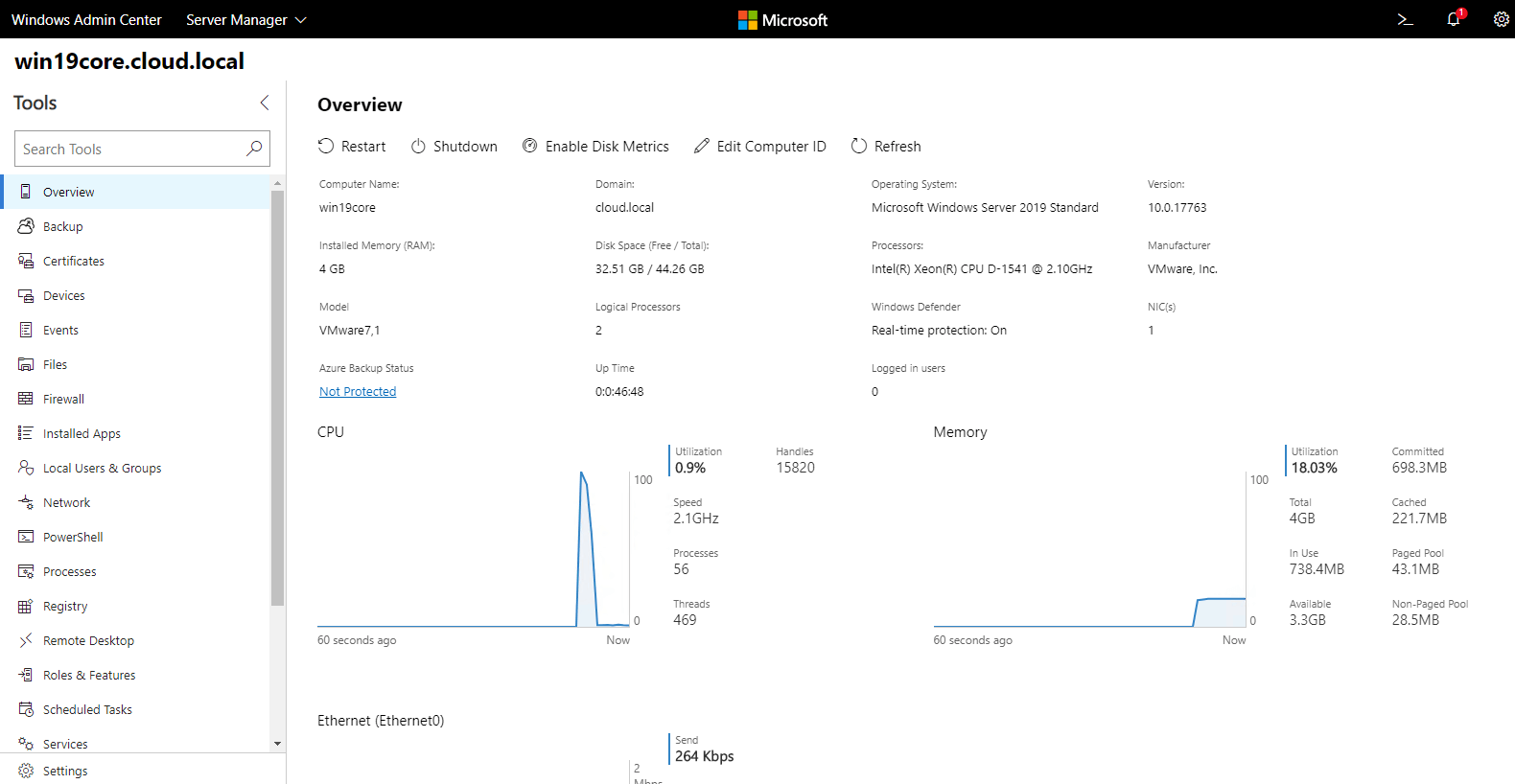
Windows Admin Center is the big news among managing Windows Server operating systems recently. Microsoft has engineered the new Windows Admin Center as the way forward for managing its Windows Server OS’es including Server Core.
Windows Admin Center is a web-based modern Windows Server management platform that is extensible and able to manage not only Windows Server and Server Core, but also Windows HCI solutions like Storage Spaces Direct.
The Windows Admin Center or WAC provides everything at your “fingertips” for management and administration with the ability to perform many of the common types of administration tasks right from the WAC console. You can also interact with PowerShell right from within WAC.
Due to its web interface interaction, WAC can be pulled up remotely via the Gateway Mode which is the default installation on Windows Server operating systems.
Windows Server Core Install Considerations
In Windows Server 2019, the installation of Server Core needs to be determined ahead of time and administrators must make sure of either a GUI or Server Core installation. Starting with Windows Server 2016 and higher, you can no longer change between Server Core and the Desktop version of Windows Server, so there is much more finality in making that decision during the installation phase. This is certainly a consideration for installing Windows Server Core.
Additionally, becoming familiar with the management tools ahead of time is a great way for organizations to successfully utilize Windows Server core installations both on-premises and in the public cloud.
Also, can Server Core be used for anything? Not necessarily. The list of supporting roles for Server Core contains the following:
- Active Directory Certificate Services
- Active Directory Domain Services
- Active Directory Federation Services
- Active Directory Lightweight Directory Services
- Active Directory Rights Management Services
- Device Health Attestation
- DHCP Server
- DNS Server
- File Services
- Host Guardian Service
- Hyper-V
- Print and Document Services
- Remote Access
- Volume Activation Services
- Web Server (IIS)
- Windows Server Update Services
As an example, the following roles and role services are not in Windows Server Core:
- Fax
- MultiPointServerRole
- NPAS
- WDS
Role Services not in Server Core
- Print-Scan-Server
- Print-Internet
- RDS-Gateway
- RDS-RD-Server
- RDS-Web-Access
- Web-Mgmt-Console
- Web-Lgcy-Mgmt-Console
- WDS-Deployment
- WDS-Transport (before Windows Server version 1803)
Determining if the service is available and supported for use with Server Core may determine whether it is an option for a certain use case.
FAQ
What is Windows Server Core?
Windows Server Core is a version of the Windows Server operating system that runs without the traditional GUI. It has been available since Windows Server 2008 and offers a smaller footprint with a better security posture than the full GUI-enabled edition.
What tools can be used to manage Windows Server Core?
Windows Server Core can be managed with Remote PowerShell, the Sconfig utility, Server Manager, Remote Server Administration Tools (RSAT), and Windows Admin Center. Each offers a different balance of automation, familiarity, and remote access.
How much disk space does Windows Server Core save compared to the GUI version?
Organizations typically see roughly a 50% reduction in space requirements when comparing a full GUI installation of Windows Server to a Server Core installation.
Is Windows Server Core the default installation option?
Yes. In a new Windows Server 2019 installation, Server Core (the non-GUI Windows Server 2019 Standard option) is selected by default if you click through setup without changing it.
Can you switch a server from Server Core to Desktop Experience after installation?
No, not starting with Windows Server 2016 and later. The choice between Server Core and the Desktop version must be made during installation and cannot be changed afterward.
Is Sconfig still available in Windows Server 2019?
Yes, Sconfig is still present in Windows Server 2019 Core installations, though it no longer launches automatically on first boot the way it did in earlier releases.
What is Windows Admin Center, and how does it differ from older tools?
Windows Admin Center is a web-based, extensible management platform that Microsoft has positioned as the way forward for managing Windows Server, including Server Core, replacing older tools like Server Manager and Sconfig for many tasks.
Are all Windows Server roles supported on Server Core?
No. Roles such as Fax, MultiPointServerRole, NPAS, and WDS, along with several role services like RDS-Gateway and RDS-Web-Access, are not available on Server Core. Role compatibility should be checked before choosing Core for a given use case.
Concluding Thoughts
Windows Server Core is a powerful, lightweight, and capable version of Windows that is well-suited both on-premises and in the cloud.
It allows more easily implementing automated solutions at scale and achieving the goal of immutable infrastructure. Managing and maintaining Server Core installations requires familiarity with the tools used to do so.
As shown in the post, there are many utilities and tools that can be utilized to successfully manage the “headless” Server Core installation of Windows Server. It is much more important with the latest Windows Server versions to make the correct decision on Server Core vs. Desktop edition as this can no longer be changed. Additionally, not every role is included or supported in Server Core installations.
Related Posts
Beginners Guide for Microsoft Hyper-V: How to Install Microsoft Hyper-V in Windows Server Core – Part 4
How to manage Hyper-V Server Core with Sconfig
How to Install and Configure Hyper-V Core 2019
Follow our Twitter and Facebook feeds for new releases, updates, insightful posts and more.

