
TL;DR
Windows Server Backup is a free, installable Windows Server feature for scheduling or running ad hoc backups, but it has real gaps in virtualized environments that MSPs should know before relying on it.
- Install it through Server Manager’s Add Roles and Features wizard, then configure schedules with wbadmin.msc
- It can back up and restore individual Hyper-V VMs (since Windows Server 2012), but only with full restores, and it does not support VMware
- Network-share destinations retain only the most recent backup; each run overwrites the last
- VSS options are basic, with no granular VSS settings, credentials, or log truncation controls
- BDRShield offers a free alternative with agentless backups across VMware, Hyper-V, and Windows Server, unlimited backups, and file-level recovery
Performing a backup of Windows Server is an essential part of day to day Windows Server management. Backups allow you to recover from disaster scenarios where data is lost. This could be a result of any number of events such as accidental or intentional file deletion, ransomware, or physical server hardware failure resulting in data corruption. Whatever the case, your data is the most important component in your infrastructure.
Microsoft has included Windows Server Backup as an installable feature in Windows Server for quite some time now. Even in Windows Server 2019, this feature is still available for installation.
In this post, we will take a look at Windows Server Backup Installation Features and Limitations to see how you can use Windows Server Backup to backup a Windows Server. We will then look at a more powerful solution to backup Windows Server for free.
Installing Windows Server Backup
How do you “install” Windows Server Backup in Windows Server 2019?
Windows Server Backup is a feature that is installable in Windows. Launch the Add Roles and Features Wizard in Server Manager, “next” to the Features section and choose Windows Server Backup. Click Next.


Feature installation is successful. Click Close.

Now, the Windows Server Backup feature is installed. We can start performing ad-hoc backups or create scheduled backups.
Launch the Windows Server Backup utility by typing wbadmin.msc in a run or search menu.

Let’s schedule a backup of Windows Server 2019.

Select the backup configuration of the Windows Server. The options are:
- Full server – backup all server data, applications, and system state
- Custom – You want to choose to backup custom volumes or files for backup

A note here, if you do select the Custom option, you can also specify VSS options. You can select either VSS full backup or VSS copy Backup options using the Custom option.

On the Specify Backup Time screen, you choose how often and when you want to run the backup.

I don’t really like the description of the next screen of the wizard. Instead of Destination Type this should be Destination Location or something similar. On this screen, you are specifying the target for the backup files. Here, I am selecting the Back up to a shared network folder.

A warning or notice appears when you select “Back up to a shared network folder”. The warning states that when you use a remote shared folder, each backup run will erase the previous backup, and only the latest backup will be available.

Specify the remote shared folder via a UNC path for storing the backup file.

You will be prompted to enter credentials to schedule the backup and register the schedule in Windows Server.

Confirm the Backup Schedule.

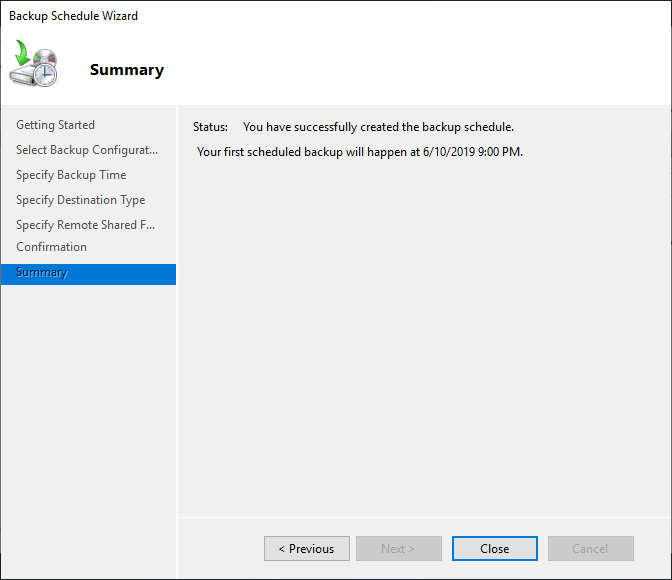
On the Summary screen, click Close.
| Attribute | Windows Server Backup | BDRShield |
|---|---|---|
| Supported platforms | Hyper-V VMs only (as of Windows Server 2012); no VMware support | VMware, Hyper-V, and Windows Server |
| VM restore granularity | Full restores only | Instant file-level recovery and quick VM recovery |
| Network-share retention | Only the latest backup is retained; each run erases the previous one | Unlimited backups |
| Licensing | Built into Windows Server at no extra cost | Free Edition (unlimited VMs with limited features, or up to 3 VMs with standard features), or paid Standard/Enterprise |
Windows Server Backup Limitation to Consider
While the Windows Server Backup is a good basic option when compared to no backups at all, it falls very short when thinking about today’s highly virtualized environments.
If you are running Windows Server Backup in a Windows Server that is virtualized, it is totally unaware of the VM that it is running inside of. This means, your VM hardware settings, configuration, and all other virtual hardware specific settings will not be captured inside the backup.
There were improvements introduced in Windows Server 2012 that now allows Windows Server Backup to backup or restore an individual VM from a Hyper-V host, as VMs will be backed up or restored as part of a full server or Hyper-V host volume backup. In Windows Server 2012, Hyper-V is treated as an application that can be backed up and restored. This allows individual virtual machines to be backed up and restored. However, the backup and restore options are fairly basic with only full restores being possible and only with Hyper-V and not VMware or another hypervisor.
This can be a critical detail as you would have to manually create and remember all the VM specific settings configured on the virtual machine in the case of a VMware virtual machine being protected with WSB. In a disaster scenario, the last thing you want to be doing is trying to remember the settings configured on a VM just to recreate it, restore the data, and bring the VM back up to a functioning state.
Additionally, as shown in the screenshot, there are limitations when it comes to storing backups in a network location when it comes to Windows Server Backup. You can only store one backup which is not going to be ideal for most environments. Additionally, even though you have VSS options, these are basic and you don’t have the ability to configure granular VSS settings, usernames passwords, etc. There are no log truncation options among others.
Is there a better free option, especially for those who are running inside of virtual environments as well as more powerful options for Windows Server backups?
BDRShield – Free VMware, Hyper-V, and Windows Server Backups
While Windows Server Backup is a viable backup solution, it is not the most powerful free backup solution that can be utilized.
BDRShield provides Free VMware, Hyper-V, and Windows Server backups that allow having unlimited backups with enterprise backup features. Features include:
- Agentless backups
- Application-aware image backups
- Flexible Scheduling & Retention Policies
- Cross-Platform migration capabilities
- Quick VM Recovery
- Instant File-Level Recovery
- Application item restore via Vembu Universal Explorer
- Scale-out backup repositories
- Many other options
How Does BDRShield Free Licensing Work?
BDRShield can be installed as a 30-day fully-featured trial, with no restrictions on functionality.
After the trial period, you can license BDRShield in Standard or Enterprise Edition, or you can choose to continue running the software as a Free Edition. Check out BDRShield Free vs Paid Edition comparison here.
BDRShield Free Edition suits for both Virtual & Physical environment.
- For Virtual environment there are two options:
- Backup unlimited number of VMs with limited features
- Backup limited number of VMs (upto 3) with standard edition features
- For Physical environment – Backup any number of Windows Servers/Workstations
With Vembu Free Backup Solutions, you get a solution that trounces on the built-in Windows Server Backup solution with many more features and capabilities included for free.
To understand how BDRShield can help you achieve your data protection goals, talk to our experts. Click here to schedule your session.
Experience modern data protection with this latest BDRShield Start your 30-day FREE TRIAL Now !
FAQ
1) How do you install Windows Server Backup in Windows Server 2019?
Open Server Manager, launch the Add Roles and Features Wizard, and select Windows Server Backup under the Features section. Click through the wizard and confirm the installation. Once installed, you can run ad hoc backups or schedule recurring ones using the wbadmin.msc utility.
2) Can Windows Server Backup back up Hyper-V virtual machines?
Yes. Starting with Windows Server 2012, Hyper-V is treated as an application that Windows Server Backup can back up and restore, so individual VMs can be protected as part of a full server or host volume backup. The catch is that only full restores are supported, with no granular recovery options.
3) Does Windows Server Backup support VMware virtual machines?
No. Windows Server Backup’s VM-aware backup and restore capability only works with Hyper-V. For a VMware VM protected this way, you would need to manually recreate the VM’s settings before restoring the data, since none of the virtual hardware configuration is captured.
4) Can Windows Server Backup store more than one backup on a network share?
No. When you choose “back up to a shared network folder” as the destination, Windows Server Backup warns that each new backup run erases the previous one, leaving only the latest backup available at that location.
5) What are the main limitations of Windows Server Backup in virtualized environments?
If Windows Server Backup runs inside a virtualized server, it has no awareness of the VM it’s running in, so VM hardware settings and other virtualization-specific configuration are not captured in the backup. Restore options are also limited to full restores, and VSS configuration is basic with no granular controls.
6) Is there a free alternative to Windows Server Backup with more features?
Yes. BDRShield offers free VMware, Hyper-V, and Windows Server backups with agentless backups, application-aware image backups, flexible scheduling and retention, quick VM recovery, and instant file-level recovery, along with unlimited backups.
7) How does BDRShield’s free licensing work?
BDRShield starts as a 30-day fully featured trial with no functionality restrictions. After the trial, you can choose to have Enterprise Edition, or continue on the Free Edition.
8) What VSS options does Windows Server Backup support?
When using the Custom backup configuration, Windows Server Backup lets you choose either a VSS Full Backup or a VSS Copy Backup. Beyond this choice, VSS configuration is limited, with no granular control over application-specific VSS behavior or backup options.
Related Posts:
How BDRShield could be an Effective Alternative to Native Windows Server Backup
Follow our Twitter and Facebook feeds for new releases, updates, insightful posts and more.

